
What You Will Find Here
Who Can Access?
Any user with permission to create or edit Multiple Compare Table Charts can use this feature.
How to Access
-
Click Reporting in the main navigation menu.
-
Select an existing report or click to create a new report.
-
Select Table Chart from the component options or edit your existing chart.
-
Choose the Multiple Compare Table Chart.
-
Click the Theme tab in the settings panel.
What You Can Do Here
Enable Column View Mode
.png?width=670&height=434&name=image%20(82).png)
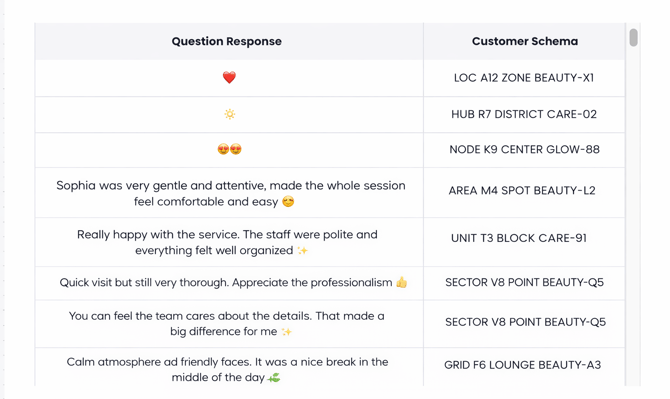
This action changes the chart layout from a coordinate-based axis to a vertical list. This view helps you organize feedback into distinct columns for easier reading.
-
Open the settings for your Multiple Compare Table Chart.
-
Go to the Theme tab.
-
Find the Table Settings section.
-
Click the Column View toggle to set it to ON. The chart updates immediately. It removes the X/Y axis and displays your comparison data in side-by-side columns.
-
Notes: If a field contains multiple values, the system lists them in the cell separated by commas.
Switch Between View Modes
You can switch between the default layout and the list layout at any time. This allows you to choose the best visualization for your current data analysis needs.
-
Locate the Column View toggle in the Theme tab.
-
Click the toggle to switch between ON and OFF. When the toggle is OFF, the chart returns to the classic X/Y axis view. All compare fields become available again. When the toggle is ON, the chart uses the columnar layout and limits selection to supported fields.
-
Notes: Use the classic view for broad visual analysis. Use the Column View for structured data exports or detailed comment reviews.
Limits / Notes
-
Data Structure: The Column View creates a columnar format that functions like a spreadsheet.
-
Compare Fields: You can only use Question Response, Unit, Tag, and Customer Schema compare fields in this mode.
-
Axis Change: You cannot use the standard X/Y axis while Column View is active. The system disables axis settings automatically.
FAQs
Why are some of my compare fields missing when Column View is ON?
Column View is built for specific Compare Fields. It only supports Question Response, Unit, Tag, and Customer Schema. This restriction keeps the list structure organized and readable.
How does the table display multiple entries in one column?
If a field has several data points, such as multiple tags, the system groups them. It places them in the same cell and separates them with commas.
Is Column View the default setting for new charts?
No. The Classic View is the default setting. You must manually enable Column View in the Theme settings for every chart where you want to use it.