
What You Will Find Here
- How to create a new report.
- How to add and configure data charts and themes.
- How to add professional branding to a report.
- How to organize reports within a hierarchy.
Who Can Access?
Users with "Create Report" permissions can access this feature. By default, any report you create is private. Other users cannot see it until you grant them access through the permission settings.
How to Access
-
Click Reports in the main navigation menu.
-
Click the Add button.
-
The system opens the New Report Configuration page.
What You Can Do?
Add New Report
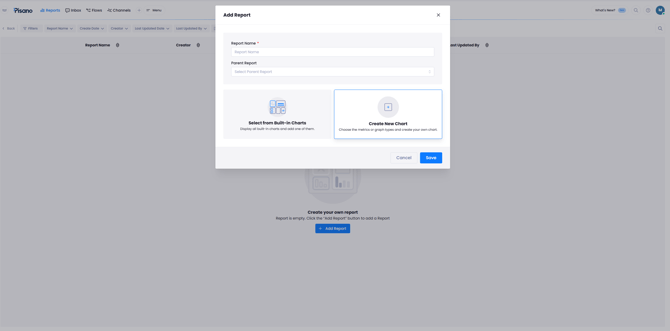
This action creates a new entry for your data. It provides the foundation for your custom dashboard.
-
Click the Add button in the Reports section.
-
Define the report name and basic settings.
-
Click Save to initialize the report.
The system creates a new report and adds it to your report list.
Notes / Tips / Warnings
-
New reports are only visible to the creator.
-
You must update permissions if you want to share the report with other users.
- You can print your reports or export them as PDF files using the buttons located in the upper right corner of the report dashboard.
Add and Configure Charts
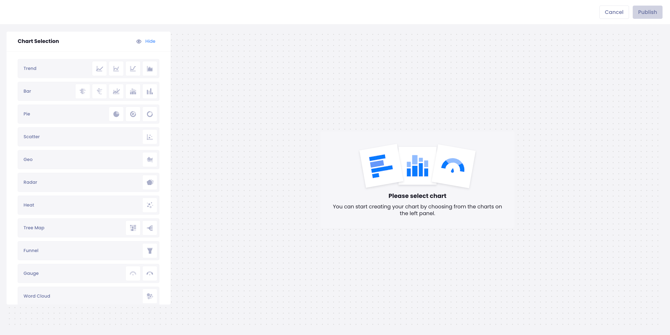
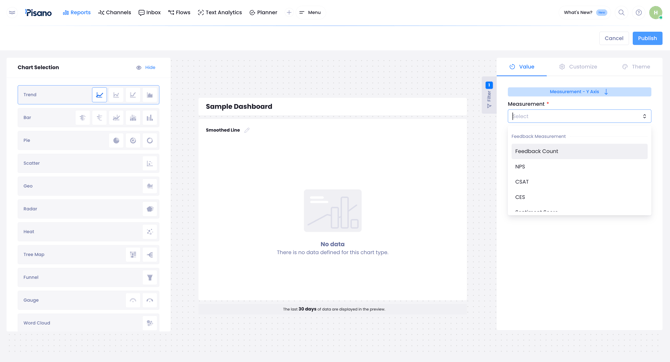
You can add specific data visualizations among various types of charts to your report. You can customize the measurement types and visual themes to suit your requirements.
-
Click the Add button inside the report.
-
Select a chart type from the available options.
-
Set chart configurations, including Measurement type, Compare by, and Flows to be used.
-
Select a visual theme and any additional customization options.
The report displays the selected charts based on your configurations and themes.
Notes / Tips / Warnings
-
After you add charts, you can filter the entire report dashboard by Date, Channel, Unit, or Tag.
-
You do not need to create a new report to change the data visualizations.
Customize Report Header
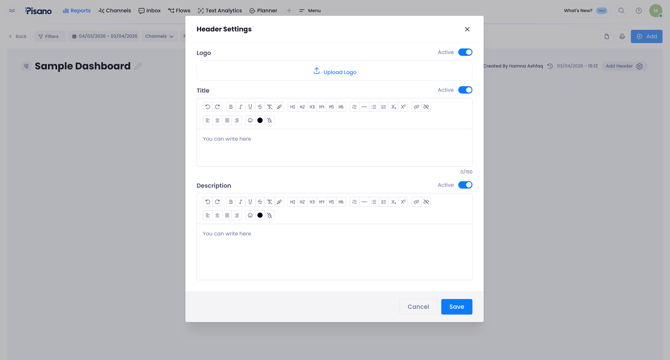
This action allows you to add professional branding to your reports. You can include visual elements and descriptive text to clarify the purpose of the data.
-
Click Add Header within the report configuration.
-
Upload a logo.
-
Enter a title and a description.
-
Save your changes.
The report displays the uploaded logo, title, and description at the top of the page.
Manage Report Hierarchy
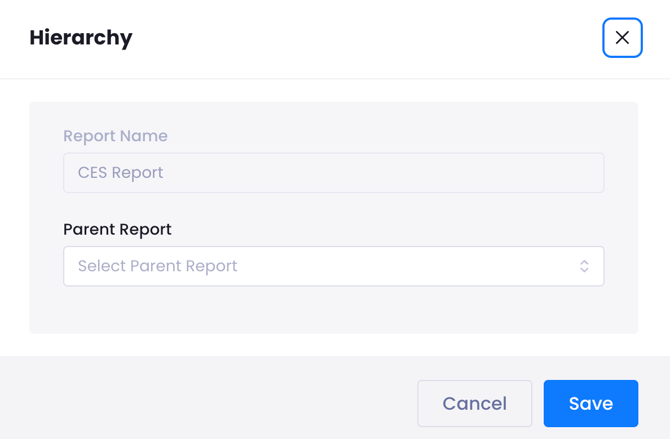
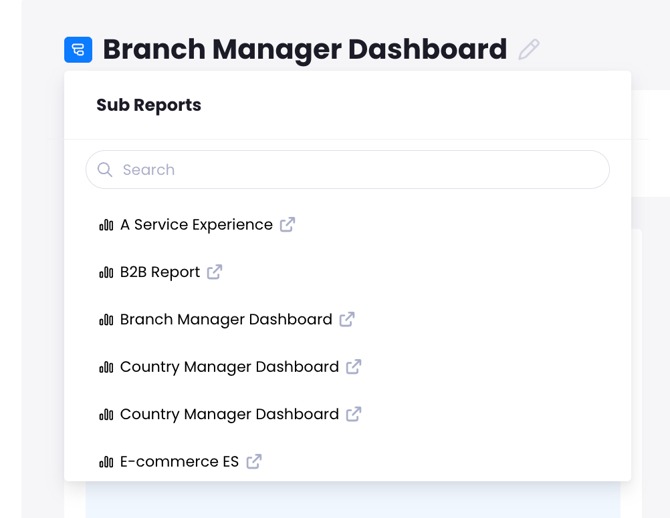
This action allows you to organize your reports by nesting them. You can set a new report as a parent or place it under an existing report to maintain a clear structure.
-
Locate the hierarchy settings in the report configuration.
-
Select a parent report to nest your current report under.
-
Alternatively, designate the current report as a parent for others.
-
Save the structural changes.
The report is organized within the system structure according to your selection.
Limits and Notes
-
Chart Compatibility: Data types must match the chart style. For example, you cannot use numeric values like NPS or feedback counts for Funnel charts.
FAQs
Can other users see the report I just added? No. Reports are private by default. You must use the permission settings to grant access to other team members.
Do I need to create a new report to see a different chart? No. You can add or remove charts within an existing report. This allows you to update your view without creating a separate report.
Can I change the order of my reports? Yes. You can manage the report hierarchy. This setting allows you to organize how reports are nested and displayed in your list.
📖 Related Articles from Pisano Academy
-How to Manage User Permissions Securely in Customer Experience Platforms