
You can follow the steps on these interactive videos to have better understanding:
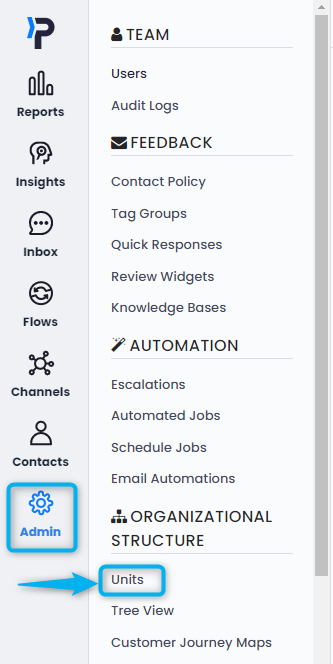
In case you need to create a customized unit type for your new unit. You can do it by clicking on the ''Click here to create a new unit with a custom type'' buton, on the bottom of the page.
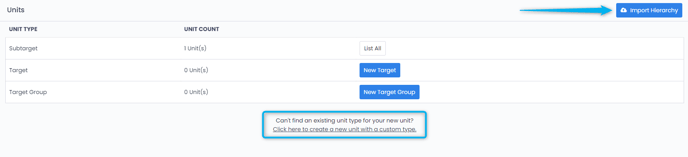 After clicking on this button, you will be adding both the new unit type and the first unit name at the same time. In the ''Basic Information'' tab, fill in the Type with the custom unit type you want to create and the ''Name'' with the Unit name.
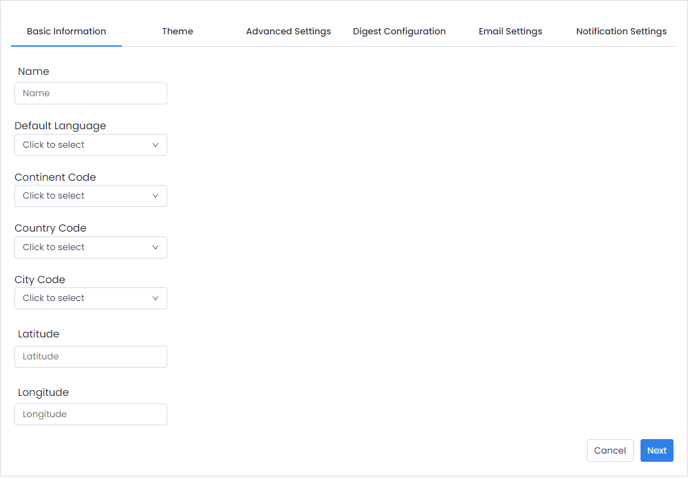
Settings such as Default language, default country code or logo can be set up while creating the Channels.
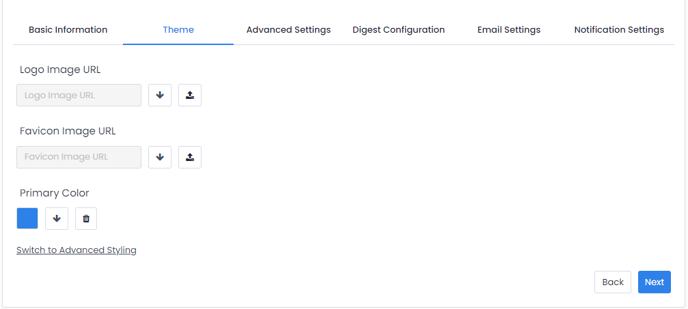
It is recommended to set up those settings at the level of the channel to benefit from the customization Pisano offers for every new channel you will be using.
In the ''Advanced Settings'' tab, select the parent channel. For the first level unit, you should select the company account name as Parent Channel at the uppermost level of the hierarchy.
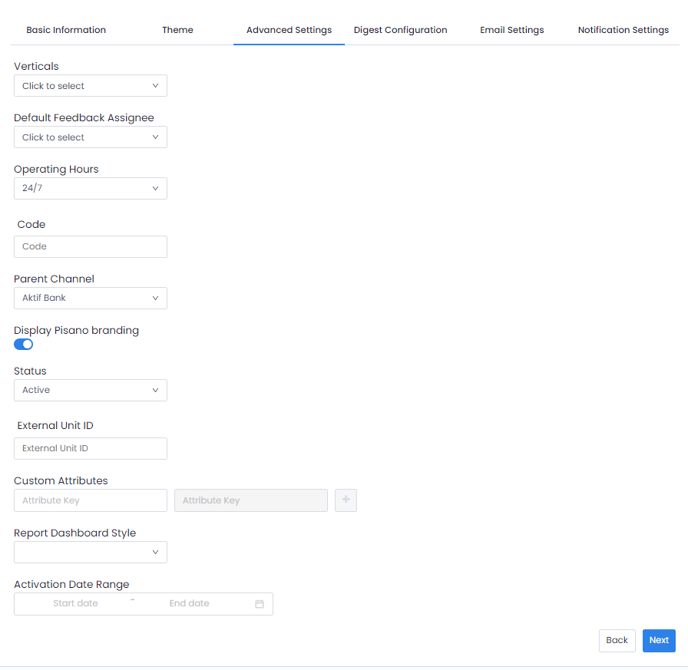
All the created Units automatically have the status 'Active' and will be reflected in your Hierarchy.
While adding a new unit, the mandatory basic information is the 'Type', 'Name' & 'Parent Channel', other advanced settings can be added or modified later.
We can take the example of a banking structure by Department. We will be creating a custom unit type under the name of ' Department ' and the Unit name will be ' Marketing Department'. We can also additionally create a 'Touchpoint' Unit type in our hierarchy with separate Offline and
Online Units. You can for example create branches as the third level of units with the Offline. (Touchpoint) as a parent channel.
Or for the example of a global retail structure by Store. We will be creating a custom unit type under the name of 'Country' and the Unit name will be ' Turkey '. On a second level, we can create a ' City' Unit type in our hierarchy and add stores as a third level of units with the relevant City as a parent channel.
After creating the new unit type, you can add an unlimited number of Units by clicking ‘List all ‘ then ' Add ' and enter the details of it.