
You can easily check your kiosk's active-passive, charging, online-offline status via kiosk channels on the platform, and you can easily intervene in your kiosk remotely.
You can list and review the kiosks you want by using the other filters on the left side of the platform.
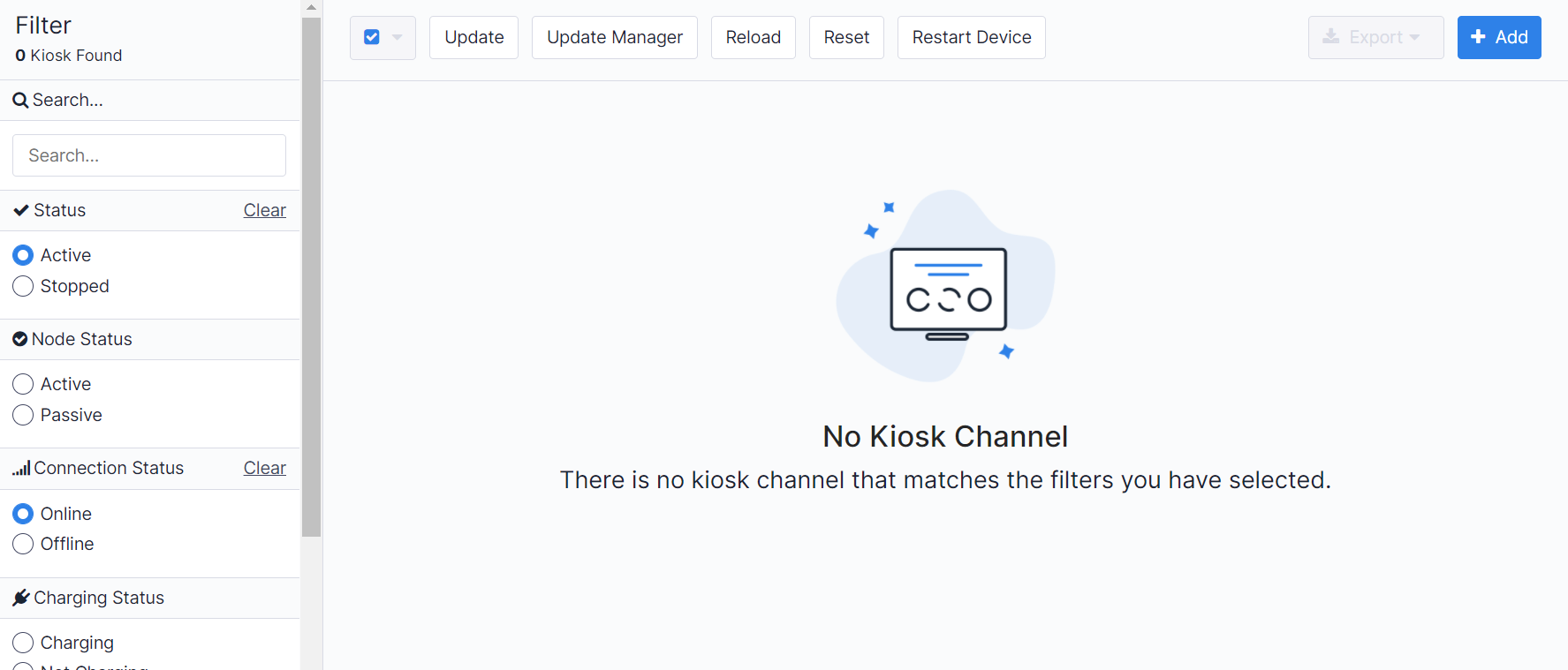
Pisano Platform
What are the Kiosk Statuses?
1) Active-Passive
Each kiosk you are using is actively indicated. Your selected filter active on the platform will list the kiosks you are using.
Active
The eye icon on the right of the kiosk name on the platform indicates the active or passive status of your kiosk.

Passive
If you terminate the use of kiosks that you have actively used, your kiosk will be declared as passive.
In order to deactivate your kiosk, you can do so by touching the eye icon on the right of the kiosk name on the platform. You can list the control of these kiosks by using the passively selected filter on the platform.
Note: You can send an e-mail to support@pisano.com or contact your account manager to turn the desired kiosk passive.
2) Online-Offline
Your kiosk connection status qualifies as online or offline. You can see it among the filters on the left side of the screen on the platform.

Online
Your kiosks located at your physical customer touch points must be used online in order to convey instant suggestions and problems from your customers.
Your kiosk will always be able to work online if there is no problem with the internet connection. You can see the online status of your kiosk on the platform using the online selected filter.

Kiosk- Online
Offline
Your devices that have internet connection problems or that are turned off will appear offline on the platform after 15 minutes.
Your kiosks that appear offline (in case of connection problems) have kept instant notifications in their memory, and if they connect again, they will go online and transfer all the data in their memory to the platform's feedback area.
 Kiosk - Offline
3) Battery Status
To ensure your kiosks remain operational at all times, they need to be used while connected to a power source.
You can see the battery status of your kiosk on the platform under the kiosk name, indicated by a plug icon.
The battery percentage of your kiosk or if it's fully discharged will be indicated by a lightning bolt icon.
For example, in the example below, the tablet's battery is at 100%.
