
What You Will Find Here
-
Configure Question Structure: How to set up rows and columns.
-
Add "None" Option: How to allow users to opt out of the choices.
-
Reporting and Analysis: How to view and interpret your data.
Who Can Access?
Users must have access to the Flows section of the platform. You must add a Matrix question type to your flow before you can select the Conjoint subtype.
How to Access
-
Open the Flows section.
-
Add a Matrix question type to your flow.
-
Open the Advanced Settings menu located under the Matrix question.
-
Find the Matrix Question Type setting.
-
Select Conjoint.
-
The matrix question format changes to the Conjoint layout automatically.
What You Can Do Here
Configure Question Structure
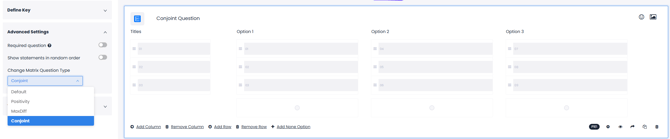
You must define the structure of your question to organize the variables you want to test. This involves setting up the categories and the specific options users will evaluate.
-
Click Add Column to create a categorical option.
-
Click Add Row to define titles or headers.
-
Enter the specific options associated with those headers in the rows.
-
Use Remove Column or Remove Row to delete unwanted entries.
Result: The system creates a structured matrix layout. Options are grouped under specific titles for user evaluation.
Notes / Tips / Warnings:
-
The system deletes rows or columns sequentially from the last entry to the first entry.
-
Key definitions for this question type do not need to be unique. You can use the same key name for multiple options.
Add "None" Option
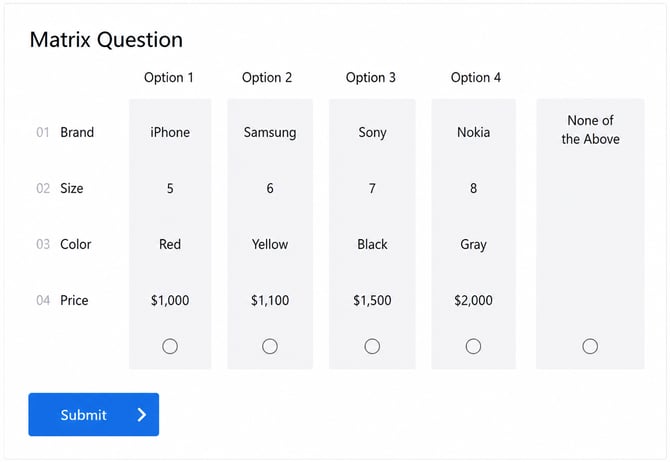
You can include a "None" choice in your question. This allows users to indicate that they do not prefer any of the presented feature combinations.
-
Locate the question configuration settings.
-
Select the Add None Option setting.
Result: A "None" option appears as the final choice value in the question.
Notes / Tips / Warnings:
-
You can only define one "None" option for each question.
Reporting and Analysis
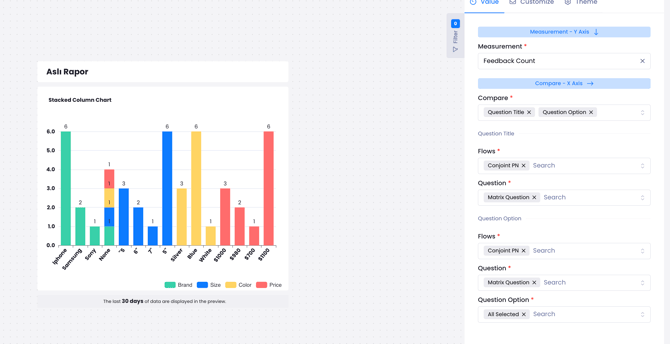
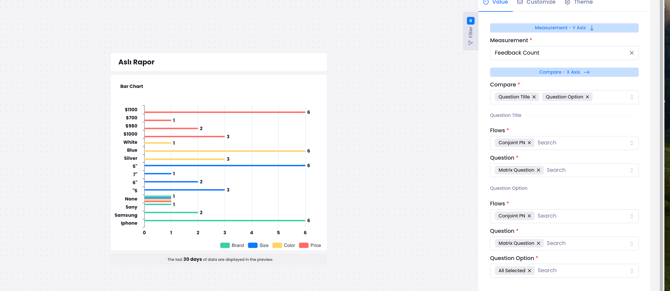
You can view the results of your conjoint survey through visual reports. These charts help you identify which option values are the most preferred by your audience.
-
Open the Reports section.
-
Select Bar Charts with two comparisons or Stacked Column charts.
-
Set Feedback Count as the measurement type.
-
Select Question Title and Question Option as the primary comparisons.
Result: The system groups data by title. This allows you to see which specific values received the most engagement.
Notes / Tips / Warnings:
-
Confirm that you have selected the correct conjoint questions in the relevant flow. This ensures the analysis is accurate.
Limits / Notes
-
Integrations: Inbox import and export are not supported for this feature.
-
Workflows: Automated jobs and workflow developments are not available.
-
Media: You cannot add images to option values at this time. This is a planned update for Version 2.
-
Logic: Each option is automatically paired with its associated title to maintain accurate reporting.
FAQs
Can I add images to my conjoint option values?
No. Adding image formats to option values is not supported in the current version. This feature is scheduled for the new releases.
Is there a limit to how many "None" options I can add?
Yes. You can only define one "None" option for each Conjoint question. It will always be placed as the final choice.
Do I need unique key names for every option in a Conjoint question?
No. Key definitions for this question type are not required to be unique. You can use the same key name for multiple options.