
In this way, you can view whether there is a decrease or increase in your results between the periods you have chosen, and if there is a decrease, you can access the feedback details and take the actions you wish.
After opening your Report, Click "Add" on the upper right corner to set up your Smoothed Line Chart.
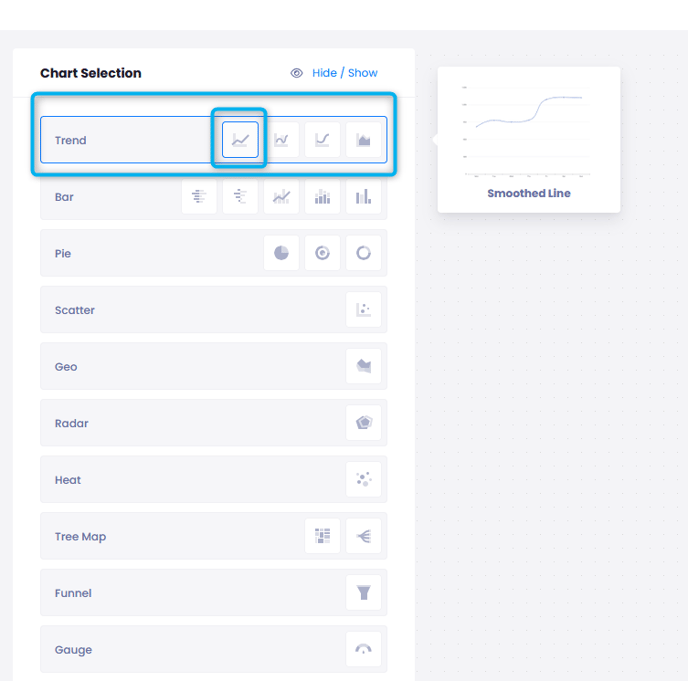
- Select Trend > Smoothed Line from Chart Selection.
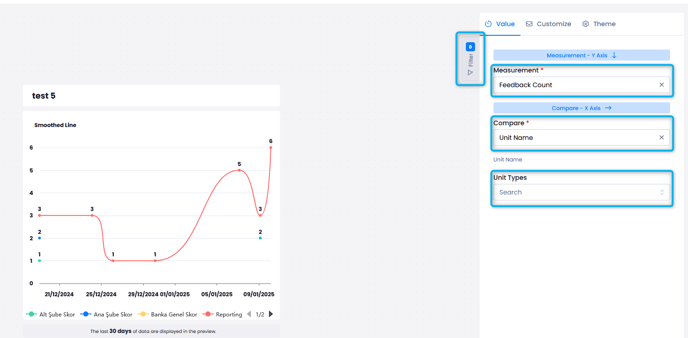
- From the right-hand menu select the data you wish to measure from Measure, such as NPS, CSAT or Feedback Count.
- Select what you want to compare, for example, if you want to compare different units, select Unit Name.
- From the "Filter" button, you can add additional filters, such as tags.
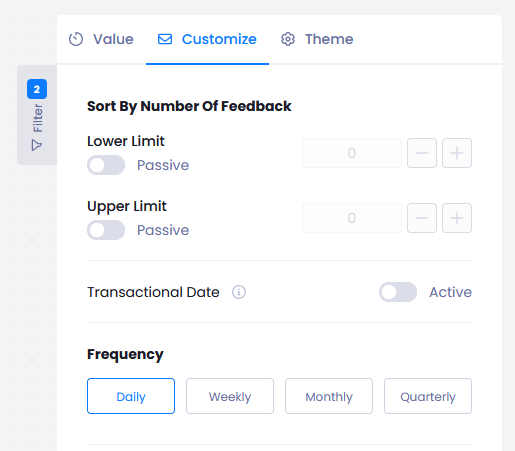
- You can add limits to your data using the Customize menu, or choose the frequency of the data shown in the chart.
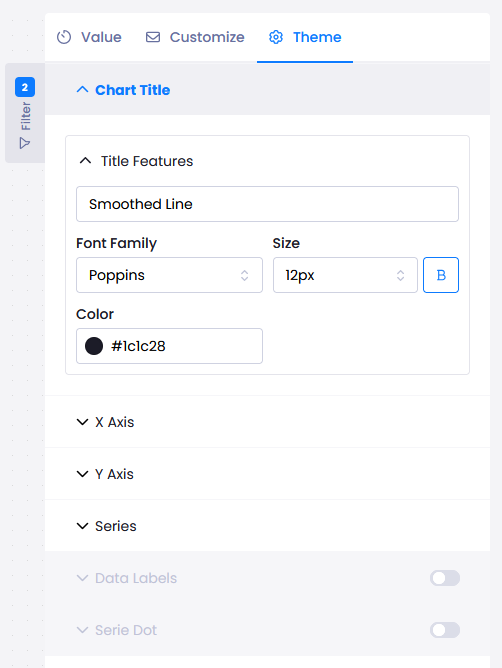
- You can change the appearance of your chart with the Theme menu.
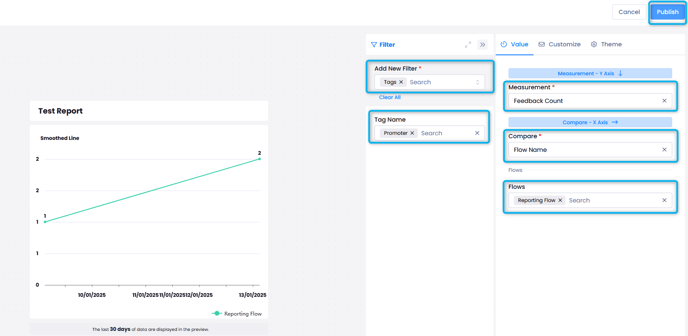
For example, to create a Smoothed Line chart for the NPS count of Promoter tagged feedback from the Reporting flow, you can follow the below steps:
- From Measurement, Select Feedback Count.
- From Compare, select Flow Name
- From Flows, select the relevant flow.
- Click on Filters and add "Tag" filter.
- Select the Promoter tag.
- The preview on the left will show you the data you have requested from the data of last 30 days. Finish the graphic by clickling Publish to see real results.
Your graph will look as below once added to the report.

You can select the Filter button on the upper right corner to see Date, Flow and Channel filters spesific to this graph.
You can resize and move the graph around with the lower right button.
You can click on the "Smoothed Line" text to rename the graph.