
What You Will Find Here
- Enable Incomplete Survey Data Integration
- Manage Incomplete Feedback in the Inbox
- Reporting and Analysis for Incomplete Surveys
Who Can Access?
All users with access to Flow settings can use this feature. There are no specific role restrictions.
How to Access
- Open a specific Flow.
- Go to the Settings menu.
- Expand the Incomplete Survey Data Integration tab.
What You Can Do Here
Enable Incomplete Survey Data Integration
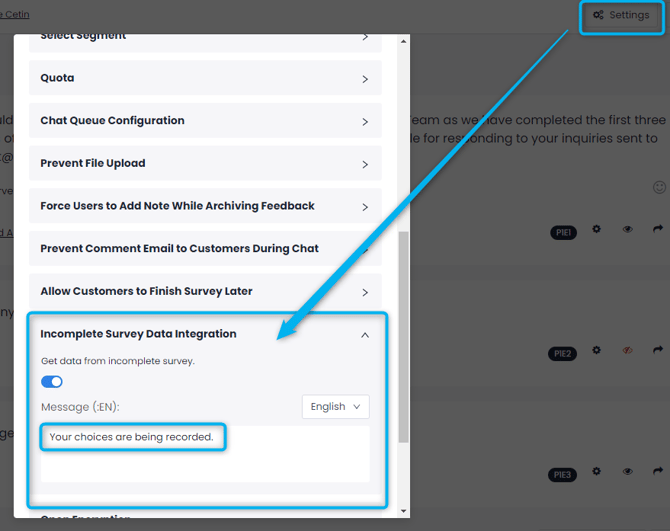
You can turn on the ability to capture partial responses. This ensures the system records data as the user types.
- Open the Settings menu for your selected Flow.
- Expand the Incomplete Survey Data Integration tab.
- Turn the toggle switch to On for the "Get data from incomplete survey" option.
- Type a localization-supported custom message in the Message field below the toggle. For example, write "Your answers are automatically saved."
The feature is now active. It will capture incomplete survey data automatically.
Notes / Tips / Warnings
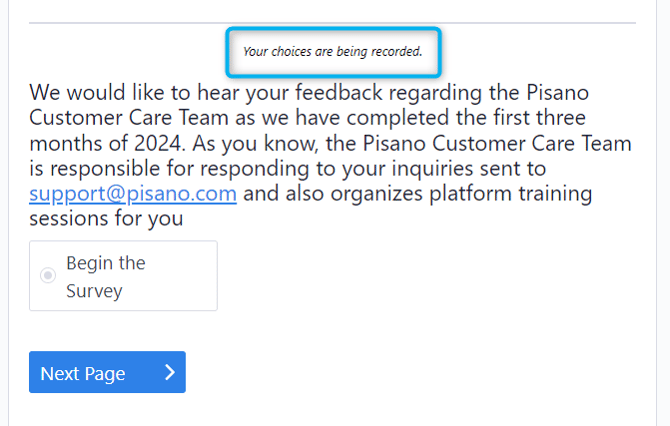
Adding a custom message is optional. We recommend it to improve transparency.
An Information Banner will prominently display your custom message at the top of the survey interface.
Manage Incomplete Feedback in the Inbox
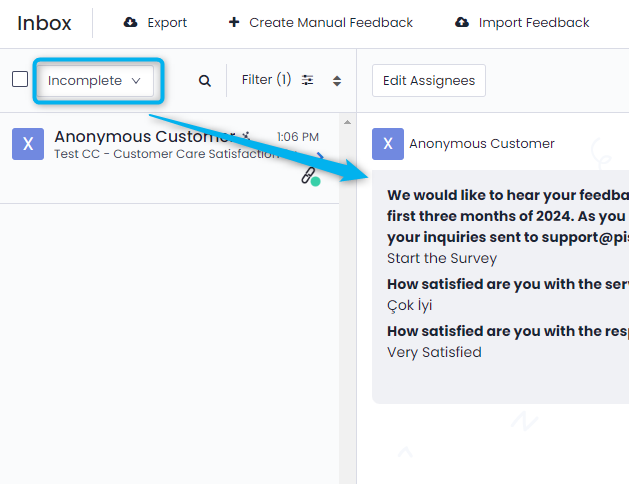
You can isolate partial responses to review feedback in real time. The system updates the information live as the respondent types their answers.
- Open the Pisano Inbox to view your feedback cards.
- Click the status dropdown menu at the top of the screen.
- Select the Incomplete status filter.
You can now see isolated partial responses. The feedback cards will update live as the user interacts with the survey.
Notes / Tips / Warnings
If a user completes the survey and clicks the submit button, the system updates the feedback status automatically. The status changes from Incomplete to Open.
Reporting and Analysis for Incomplete Surveys
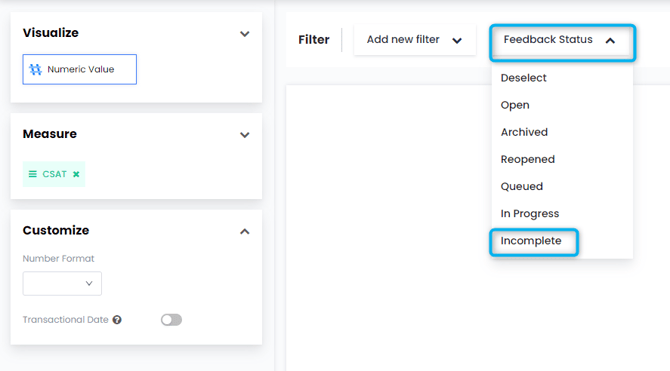
You can review the data from partial submissions to understand user behavior. This helps you identify drop-off points. You can also measure partial sentiment.
- Open the Reports menu.
- Apply the Incomplete feedback status filter to your dashboard and charts.
Your dashboard now displays data exclusively from incomplete surveys.
Limits and General Notes
End-User Auto-Save Mechanism: Users access the survey via personalized or generated links. Every interaction they make saves instantly in the background. They do not need to click a save or submit button to capture their progress.
Automated Labeling Rule: The automated labeling structure will not tag an incomplete survey. This prevents inaccurate tagging. Auto-labeling rules trigger only after the survey status changes to Completed or Open.
FAQs
Do respondents need to click submit to save their progress? No. The system saves every interaction instantly in the background.
Will my automated tags apply to incomplete feedback? No. The auto-labeling rules do not apply to incomplete surveys. They will only trigger if the respondent finishes and submits the survey.
Does the auto-save feature work across different devices? No. This function uses browser cookies and cache. It will not work if the user changes their device or browser.