
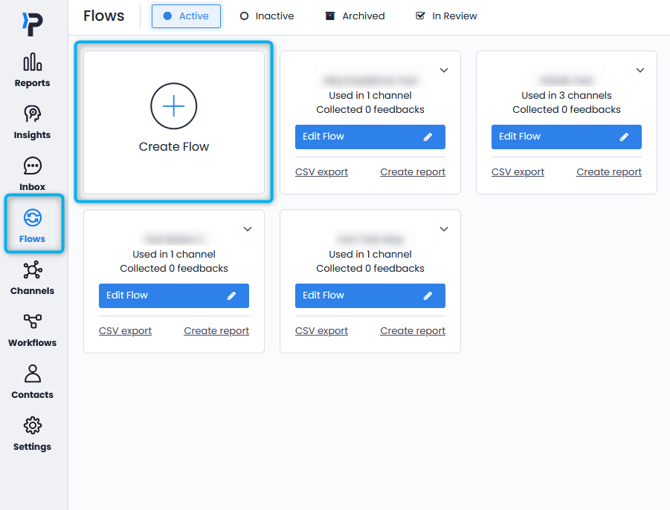
To create a flow, select Flows from the left menu and press Create Flow button.
Two options are popped up on the screen:
- Create a New Flow
- Select a Flow Template.
If you wish to create a flow from scratch, choose "Create a New Flow".
If you wish to create a flow from a ready to use template then choose "Select a Flow Template".
You may also choose the button below to import a flow you have created and exported before.
Let us select "Create a New Flow". This will take us to flow creation page.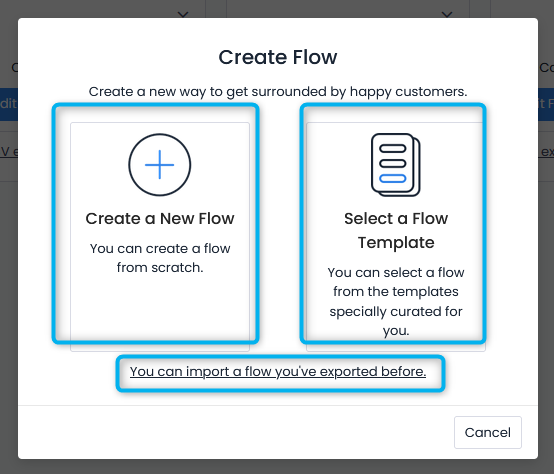
In order to create a new flow; firstly we should name the flow. You may do so by clicking the "Flow Name" text. Afterwardsi you can start adding your questions.
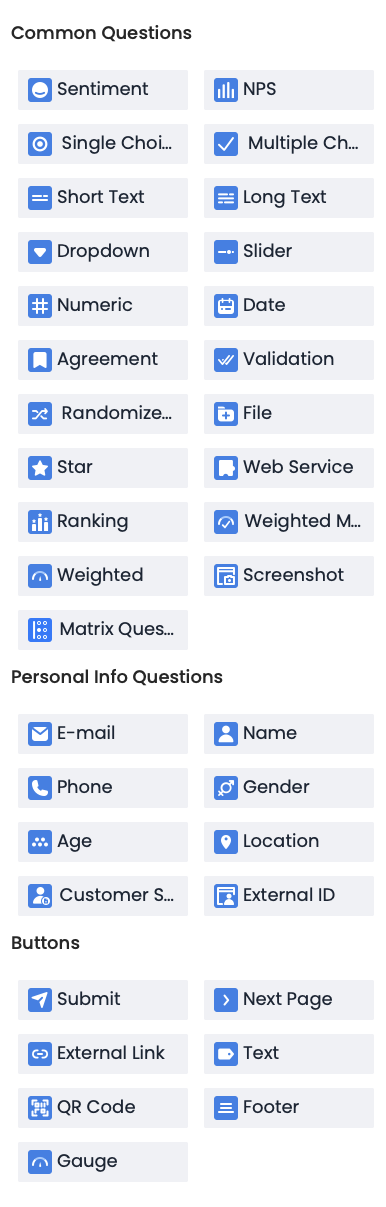
Let's give an example for creating a new survey;
- Sentiment Question for measuring CSAT; answers of the CSAT question are on a scale of 0 to 5 as shown on the example below.

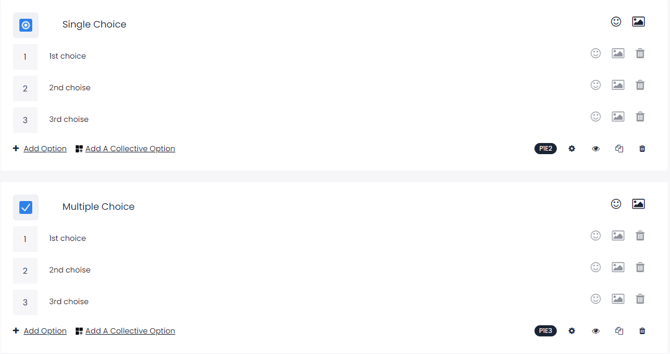
- Single Choice or Multiple Choice question allows us to ask the reasons for the customer’s dissatisfactions.
- The standart NPS question format should be; ’How likely would you recommend us to a friend?’’ and answers are on a scale of 0 to 10.

- With Short text or Long text questions you can ask the customer's suggestions and say ''We would like to enhance your experience. Please share your suggestions with us''
Don't forget to add ''Next Page'' button after short text and long text questions.

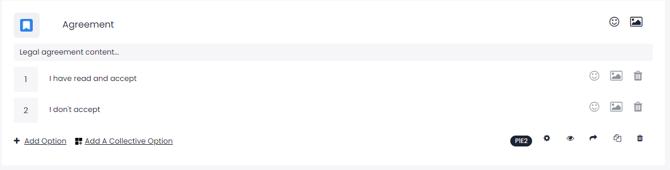
- In the Agreement question, you can create a question for the customer to read and approve the agreement by placing the contract text in the additional link.
- In the Slider question option, you can get a sliding answer to the selected number out of 100.

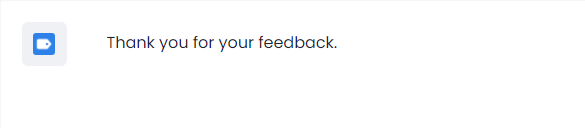
- In the end of the survey you can add ''Thank Page'' and write thank you message.
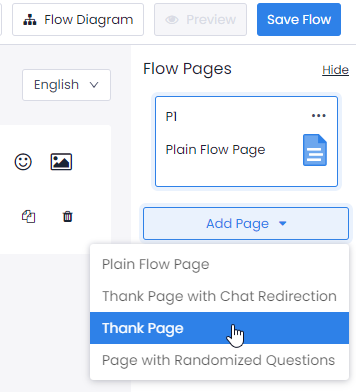
You can preview your flow after saving it once. The first time you save your flow, you will be redirected to the main Flows page. Afterwards, you will be able to save the flow without leaving the flow creation page.
Preview button will become active after you save your flow for the first time. For each change you make, you must update the flow to see it in the Preview.
The preview allows you to see and test your flow.

You can check out our interactive video down below.
How to Manage Flows at Pisano?