
What You Will Find Here
- How to assign feedback manually to a user.
- How to set up automated feedback assignment.
Who Can Access?
- Authorized Users: Perform manual assignments from the Inbox.
- Admins: Manage automated tasks for system-wide routing rules.
How to Access
Manual Assignment Path
- Click Inbox.
- Select a specific feedback item.
- Click Assign to User.
Automated Assignment Path
- Open the Settings.
- Click Automated Jobs.
- Select Assign to User from the Actions to Trigger menu.
What You Can Do Here
Manually Assigning Feedback
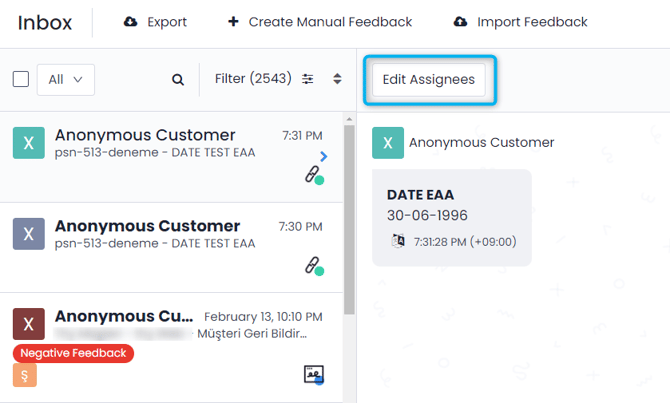
Users send specific feedback items to individuals for immediate review. This is the main method for directing feedback to the correct person. You can add specific instructions and set the importance of the task during this process.
- Open the Inbox.
- Hover over the feedback item you want to route.
- Click the Assign to User button.
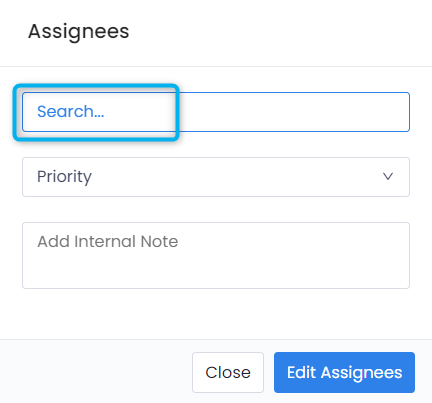
- Select the relevant user or multiple users from the list.
- Select a priority level.
- Write an internal note to provide instructions or context.
Result
The system routes the feedback to the selected users. They see the assigned priority level and your internal notes.
Notes / Tips / Warnings
- You can assign feedback to more than one person if multiple people need to review it.
- Internal notes are only visible to team members. Customers cannot see these notes.
Automating Feedback Assignment
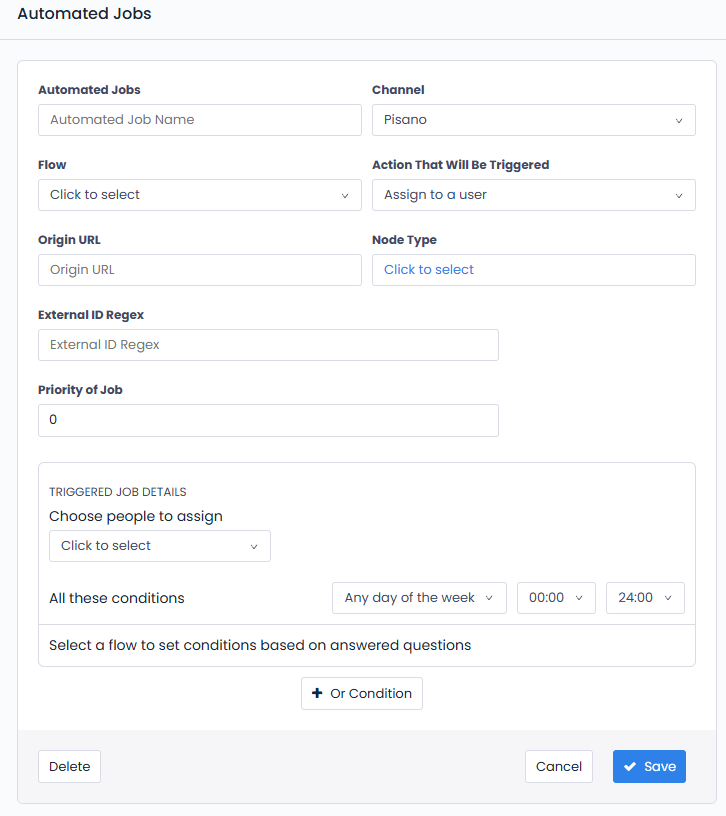
Admins can create rules to route feedback automatically. This is an additional feature to help manage specific types of feedback without manual work.
- Navigate to the Settings.
- Select Automated Jobs.
- Click Assign to User from the Actions to Trigger section.
- Set the conditions for the trigger.
- Choose the department or user who should receive these items.
Result
The system applies the routing logic when new feedback arrives. It sends specific feedback types directly to the designated department.
Notes / Tips / Warnings
- Use automation for high-priority items to ensure they reach a team immediately.
- Manual assignment remains available even when automation is active.
Limits / Notes
- Precision: You can forward feedback to several people at once.
- Notifications: Users can receive email alerts for these assignments. You must enable this in the report settings.
FAQs
Can I assign feedback to more than one person at once?
Yes. The selection screen allows you to choose multiple users for a single feedback item.
Can users be notified of these assignments?
Yes. You can enable email notifications through the report settings in the platform.
Can I add instructions when routing feedback?
Yes. When you assign feedback manually, you can write an internal note and set a priority level to guide the person receiving it.