
What You Will Find Here
How to Access
-
Open your Main dashboard.
-
Click Flows.
-
Select Edit an existing flow or Create flow.
Alternatively, you can click the Flows button located in the top menu bar.
What You Can Do Here
Use the Flow Builder Interface
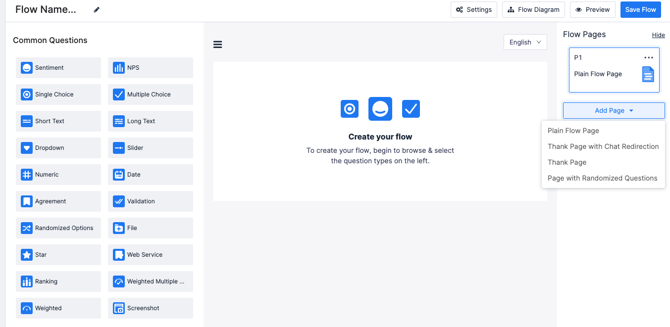
The Flow Builder features a three-column layout to help you design your survey. You use this workspace to place questions, preview designs, and arrange your overall structure.
Go to the Left Palette to find your available elements.
Drag and drop components from categories like Common Questions, Personal Info Questions, and Buttons.
Use the Center Panel as your active visual workspace.
Construct and preview the elements within your selected page here.
Look at the Right Panel for page management.
Add, organize, configure, and delete pages within your survey using this panel.
You successfully construct and preview your survey structure across an active visual workspace and structural management panels.
Utilize Distinct Flow Page Types
The system provides specific page types to handle different stages of your survey process. You apply these variations to ask questions, conclude the survey, or randomize the question order.
Look at the Flow Pages sidebar.
View the custom labels and icon indicators to identify different page types.
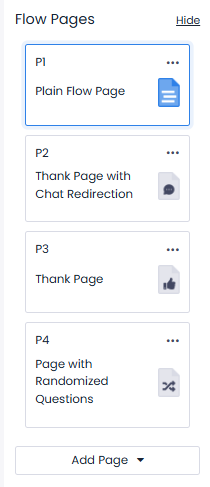
Add Plain Flow Pages for your core survey questions. This type uses a Document List icon. It supports multi-choice elements and text inputs.
Add Thank Pages for completion screens. This type displays a Thumbs Up icon.
Choose Thank Pages with Chat Redirection to route customers automatically to live chat upon submission. This type displays a Chat Bubble icon.
Add Pages with Randomized Questions to shuffle the display order of questions automatically. This type uses a Shuffle Lines icon. It helps you prevent response bias.
Your survey utilizes distinct page types to handle core questions, completion states, and randomized question logic effectively.
Manage and Organize Pages
All Pisano flows allow you to add new pages, duplicate existing ones, and define the page order.
-
Click the Add Page dropdown button at the bottom of the right panel.
Select your desired page type configuration to add a new page.
-
Click the three-dot menu icon on any individual page card. This opens your management capabilities.
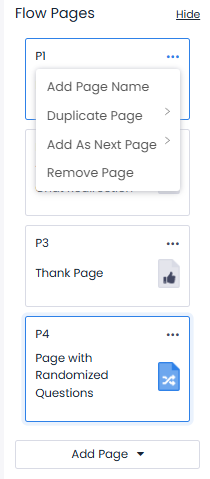
Select an option from the context menu.
Choose Add Page Name, Duplicate Page, Add As Next Page, or Remove Page.
The pages are scaled, organized, cloned, re-routed, or permanently deleted along with all elements contained inside them.
Notes / Tips / Warnings: Adding a page name helps you maintain internal organization. Duplicating a page saves time. You clone the layouts and questions instantly. Adding as a next page adjusts your linear routing. This forces the new page to follow your current active page.
Limits / Notes
General Builder Access
You enter the core Flow Builder whenever you create a new Flow. This applies whether you start from scratch, use a curated template, or import an existing layout.
Survey Logic Builder
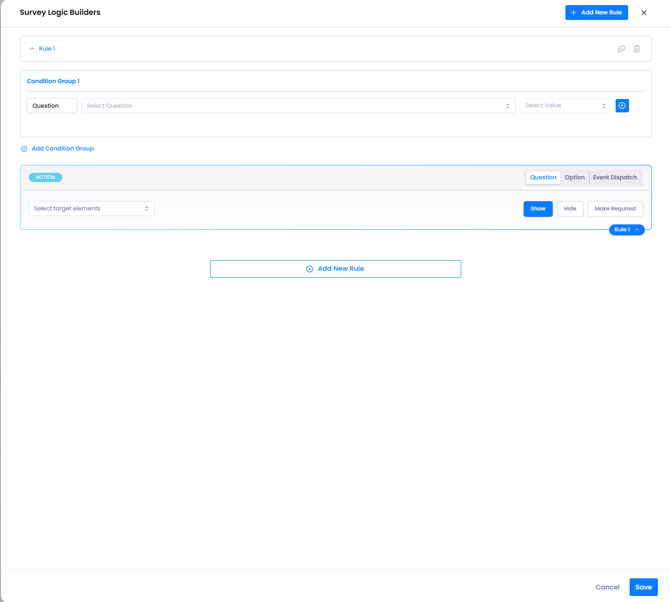
Click the Survey Logic Builder button to create personalized paths and conditional formatting. You configure Conditions to set targeted rules based on whether a specific Question matches a specific Value. You configure Actions to dictate behavior across Questions, Options, or Event Dispatches. This allows you to Show, Hide, or Make items Required dynamically based on user input.
Flow Diagram View
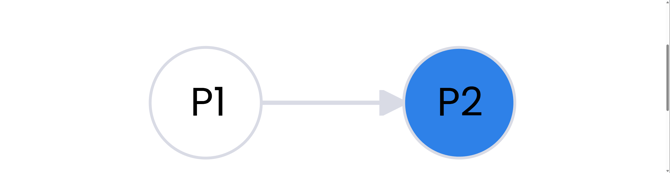
Click the Flow Diagram button in the top menu bar for surveys with multiple pages. This changes your view to a node-based map. It visually illustrates how respondents transition between pages based on your setup.
Global Flow Settings
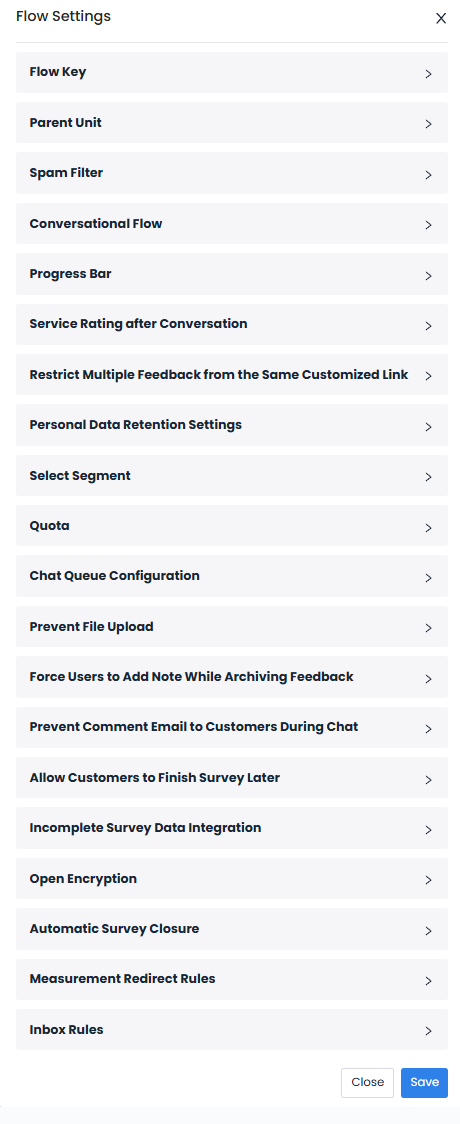
Open the Settings modal to fine-tune how your pages behave in production. You customize page-dependent configurations here.
FAQs
Can I change the order of my questions automatically? Yes. You use the Pages with Randomized Questions feature to shuffle the display order. This prevents response bias.
How do I direct a customer to support after they finish? You use a Thank Page with Chat Redirection. This automatically routes the customer to a live chat after they submit their answers.
Is it possible to let users complete the survey at a later time? Yes. You open the Global Flow Settings. Turn on the option to allow customers to finish the survey later.
It doesn't let me save my flow, what can i do? Ensure you added "next page" and "submit" buttons to add in order to complete the full logic of the flow.