
What You Will Find Here
Who Can Access?
Workflow Cloning is available to any user who has permission to create and edit workflows. No specific role is required. If you do not have workflow creation and editing permissions, you cannot use this feature.
How to Access
You can open the Workflows menu in either of the following ways:
- Click Workflows from the main dashboard.
- Or, click Automations in the top menu and select Workflows.
Once you are in the Workflows menu, find the workflow you want to copy. Click the (⋯) menu next to that workflow and select Copy. The Workflow Editor opens with the cloned workflow.
What You Can Do Here
Clone a Workflow
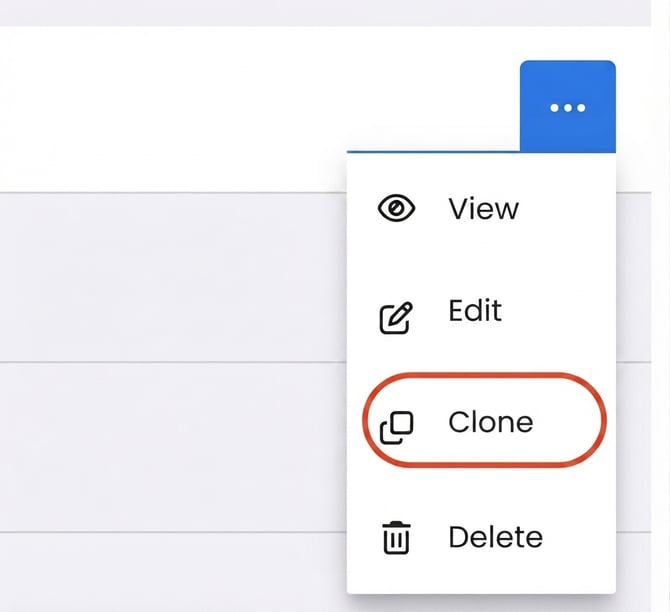
Workflow Cloning creates a copy of an existing workflow. You can use the copy as a starting point for a similar workflow instead of building a new one from scratch.
- Open Workflows from the main dashboard, or select Automations and then Workflows from the top menu.
- Find the workflow you want to clone.
- Click the (⋯) menu next to the workflow.
- Click Copy.
The Workflow Editor opens with a copy of the selected workflow.
Notes
- The original workflow is not changed.
- The original workflow remains available exactly as it was before you created the clone.
Edit a Cloned Workflow
After you create a copy, you can edit it before publishing it as a new workflow. The cloned workflow opens directly in the Workflow Editor.
- Click Copy from the selected workflow's (⋯) menu.
- Review the cloned workflow in the Workflow Editor.
- The workflow name is displayed with “(Clone)” added to it.
- Change the workflow name if needed.
- Edit the parts of the workflow that you want to change.
You can modify the cloned workflow and prepare it for publication as a separate workflow.
Notes
- You can rename the cloned workflow before publishing it.
- Changes you make to the clone do not affect the original workflow.
Publish a Cloned Workflow
Once you have finished editing the cloned workflow, you can publish it as a new workflow.
- Complete the changes you want to make in the cloned workflow.
- Click Publish.
The cloned workflow is published and becomes a new workflow.
Warnings
- The cloned workflow is not saved if you exit before publishing it.
- If you close the tab or lose your connection before publishing, you must start the cloning process again.
Limits / Notes
- The original workflow remains unchanged throughout the cloning process.
- A cloned workflow is not saved unless you publish it.
- If you close the tab or lose your connection before publishing, you need to create the clone again.
FAQs
Who can use Workflow Cloning?
Any user with permission to create and edit workflows can use Workflow Cloning. No specific role is required.
What happens to the original workflow when I clone it?
Nothing changes in the original workflow. It remains exactly as it was.
What happens if I close the tab or lose my connection before publishing the cloned workflow?
The cloned workflow is not saved. You need to return to Workflows and start the cloning process again.