
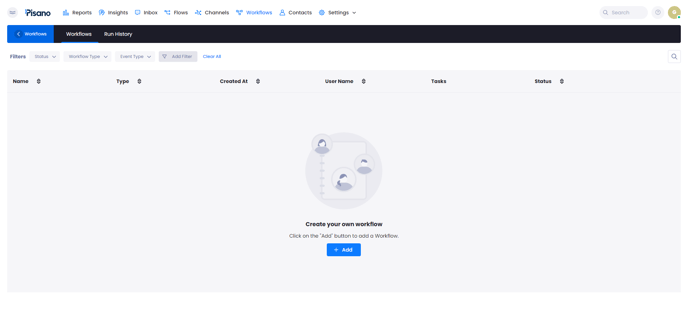
After creating a workflow, it is necessary to manually set its status to ON.
-
CHANNEL/CAMPAIGN-BASED WORKFLOWS
Triggering the first campaign delivery:
-
Manually uploading the target audience file or
-
Should be done through Email/SMS Sharing integration.
In the context of campaign-based workflows, the first task to be added should always be a delay.
Workflow Structure Between Two Channels/Campaigns
Example Scenario: Sending an SMS campaign to those who did not participate in the survey one week after the email campaign.
There must already be an existing SMS channel for this.
Go to Workflows and Create Your Own Workflow > Click "ADD",
Select "Event-Based" > "Campaign Delivery Based."
Name the workflow. E.g., Email 1 Week Later SMS Delivery
Select the channel from which you initially sent the campaign.
Create your tasks > Click on "ADD."
NOTE: In workflows of this type, a delay period should be entered as the first task. E.g., 1 Week.
After saving, add a task again > SMS Sharing > Select the relevant SMS channel.
Since the delivery will be made to those who did not provide feedback:
Survey Activity Operator: Not Equal To > Survey Activity: Select Feedback.
You can refer to our interactive video below for a detailed demonstration.
-
FEEDBACK-BASED WORKFLOWS
Triggering the delivery based on the first campaign:
-
Manually uploading the target audience file, or
-
Should be done through Email/SMS Sharing integration.
Workflows for Feedback-Based Campaign Triggering
Example Scenario: Sending a second campaign based on the response to the initially sent campaign.
Go to Workflows and Create Your Own Workflow > Click "ADD,"
Select "Event-Based" > "Feedback-Based."
Name the workflow.
Create your conditions > Click "ADD" to select the relevant flow, question, the operator containing/not containing the value in the response.
Contains: Retrieves data that includes the desired information.
Does Not Contain: Retrieves data that does not have the specified information.
Then Create Task > Add Task > Select "Delay"
You can customize the values of minutes, hours, days, weeks, or months according to your needs.
After saving, choose the type of the second campaign you want to send.
You can perform the campaign delivery through the "Publish" button.
You can refer to our interactive video below for a detailed demonstration.
Highly Conditional Feedback-Based Workflow
Example Scenario: Sending a second campaign to Gold members who responded negatively to the store satisfaction campaign.
Go to Workflows and Create Your Own Workflow > Click "ADD,"
Select "Event-Based" > "Feedback-Based."
Name the workflow.
Create your conditions > Click "ADD" to select the relevant flow, question, the operator containing/not containing the value in the response.
This time, click the plus button to customize the Customer Schema, specifically for our example scenario.
Schema > Select Segment (Since Gold membership is a segment schema)
Operator: Exactly the Same > Value: Choose Gold and save.
Task: Email Sharing > Choose the campaign and save.
You can refer to our interactive video below for a detailed demonstration.
-
TIME-BASED WORKFLOWS
Time-based workflows are useful when you want a task to occur regularly.
For example, sending a survey at a specific time every day.
Workflow for Periodic Survey Delivery
Example Scenario: Sending a campaign to people who have made a purchase from the store on the same day.
Go to Workflows and Create Your Own Workflow > Click "ADD,"
Select "Event-Based" > "Time-Based."
Name the workflow.
Settings > Frequency (yearly, daily, monthly, weekly) > Select Start times, Start and End dates, Time Zone.
Then click "Add Task" and select SMS Campaign > Choose the target audience. (In this scenario, Customer Schema will be selected)
Select the relevant schema from the schema (In this scenario, Invoice Date will be selected)
Operator (Equal)
Date Range (Today)
You can refer to our interactive video below for a detailed demonstration.
Connecting to a Database with Workflow
Workflow Instructions: Creating Your Own Workflow > Click on "ADD",
Select "Event-Based" > "Time-Based".
Specify the name of the workflow.
Settings > Frequency (yearly, daily, monthly, weekly) > Start times, Start and End dates, select Time Zone.
Then click Add Task and select Database Download,
Choose Adapter, server, port, database, table.
After entering the username, password, preferably enter encryption and schema information. After saving,
Select Delay Time by clicking Add Task, e.g., 1 hour (Optional).
After saving, click Add Task again, select Import Customer by choosing our file.
Select Source Download Task > Database Task (workflow name)
You can activate your workflow with the Publish button.
For a detailed demonstration, you can watch our interactive video below.
-
Reading Files from FTP with Workflow
Example Scenario: Reading a CSV file at a specific time every day.
NOTE: Only applicable for files in .csv format.
To create your own workflow, go to Create Your Flow > Press "ADD".
Select "Event-Based" > "Time-Based".
Specify the name of the workflow.
Settings > Frequency (yearly, daily, monthly, weekly) > Start times, Start and End dates, select Time Zone.
Then click Add Task and select Download option.
Enter the Source File Template and FTP server, FTP Username and password, and save.
You can activate your workflow with the Publish button.
For a detailed demonstration, you can watch our interactive video below.
-
Workflow Status Notifications
On the Workflow page, click the Add button on the left side.
Select Event-Based > Workflow Completion Based, specify the name of the workflow, select the workflow, and save it.
Select Status from Settings: Completed or Failed.
Enter the email subject and add recipients.
Write the email content and save it.
You can activate the sending by clicking the Publish button.
For a detailed demonstration, you can watch our interactive video below.