
What You Will Find Here
Apply Min–Max Limits to Measures
Filter Multiple Measures Independently
How to Access
Follow these steps to find the Min–Max settings in the report editor.
-
Click Reports in the main navigation menu.
-
Choose a dashboard from your list.
-
Select an existing chart or click the option to add a new chart.
-
Click the Customization tab in the editor panel.
-
Locate the Limiting section.
Note: You must select a measure such as NPS or CSAT in the Value section first. If you do not select a measure, the Customization section remains inactive.
What You Can Do Here
Apply Min–Max Limits to Measures
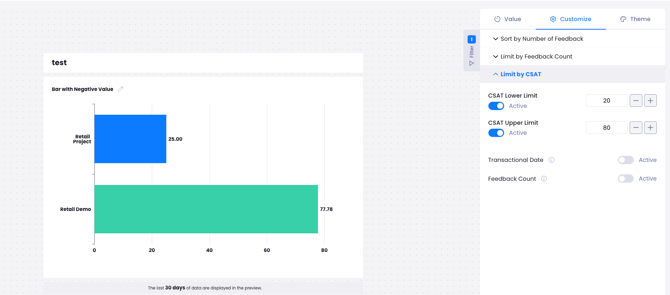
This action allows you to define a score range for a specific measure. It filters the chart to show only data points that fall within your chosen boundaries.
-
Open the Limiting section in the Customize panel.
-
Enter a numerical value in the Min Limit field for your selected measure.
-
Enter a numerical value in the Max Limit field for the same measure.
-
The system updates the chart to display only the data within the specified score range or count.
Notes / Tips / Warnings
This feature supports Trend, Bar, Pie, Scatter, Heatmap, Treemap, and Table charts.
The chart will hide any data points that fall below the minimum or exceed the maximum value.
Filter Multiple Measures Independently
You can apply unique filtering rules to different measures within the same chart. This is useful when you compare different metrics that use different scales.
-
Add multiple measures to your chart in the Value section, such as NPS and CSAT.
-
Go to the Limiting section in the Customize panel.
-
Enter unique Min and Max limits for each measure listed.
-
Each measure filters and sorts according to its own specific range. The settings for one measure do not affect the others.
Limits / Notes
The system applies limits based on the score range or count of the individual measure. It treats each threshold as a distinct filter. It does not aggregate or combine multiple measures into a single calculation.
Example Use Cases
Identify Low Performers: Set a Max Limit on CSAT scores to isolate responses below a certain threshold. This helps you focus exclusively on dissatisfied customers to find patterns in their feedback.
Target High-Value Promoters: Set a high Min Limit on NPS. This allows you to view only your most loyal customers and study why they advocate for your brand.
Remove Statistical Outliers: Use both limits to exclude extreme high or low values. This ensures your average scores and trends are not skewed by atypical data points.
FAQs
Which measures support Min–Max limiting?
The feature is available for NPS, CSAT, CES, Sentiment, and Weighted Score measures.
What happens if I select multiple measures?
The system filters and sorts each measure independently. Each one follows its own individual Min and Max limit settings.
Why is my Customization section grayed out?
You must enter the necessary information in the Value section of the chart editor first. The Customization options become active once you select a measure.