
What You Will Find Here
This article explains how to:
- Access Leo Analysis
- Run an analysis between two date ranges
- Review analysis results and recommendations
- Explore related follow up recommendations
Who Can Access?
Leo Analysis can be used by users with access to the Text Analytics Dashboard.
How to Access
To open Leo Analysis:
- Click Dashboard in the top navigation menu.
- Click Analytics.
- Click Text Analytics.
- Click Dashboard.
- Open the Advanced Text Analytics Dashboard.
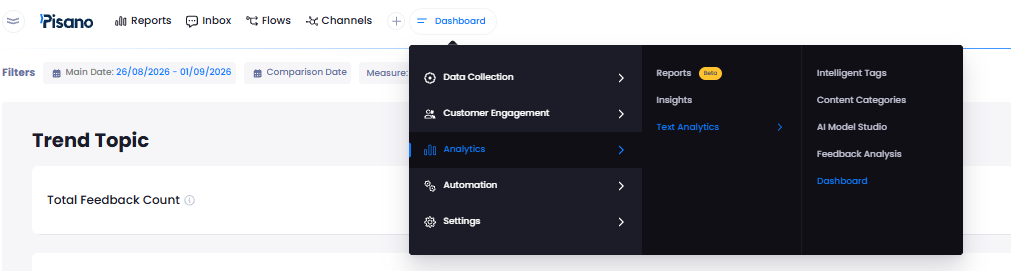
- Click Leo Analysis in the upper right area of the dashboard.
Prerequisites
Before running an analysis, you must:
- Have access to the Text Analytics Dashboard.
- Select two separate date ranges. One range is used as the analysis period, and the other is used as the comparison period.
What You Can Do Here
Run Leo Analysis
You can ask Leo to compare feedback from two selected periods and identify significant changes, critical problems, root causes, and recommended actions.
- Open Leo Analysis from the Advanced Text Analytics Dashboard.
- Select the date range you want to analyze.
- Select a separate date range for comparison.
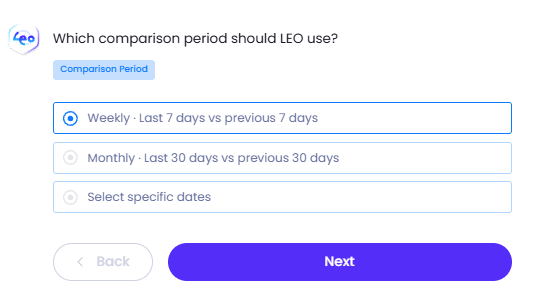
- Run the analysis.
- Review the generated analysis results.
After the analysis is complete, Leo provides prioritized insights and recommendations based on the selected feedback periods.
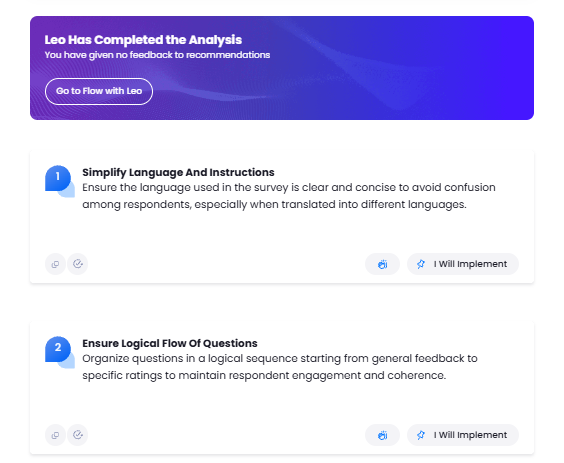
Depending on the available data, the analysis may include:
- Feedback and problem comparisons that show changes between the analysis and comparison periods.
- Root cause analysis that identifies critical content categories and the underlying causes of problems.
- Problem concentration analysis that identifies the units and channels where specific problems are most prevalent.
- Relationship analysis that identifies connections between topics when feedback is associated with multiple categories.
- Potential impact analysis that evaluates how identified problems may affect metrics such as NPS and CSAT.
- Prioritized recommendations that identify the problem, explain its priority, recommend an action, and describe the expected impact.
- Supporting evidence and context that explain the reasoning behind each recommendation.
- Industry specific recommendations based on the account's vertical or industry information.
- Analysis scope information, including the selected date range and the volume of feedback analyzed.
Notes
- Leo prioritizes the most important problems instead of generating a large number of recommendations.
- Recommendations follow this structure: Problem → Priority → Recommended Action → Expected Impact.
- Some recommendations may include an estimated numerical impact on CSAT or NPS when sufficient information is available.
- If a numerical estimate is unavailable, the expected impact may describe the anticipated improvement in the customer experience instead.
Explore Related Follow Up Recommendations
Leo can identify additional recommendations and topics related to the main analysis. When a relevant connection is identified, you can use the available follow up prompt to explore it further.
- Run Leo Analysis and review the generated recommendations.
- Find a recommendation with a related follow up prompt.
- Click the follow up prompt.
- Review the additional analysis or recommendation.
The selected follow up provides additional information about the topic or recommendation connected to the main analysis.
Notes
- Follow up prompts are clickable when Leo identifies a relevant recommendation connected to the main analysis.
- The availability of follow up recommendations depends on the analysis results and available data.
Limits and Notes
- Leo Analysis requires two separate date ranges: an analysis period and a comparison period.
- If sufficient comparable data is unavailable, Leo recommends selecting a different date range.
- If generated analysis cards do not pass quality control, you can run the analysis again.
- If the AI service is temporarily unavailable, try again later.
FAQs
Can I compare any two date ranges?
Yes. You can select two separate date ranges for the analysis period and comparison period.
What happens if there is not enough comparable data?
Leo recommends selecting a different date range.
Can I explore recommendations related to a main recommendation?
Yes. When Leo identifies a related recommendation, a clickable follow up prompt is available.