
The flows you prepare may go to different directions depending on the respondent's answers. You can set this up by using the State Transitions.
You can find State Transitions at the bottom left corner of your flow page.
Please note that this button will only appear if you have at least 2 flow pages on your flow.
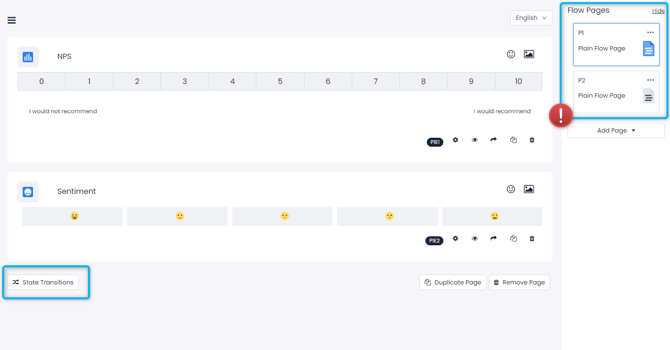
Once you have created all the pages you need, you can start setting up your transitions. For example; you might want to direct customers with positive responses to a page asking the reason for their satisfaction while directing negative respondents to a page asking their dissatisfaction reasons.
For this example, assume that the 1st page is a general CSAT question. 2nd page is for satisfaction reasons. 3rd page is for dissatisfaction reasons. 4th page is the thank you page.
- click State Transitions.
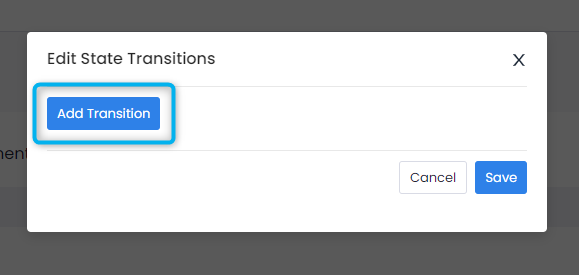
- click Add Transition.
- Name your transition, to avoid confusion you can name them according to the which page they will lead. This one will lead to 2nd page, so we will name it Satisfaction.
- Select which page you will be directing to, for satisfaction, this is page 2.
- Set up your rules. If a customer answers the Sentiment question with Very Good, they'll be directed to page 2.
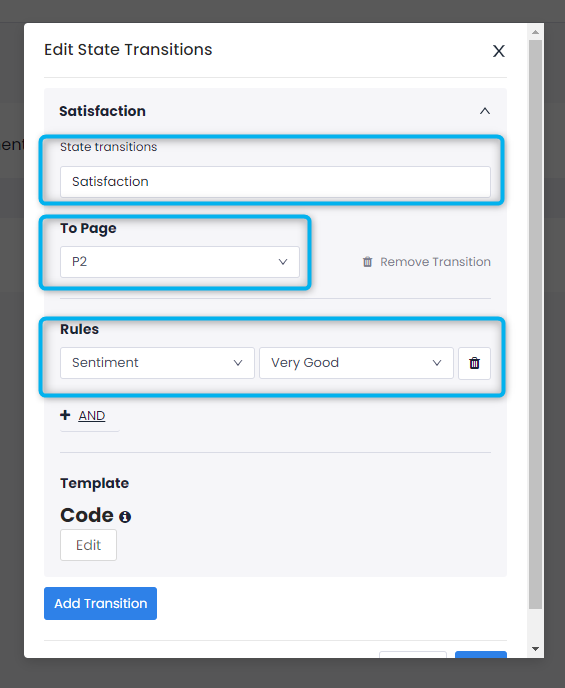
Please note that the +(AND) button acts as "AND" logic. If you want to apply "OR" logic to your transitions, you have to add a new transition for them. (For example, "Good" also leading to 2nd page.)
- Repeat the above steps for all answers on your questions and direct negative responses to the 3rd page.
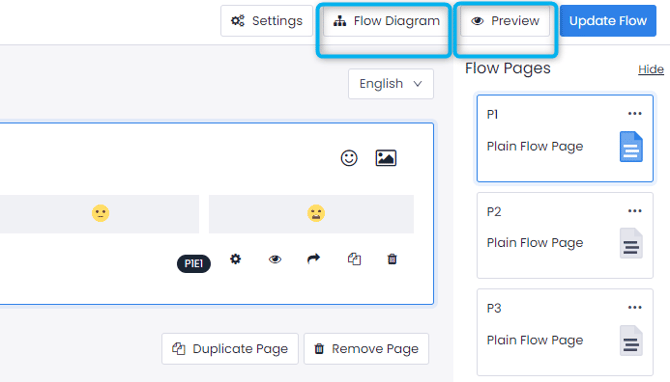
- You can check whether your directions are correct by clicking the Flow Diagram button on the top right corner or you can use the Preview function to experience the flow yourself.
Pisano will read state transitions in order. For example, if you want to set up page redirections based on Option A, Option B and Both of Them, you would have to set up the rule that includes both options first and then the individual ones. If this is not done, Pisano will check your 1st option and redirect to that page, forgoing the rule that includes both.