
What You Will Find Here
Who Can Access
Access to these settings depends on your assigned account permissions. Users with administrative roles typically manage these permissions for the company.
How to Access
-
Open the Reports screen from the main navigation menu.
-
Locate the row of the specific report you want to manage.
-
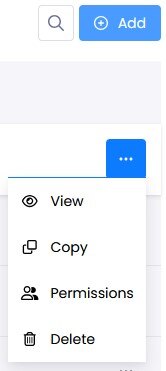
Click the three dots icon on the far right of the report row.
-
Select Permissions from the dropdown menu.
What You Can Do Here
Managing View Access
Users have the ability to see report panels and apply basic filters to the data. This is the standard level of access for team members who need to monitor performance without changing the report structure.
-
Open the Permissions menu for the chosen report.
-
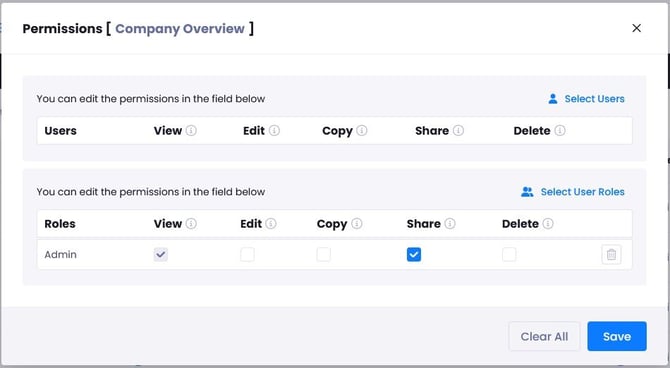
Select the Select Users or Select User Roles field.
-
Check the View permission box for the specific user or role.
-
Click Save.
Result: Selected users or roles can now view the report panel and its charts. They can also use unit, channel, and date filters to sort the information.
Notes / Tips / Warnings
Users with only View permission cannot change the data selections or chart types.
Chart contents change based on the specific feedback data each user is authorized to see.
Assigning Edit and Delete Authority
Users have the power to modify the layout of the report or remove the report entirely. These permissions are intended for managers or report creators.
-
Locate the specific user or role in the permissions list.
-
Check the Edit box to allow modifications.
-
Check the Delete box to allow report removal.
-
Click Save.
Result: Users with Edit permissions can manage panels and individual charts. Users with Delete authority can remove the report from the system.
Notes / Tips / Warnings
Warning: Changes made by an editor are reflected for every user who has access to the report.
Warning: Deleting a report removes it for every user across the entire company.
Enabling Copying and Sharing
Users can duplicate existing reports or share them with people outside of the immediate platform through exports.
-
Open the Permissions menu.
-
Check the Copy box for users who need to duplicate the report.
-
Check the Share box for users who need to export the data.
-
Click Save.
Result: Authorized users can now create a copy of the panel. They also gain the ability to share the report via PDF or email exports.
Notes / Tips / Warnings
The permissions and authorizations of an original report do not transfer to the new copy.
Limits / Notes
-
Management: The system manages roles and users in separate sections. You must check both areas if you want to apply broad and specific permissions.
-
Bulk Actions: The Clear All button removes every selection in both the user and role fields at the same time.
FAQs
Does a copied report keep the original permissions?
No. When a user copies a report, the authorization settings of the original report are not transferred to the new version.
What happens if I delete a shared report?
The report panel is removed for every user who had access to it. This action cannot be undone easily.
Can viewers see all data in the report?
Not necessarily. The charts adjust their content automatically. They only show data from the feedback sources that the individual user is allowed to access.