
There are features you can use in Pisano to ensure that the feedback you have collected and the surveys you had while using Qualtrics are not lost after you switch to Pisano and are still available to you.
Pisano allows you to import the feedback you have collected using Workflows and recreate your surveys using a QSF File. A simple process looks like this:
- Define a flow with QSF from the Account Settings > Feedback Provider menu.
- A flow will be created automatically and questions will be mapped.
- Create a Workflow > Migration Task for feedback transfer.
- Feedback is transferred at certain times with the defined provider and source.
Flow Import – Automatic Flow Setup with QSF File
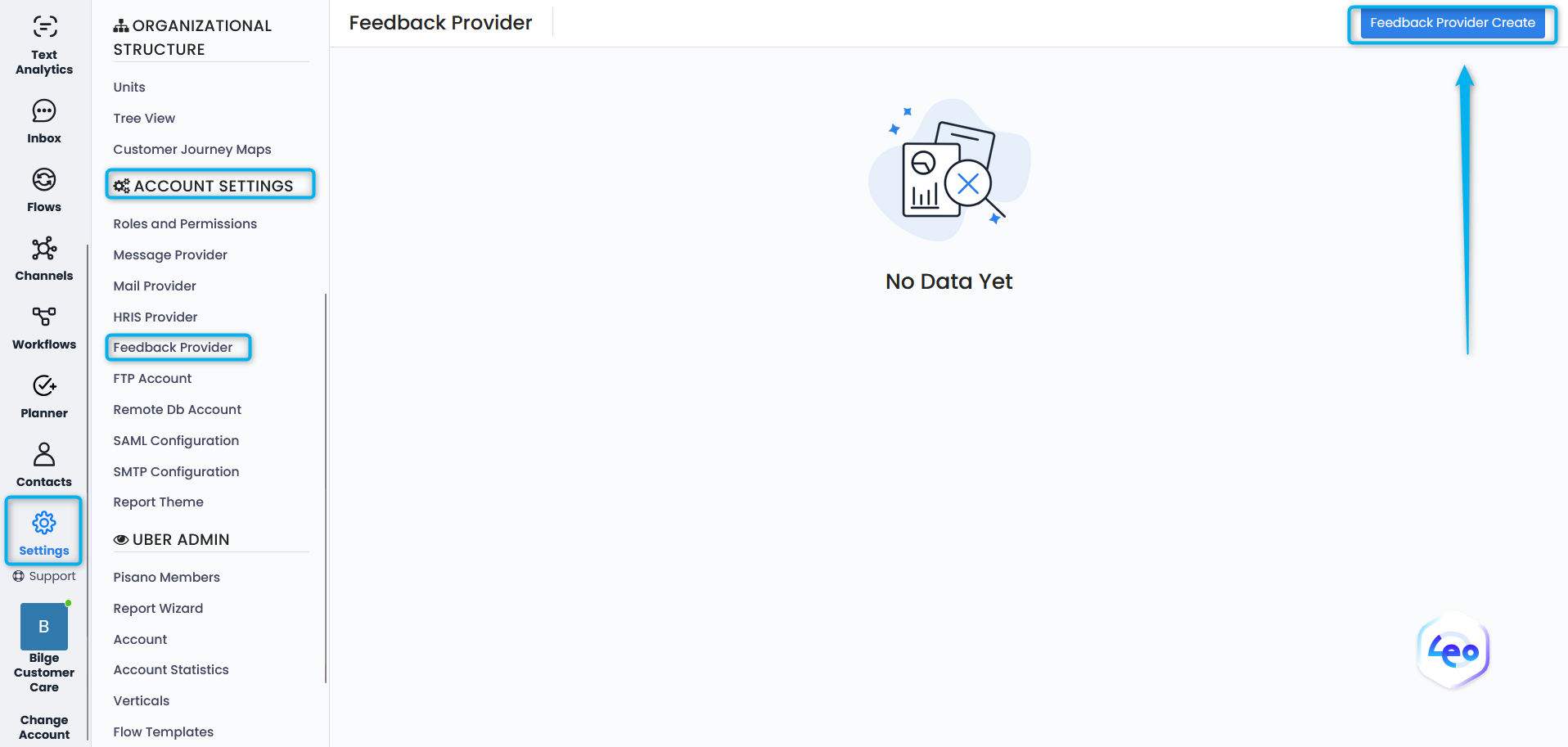
- On the Settings > Account Settings > Feedback Provider screen, click the Add Feedback Provider button.
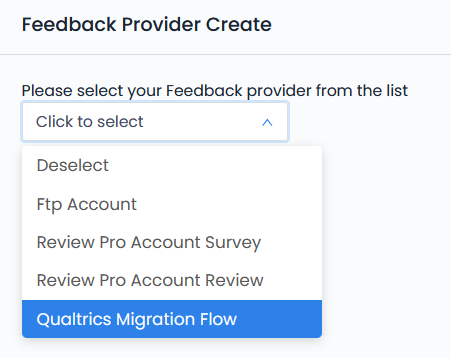
- Select Qualtrics Migration Flow as the Provider type.
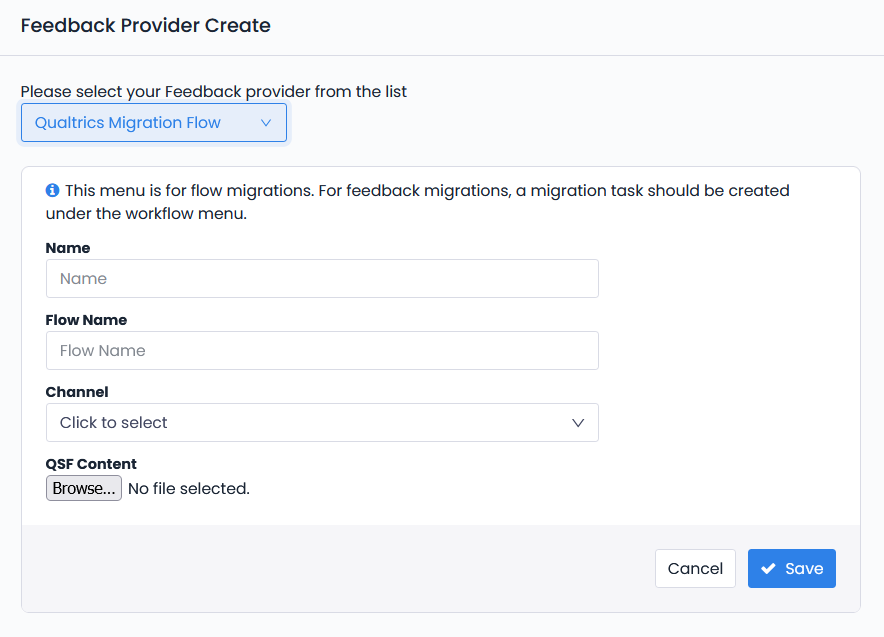
 What are the meanings of the Form Fields?
- Name → Enter a name for the Provider.
- Flow Name → Enter a name for the flow you want to create.
- Channel → Channels that have not been assigned a flow in any way are listed. After defining a channel, select the channel you want the flow to be defined on.
- QSF File Upload → Upload the QSF file containing the flow information received from Qualtrics.
After the saving, a flow that is suitable for the question structure in the QSF file is automatically created. The flow language is assigned according to the QSF file. Questions and options are automatically defined according to the keys in the QSF. The keys of the questions and options come filled.
Dropdown questions, NPS, CSAT questions, text type questions, matrix questions, buttons in the survey and ranking question are successfully received. Other questions will be imported as Text questions.
The result of the operation is sent to the user via e-mail.
Feedback Transfer – with Defined Provider via Workflow
- Create a Workflow in Workflows > Time Based.
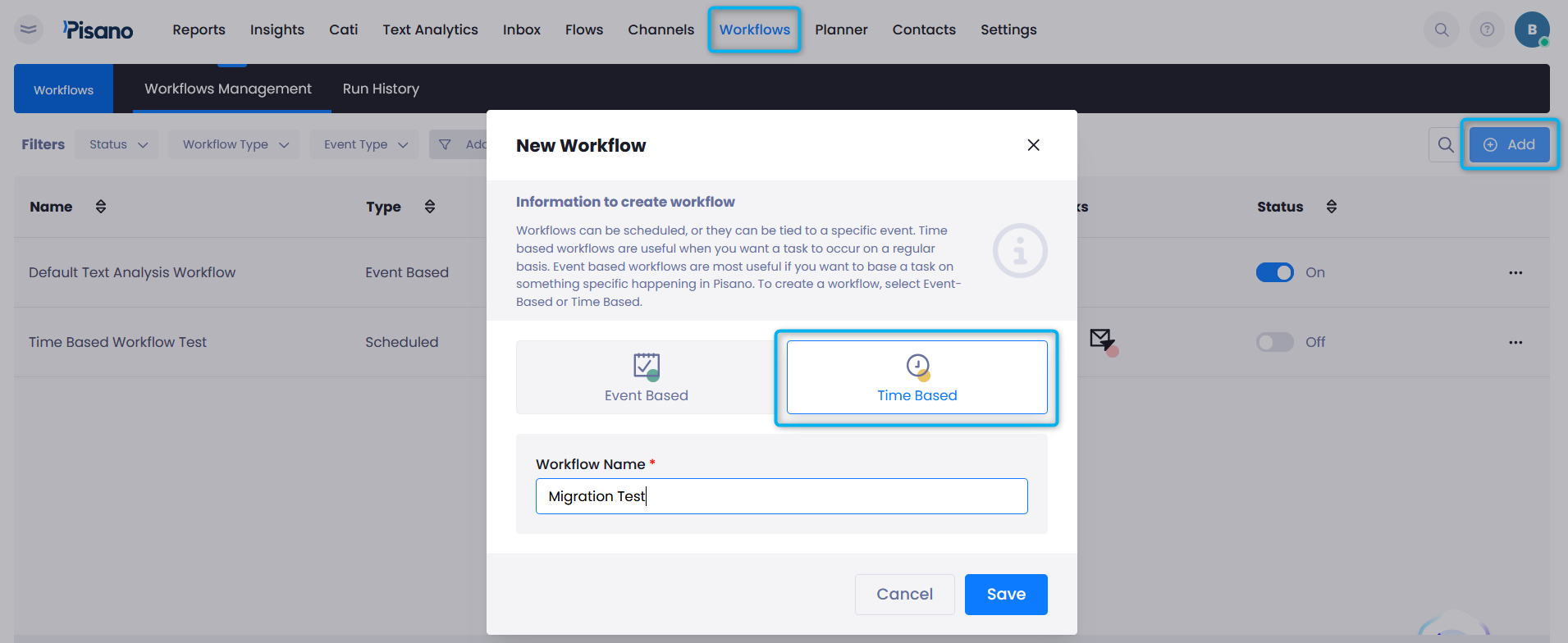
- Select the "Migration" Task type.
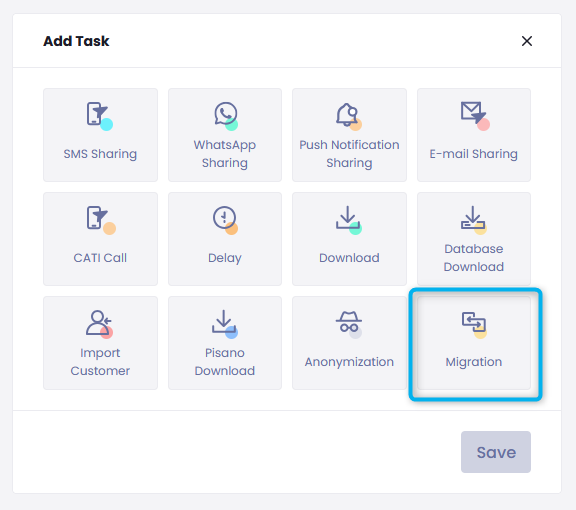
What are the meanings of the Form Fields?
- Migration Provider Name → The flow defined in the migration type in Feedback Provider is selected. The flow to which the feedback will be transferred is actually determined here.
- Source → Feedback source (Pisano Download, DB Download, Download Task). This is selected after the source from which we will receive the feedback is defined.
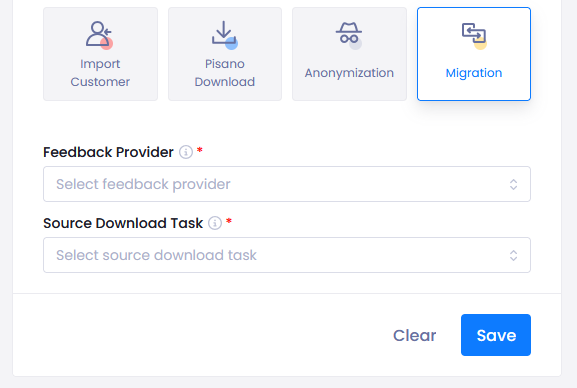
After the Workflow runs, it receives feedback data from the defined source as per the schedule and passes it to the relevant flow.
Feedback files are received from Qualtrics in CSA format. Large files are automatically processed in parts.