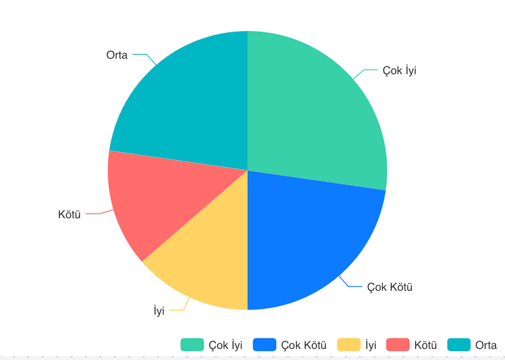
After opening your Report, Click "Add" on the upper right corner to set up your Pie Chart.
- Select Pie Chart > Pie.
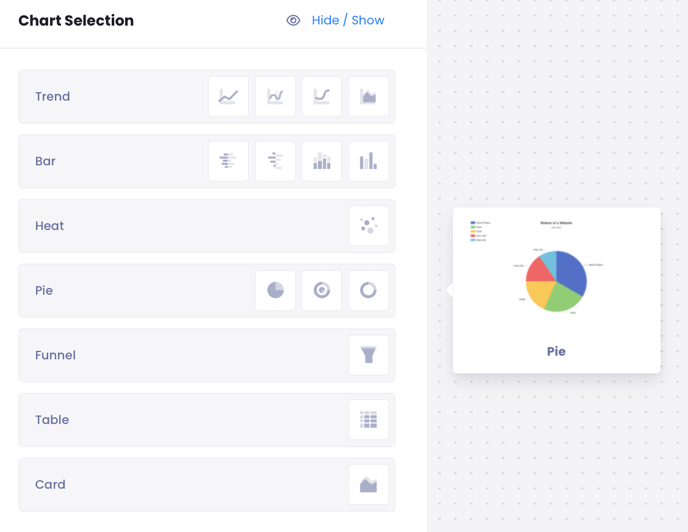
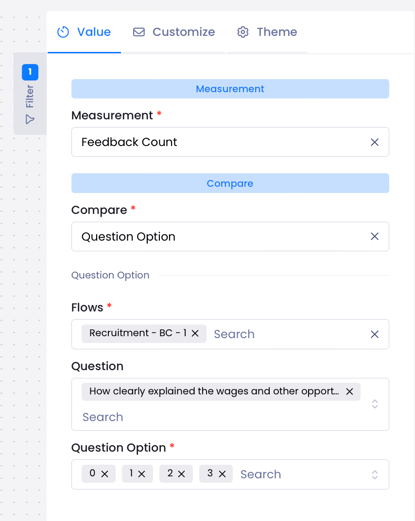
- From the right-hand menu from Measure select Feedback Count.
- Select what you want to compare, for example, if you want to compare Question Options, select Question Options.
- Then select Flow Name and Question for which you want to report the options.
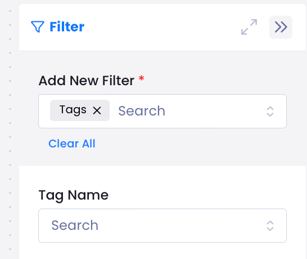
If you want to see the ratio of tag names to each other, you can also select the tag name from the filter separately.
You can add limits to your data using the Customize menu.
The answers to questions such as NPS, Sentiment, Single Choice, Multi Choice, Dropdown, Randomized Optioned, and Weighted Multiple Choice can be reported in a pie chart.