
What You Will Find Here
Who Can Access?
No access restrictions are defined for this feature.
How to Access
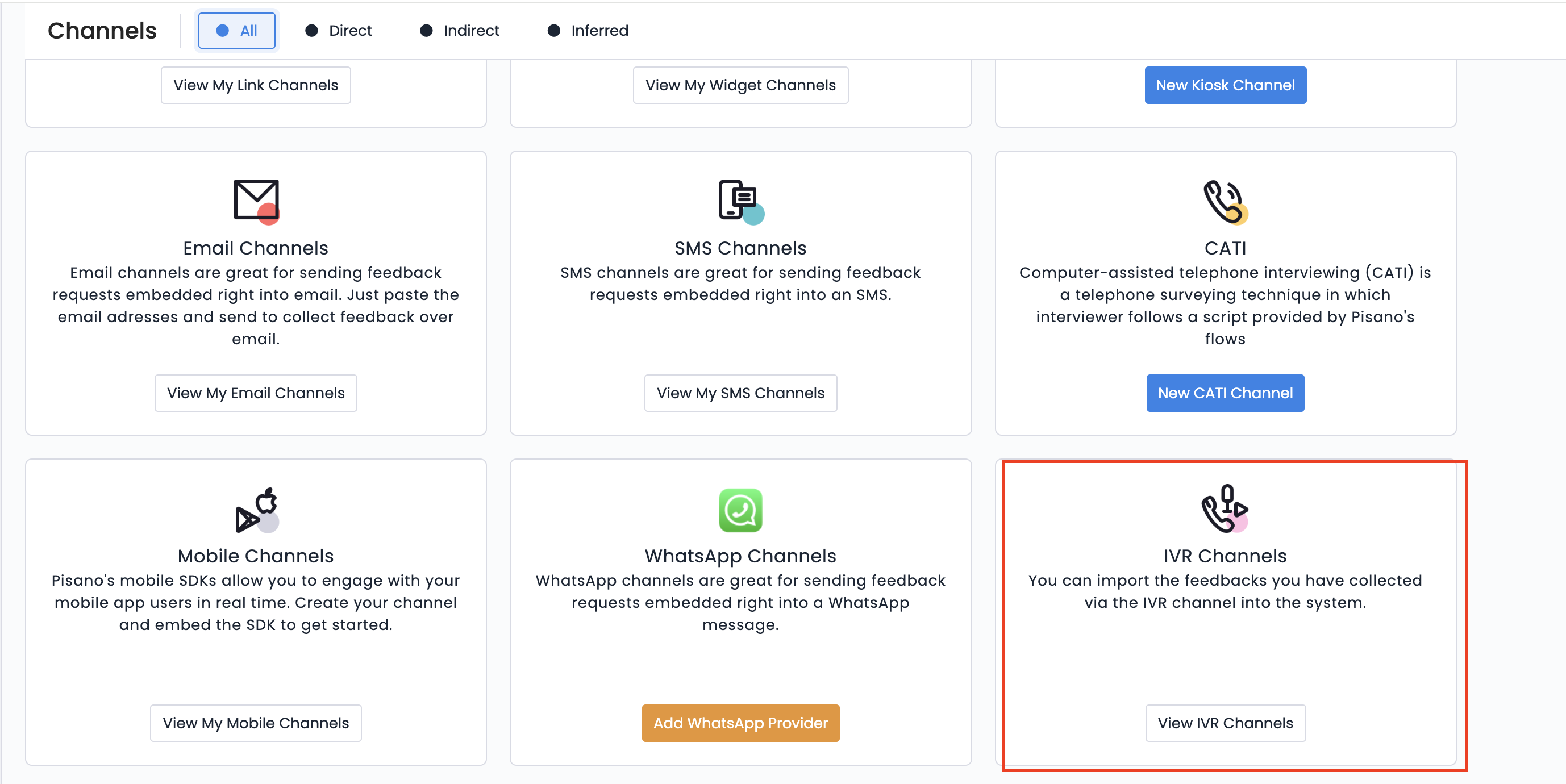
Follow these steps to open the IVR channel creation wizard:
- Open the main navigation menu.
- Select Channels.
- Click the button inside the IVR channel card.
- Select View my IVR channels if IVR channels already exist.
- Select New IVR channel if you are creating your first IVR channel.
What You Can Do Here
Create and Configure an IVR Channel
Create an IVR channel to import customer feedback collected through an external IVR provider. Before the channel is created, the wizard guides you through several configuration tabs that define how the channel is identified, organized, and managed within the platform.
- Open the Channels page.
- Select IVR as the channel type.
- Complete each tab in the channel creation wizard.
- Click Add.
After the configuration is saved, the system creates a new IVR channel that is ready for deployment.
Notes
- The settings described below apply specifically to IVR channels.
- Other channel types follow a similar creation flow but provide different configuration options.
Configure Channel Settings
The channel creation wizard contains several tabs. Each tab controls a different part of the IVR channel configuration.
- Complete the Basic Information tab.
- Name identifies the channel throughout the platform. Use a unique name that makes the channel easy to recognize.
- Default Language specifies the primary language associated with the channel.
- Continent Code, Country Code, and City Code define the geographic information associated with the channel.
- Latitude and Longitude store the channel's geographic coordinates when location information is required.
- Configure the Theme tab.
- Logo Image URL specifies the logo displayed for the channel.
- Favicon Image URL defines the browser icon associated with the channel.
- Primary Color applies your organization's primary branding color.
- Switch to Advanced Styling enables CSS customization if additional branding changes are required.
- Configure the Advanced Settings tab.
- Vertical associates the channel with the appropriate business category.
- Parent Channel places the IVR channel within your existing channel hierarchy.
- Configure the Digest Configuration tab.
- Enable Daily Digest, Weekly Digest, or Monthly Digest to send scheduled summary emails that match your reporting needs.
- Configure the Email Settings tab.
- Enable Send emails to customers who submit feedback on this channel if customers should automatically receive confirmation or thank you emails after their feedback is imported.
- Configure the Notification Settings tab.
- Enable the Status toggle to activate custom notification settings for the selected node.
- Pisano Weekly Account Summary sends a weekly summary of account activity.
- Inactive Customers Digest highlights customers who have become inactive.
- Feedback Creation notifies users whenever new feedback is imported.
- Feedback Assignment alerts users when feedback is assigned to them.
- Feedback Status Change informs users when the status of feedback changes.
- Feedback Comments sends notifications when new comments are added.
- Mentioned in Feedback alerts users when they are mentioned in feedback comments.
- Score Alerts sends notifications when configured score conditions are met.
- Kiosk Status Notifications informs users about kiosk status updates.
- Kiosk Connection Notification reports kiosk connectivity changes.
- Mobile notification options provide the same event notifications through the mobile application.
- Click Add.
The system creates the IVR channel using the selected configuration.
Notes
- Enabling the Status toggle applies notification preferences to all users assigned to the selected node and every sub node.
- Users who inherit these notification settings cannot modify them locally.
Deploy the IVR Channel
After the IVR channel has been created, deploy it so the platform can begin importing feedback from your external IVR system. Depending on your implementation, deployment can be completed manually or through the API.
- Create and save the IVR channel.
- Deploy the channel using one of the following methods:
- Deploy it manually from the Inbox.
- Deploy it programmatically through the API using the required identifiers.
After deployment is complete, the IVR channel is ready to receive and import customer feedback collected through your external IVR solution.
Notes
- Both manual and API deployment are supported.
- Check identifiers before deploying through the API.
Limits / Notes
- The IVR channel is intended exclusively for importing customer feedback collected through external IVR systems.
FAQs
How can I deploy an IVR channel after creating it?
You can deploy the channel manually from the Inbox or programmatically through the API by using the required identifiers.