
What You Will Find Here
-
Set Up Authentication: Establish a secure connection between Pisano and Salesforce.
-
Trigger Surveys from Salesforce: Automate survey delivery based on CRM activities.
-
Send Feedback Data Back to Salesforce: Sync survey responses directly into Salesforce records.
Before You Start
You must complete the following prerequisites before you begin the integration process:
-
Enable API access in both Pisano and Salesforce.
-
Create a survey campaign in Pisano.
-
Verify that required API endpoints are accessible.
-
Prepare a valid authentication method. Use an Authorized App or a Static Token.
What You Can Do Here
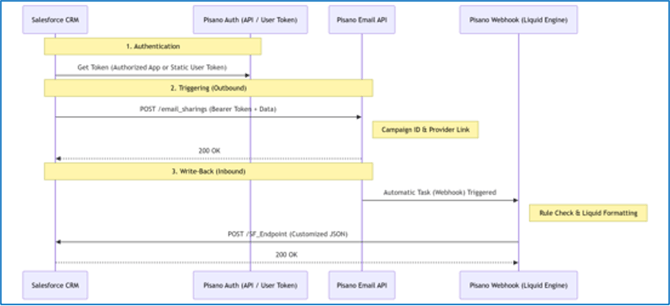
Pisano Salesforce Integration Flow Diagram
Set Up Authentication
When you need to establish a secure communication channel between Pisano and Salesforce, use the following steps to authenticate. This process ensures that all subsequent data exchanges remain secure.
-
Choose your authentication method.
-
Option A: Use an Authorized App for dynamic tokens. Send a POST request to
https:///v1/authorized_apps/token. -
Option B: Use a Static User Token from a dedicated API user.
-
Configure the required headers.
-
Set
Content-Typetoapplication/json. -
Set
AuthorizationtoBearer <TOKEN>.
Result: A secure connection is established for all subsequent API requests.
Notes / Tips / Warnings
-
We recommend using the Authorized App method. This method uses dynamic tokens with expiration limits to provide better security.
Trigger Surveys from Salesforce
When you need to send surveys automatically based on specific CRM events, use the Email Sharing API. This process allows your Salesforce instance to initiate survey delivery to your customers.
-
Identify the Email Sharing API endpoint:
https:///v1/email_campaigns/<CAMPAIGN_ID>/email_sharings. -
Configure the request with recipient emails.
-
Include
custom_attributessuch as the customer name andexternal_id. -
Include
built_in_responsessuch as thebranch_id,agent_name, andtransaction_type. -
Set the Salesforce event to trigger this Outbound API call.
Result: The system triggers the email survey to the recipient list when the Salesforce event occurs.
Example Request:
{
  "emails": ["customer@example.com"],
  "custom_attributes": {
    "customer@example.com": {
      "name": "John Doe",
      "external_id": "SF-CONTACT-123"
    }
  },
  "built_in_responses": {
    "customer@example.com": {
      "branch_id": "LDN-05",
      "agent_name": "Sarah Connor",
      "transaction_type": "Support_Ticket"
    }
  }
}
Warning: The campaign must have a defined email provider (e.g., SMTP or SendGrid) and the delivery channel must be active.
Send Feedback Data Back to Salesforce
When you need to sync survey responses back to Salesforce records, configure a Webhook. This allows you to maintain updated customer information and close the feedback loop within your CRM.
-
Create a Rule: In Pisano, define a trigger condition (e.g., NPS score is lower than 3).
-
Configure the Webhook: Select the "Webhook Request" action.
-
Enter Endpoint: Input your Salesforce API endpoint.
-
Map Data: Customize the payload using Liquid Template syntax.
Result: Feedback data is written back into Salesforce in real time after a customer completes a survey.
Example Liquid Template:
{
  "firstName": "",
  "lastName": "",
  "email": "",
  "nps_score": "",
  "sf_ref_id": "",
  "source_platform": "Pisano"
}
Notes / Tips / Warnings
-
All fields in
built_in_responsesmust match a validquestion_keyto ensure accurate data mapping.
Limits / Notes
Integration Flow
Salesforce Event → Pisano Trigger → Customer Completes Survey → Pisano Processes Feedback → Pisano Webhook sends data to Salesforce.
API Rate Limits
The system enforces the following limits for API requests:
-
20 requests per 5 seconds.
-
40 requests per 25 seconds.
-
80 requests per 125 seconds.
-
160 requests per 625 seconds.
Retry Logic
Pisano includes an automatic retry system that attempts to resend failed webhook requests up to 20 times for temporary connection issues.
FAQs
What happens if the webhook connection fails? Pisano features a retry logic that automatically attempts to resend the failed request up to 20 times.
Why is it important for built_in_responses to match a question_key? This ensures consistent reporting within Pisano and accurate data write-back to Salesforce.
What are the requirements for the survey campaign configuration? The campaign must have a defined email provider (like SMTP or SendGrid) and the delivery channel must be active.</CAMPAIGN_ID>