
The following steps should be followed for sending surveys via the web widget:
1. The Web Widget channel definition, connection to the relevant flow, and obtaining the script for integration
2. Obtain the script from Pisano interface and place it on your website. This step can be done in two ways:
a. Embedding Pisano Script into the Source Code
b. Adding via Google Tag Manager (GTM)
3. Feedback can be collected anonymously using the script, or customer information can be transmitted for collection.
4. Using the script, you can embed the survey on any page of your website and decide when to display it (after selecting a menu item, accessing a specific page, completing a specific action, etc.). The same survey can be displayed on different pages, and different surveys can be published on each page or after each action."
1. Embedding Pisano Script into the Source Code
The JavaScript code provided by Pisano can be directly added to the HTML file of the website, just before the </body> tag, to be integrated into the source code.
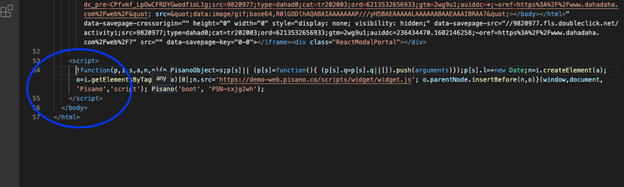
The correct placement should result in a similar appearance to the following: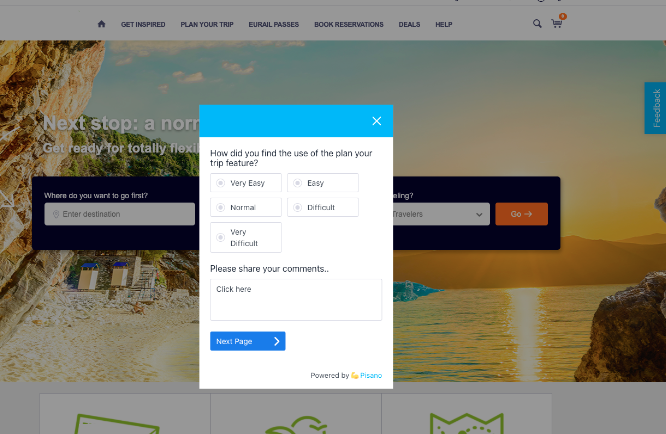
2. Adding via Google Tag Manager (GTM)
The JavaScript code provided by Pisano can also be added through Google Tag Manager (GTM). Below are the steps to place Pisano on your website using GTM.
- Creating a Trigger
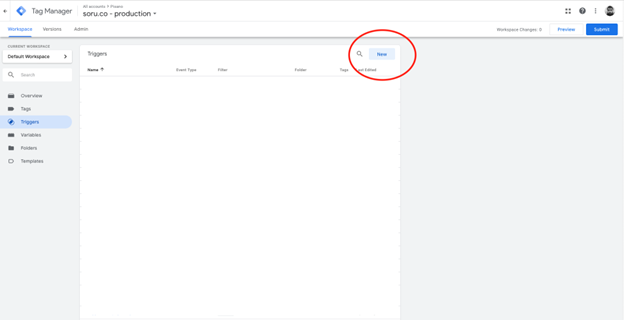
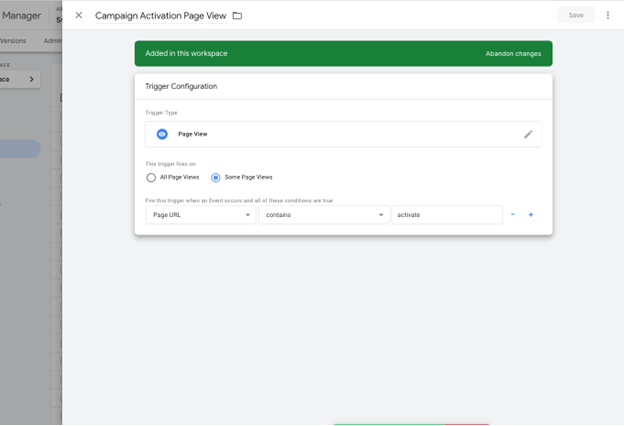
In GTM you can create a Trigger which will initiate the Pisano pop-up along with the PageView event of the customer/visitor.
Below, you can find an example configuration to create a trigger on the Campaign Activation page
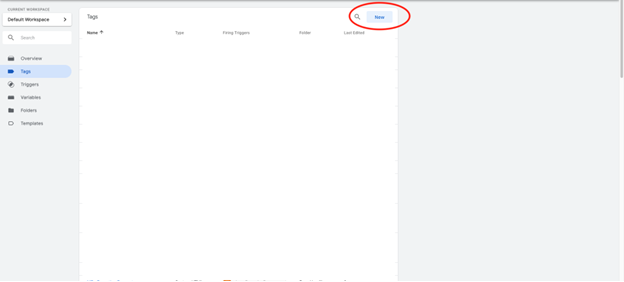
- Creating a Tag
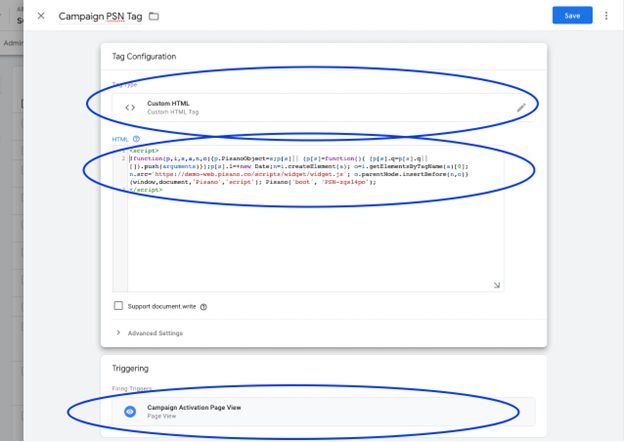
After creating the trigger to work on the Campaign Activation page, we can proceed to create a Tag to add the Pisano JavaScript code. The type of the tag should be Custom HTML. When creating the tag, the JavaScript code provided by Pisano should be placed within the HTML and connected to the trigger created in the previous step.
3. Customer Attributes & Transactional Data
Pisano’s JavaScript library can collect customer information (via customer parameters during initialization) and transactional data (such as CRM External ID, segment).
To collect transactional data, you need to decide which values to collect and add the necessary custom fields in the flows.
Sample JavaScript Code:
!function(p,i,s,a,n,o){p.PisanoObject=s;p[s]||(p[s]=function(){ (p[s].q=p[s].q||[]).push(arguments)});p[s].l=+new Date;n=i.createElement(a); o=i.getElementsByTagName(a)[0];n.src='https://demo-web.pisano.co/scripts/widget/widget.js'; o.parentNode.insertBefore(n,o)}(window,document,'Pisano','script'); Pisano('boot', ' PSN-6saumic', {

  customer: {

    external_id: "12345-1234-1234",

    email: 'leo@pisano.co'

  },

  customAttributes: {

    "SEGMENT": "Promoters",

    "CRM_ExternalID": "1515152525"

}});
When a customer fills out a survey/form and leaves feedback via the Pisano Popup, the feedback and the relevant fields will be written to Pisano.
4 - Enabled URL Management
When integrated with the Google Tag Manager system or after the general integration into the website's infrastructure, you can manage on which pages the Pisano survey will be displayed through the Enabled URLs and Enabled Domain Names sections.
Firstly, in the trigger section of the Google Tag Manager integration, we can set the display of the survey to be on all pages.

With this integration method, the Pisano Web survey can now be visible on all pages. Using the Advanced Settings section of the Pisano Web Widget, we can select the pages where we want to display it from the Enabled URLs section, thus ensuring its display only on those pages.

As a result of this process, by continuously integrating with Google Tag Manager, you can manage active and passive pages in real-time through Pisano without the need for reintegration.