
To invite a user to Pisano;
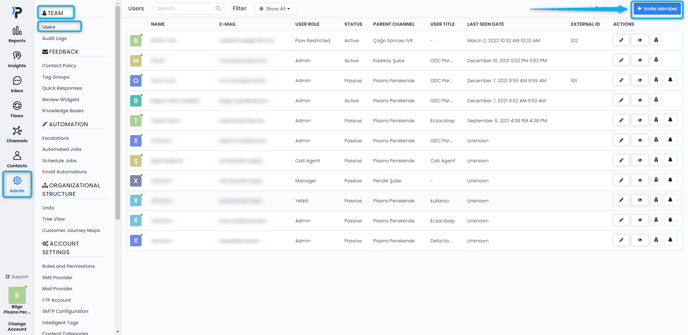
- Go to Admin > Team > Users.
- To invite a new user, press the "Invite Member" button located in the upper right corner of the screen.
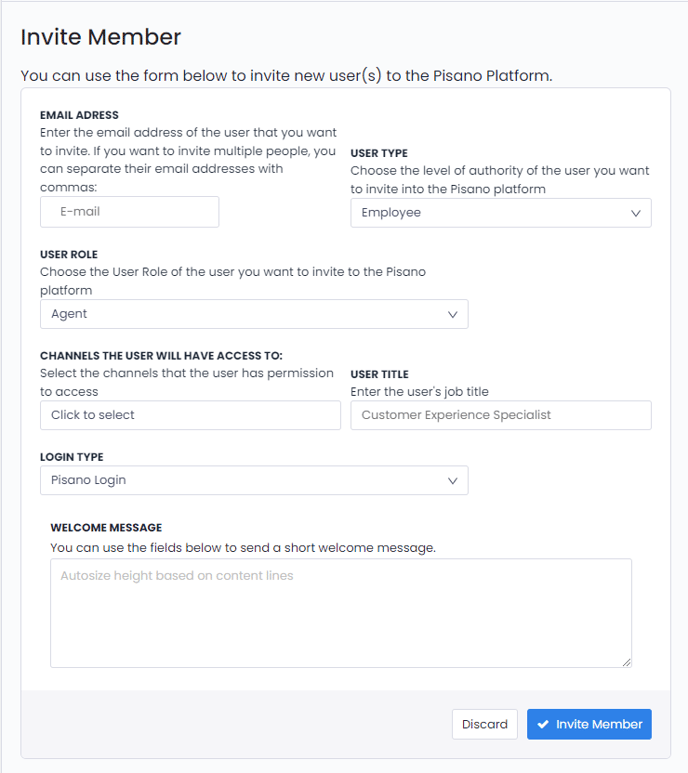
- On the screen that opens, enter the e-mail address of the person you want to invite. If you want to invite more than one person, you can separate their email addresses with commas.
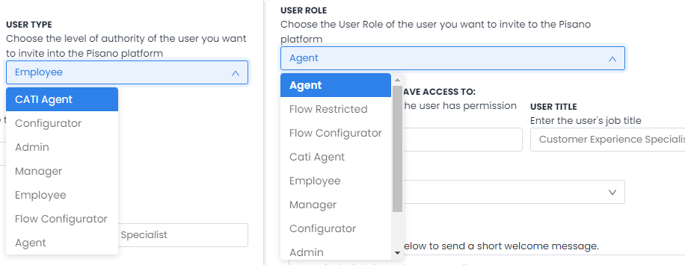
- Specify the authorization level of the user you want to invite to the Pisano platform by selecting one of the available Roles. The user's role and role type must match.
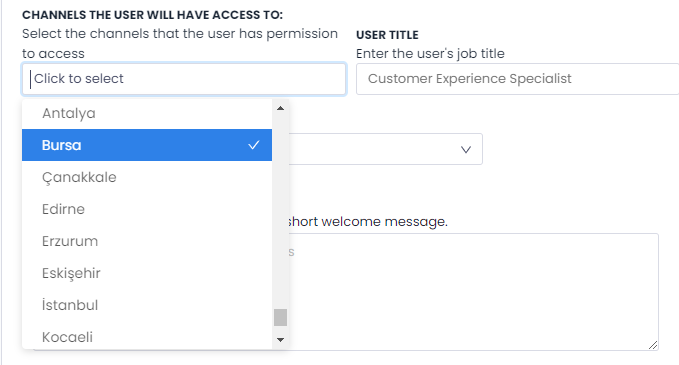
- Select the channels and units that the user has permission to access. You must assign at least one unit or channel to the user.
- Enter the user's title. This is not required to invite new members and can be edited later.
- Set the login type. For most users, the Pisano Login option should be chosen. Unless your company uses LDAP (Lightweight Directory Access Protocol), Pisano Login should be selected.

- If you prefer, you can also use the Welcome Message field to send a short, customized greeting.
After clicking the 'Invite Member' button, an e-mail will be sent to the user with an activation link.
The invite link times out after 24 hours. If users are unable to activate their account within this time, they must contact their Pisano Administrators to resend the link.
In case the user cannot access the activation link page, please contact your IT team and verify if there are any restrictions.
When you go to the Admin > Team > Users tab, you can see the user's role, whether they are active or inactive, the channel they are connected to, and the last seen date.
You can edit the user by clicking the pencil icon to the right of the user's name.
