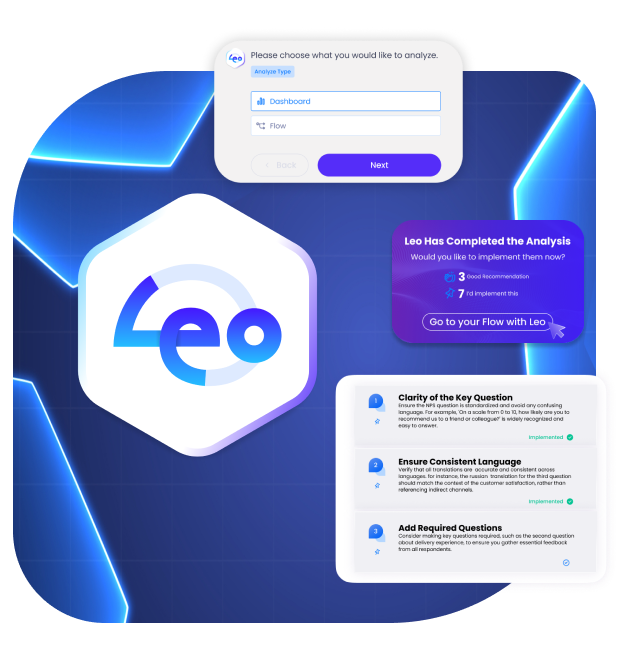
The core functionality of Leo revolves around the analysis of flows and reports, gathering user feedback, and driving optimal results. Below is a step-by-step guide on how Leo operates.
1. Start - Flow or Report Selection
Leo can perform either Flow or Dashboard analysis based on the user’s needs. The first step presents the user with the following two options:
-
Flow Analysis: Users can choose this option to review and optimize their existing flows.
-
Report Analysis: Users can analyze reports based on data from previous flows or other information.
User Selection:
-
The user selects either Flow or Report to proceed with the relevant analysis.
For both types of analysis, users receive detailed recommendations on structural improvements and data performance.
2. Flow Analysis
The flow analysis process proceeds as follows:
2.1 Flow Selection:
The user selects one of their existing flows from a list. The flow list includes all defined flows within the user's account.
2.2 Optional Questions for Advanced Analysis:
Leo asks optional questions to better understand and optimize the flow. These questions include:
-
Customer or Employee Touchpoint
-
Target Audience
-
Which Channel is Used
-
Communication Frequency
-
Purpose of Collecting Feedback
These questions are optional; the user can skip them and proceed directly to the analysis. However, the answers provided help make the analysis more focused and targeted.
2.3 Analysis Process and Recommendations:
Once the analysis is complete, LEO provides approximately 10 recommendations. These suggestions are designed to improve the flow's performance and help achieve more effective results.
2.4 User Actions:
Each recommendation includes the following three actions:
-
Copy Text Option: Users can easily copy the recommendation text.
-
Recommendation Evaluation: Each recommendation includes the following options:
-
Good Recommendation: The user can mark the recommendation as good.
-
I Will Implement: The user can choose to implement the recommendation.
-
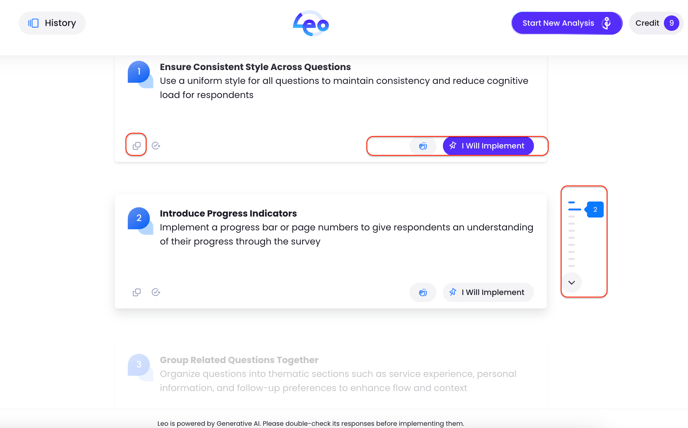
Recommendations are presented individually, and the user must click the Next button to proceed. The user can’t skip ahead and must interact with each recommendation before moving to the next.
2.5 Results Screen and Redirection:
At the end of the recommendations, the user sees a summary of how many suggestions they liked and how many they will implement.
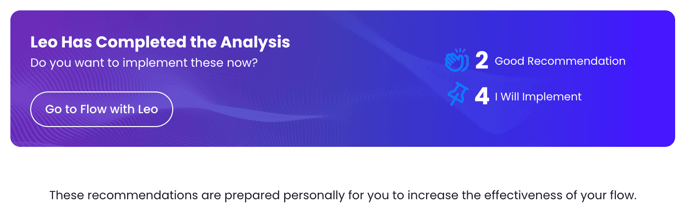
After reviewing the recommendations, Leo provides a button to redirect the user to the relevant flow. From here:
-
The user can make any necessary changes to the flow based on the recommendations.
-
Once updates are made, the flow is saved, and the changes are applied.
3. Dashboard Analysis
The dashboard analysis process works as follows:
3.1 Dashboard Selection:
The user selects the Dashboard analysis type and picks a dashboard from the list of available options.
3.2 Chart Analysis Options:
The user is presented with two choices:
-
Analyze All Charts: Analyzes all charts in the dashboard.
-
I Will Select Specific Charts: Allows the user to select specific chart(s) to analyze.
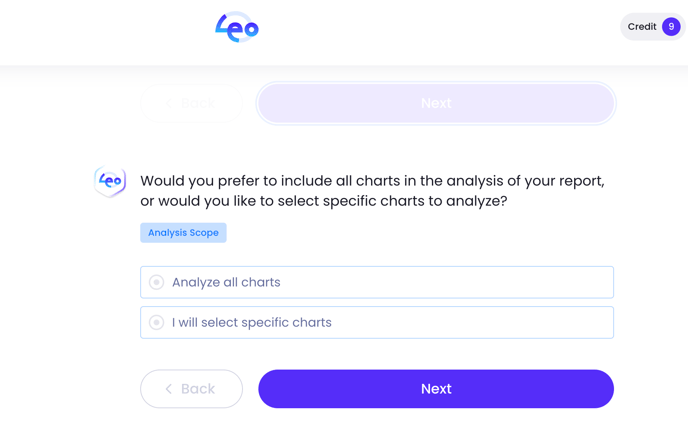
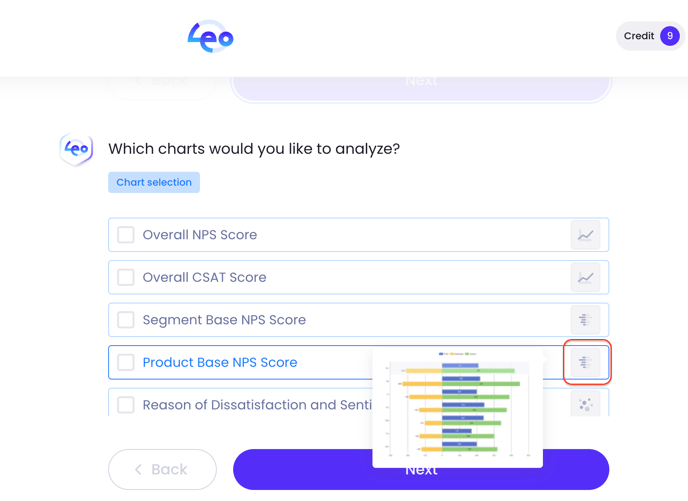
If the "I will select specific charts" option is chosen, the list of charts in the dashboard will appear. From here, the user can select the relevant chart(s). A preview icon will appear when hovering over the highlighted icons for a quick preview.
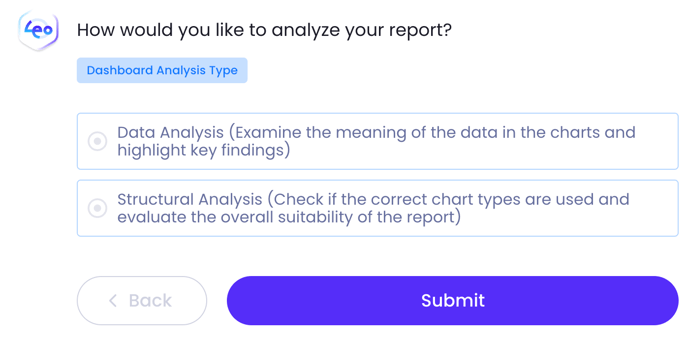
3.3 Analysis Type:
Once the charts are selected, the user is asked to choose the type of analysis:
-
Structural Analysis: Checks the structural accuracy and suitability of the charts.
-
Data Analysis: Assesses the performance and insights of the data used in the charts.
3.4 Analysis Process and Recommendations:
Once the analysis is complete, Leo provides approximately 10 recommendations. These suggestions are designed to improve the dashboard’s performance and help achieve more effective results.
3.5 User Actions:
Each recommendation includes the following three actions:
-
Copy Text Option: Users can easily copy the recommendation text.
-
Recommendation Evaluation: Each recommendation includes the following options:
-
Good Recommendation: The user can mark the recommendation as good.
-
I Will Implement: The user can choose to implement the recommendation.
-
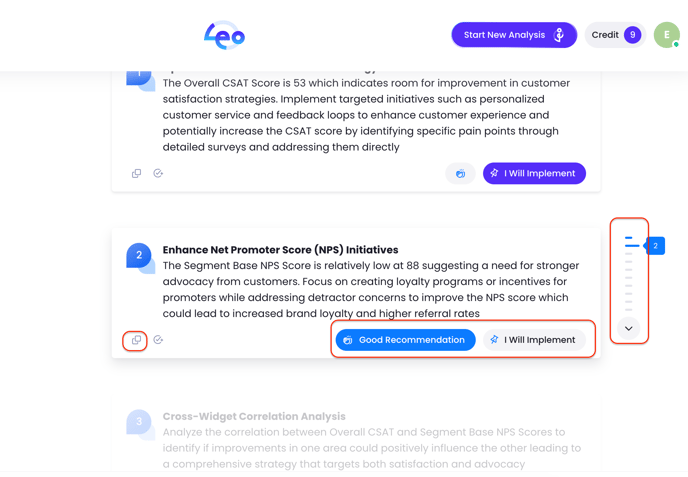
Recommendations are presented individually, and the user must click the Next button to proceed. The user can’t skip ahead and must interact with each recommendation before moving to the next.
3.6 Results Screen and Redirection:
At the end of the recommendations, the user sees a summary of how many suggestions they liked and how many they will implement.
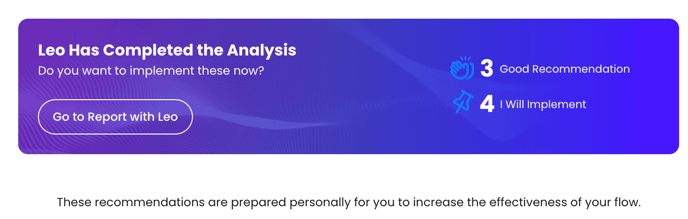
After reviewing the recommendations, Leo provides a button to redirect the user to the relevant report. From here:
-
The user can make any necessary changes to the report based on the recommendations.
-
Once updates are made, the report is saved, and the changes are applied.
4. Leo’s User-Friendly Features
4.1 Accessing Past Analyses:
If the user accidentally closes the analysis page or needs to revisit the recommendations in the future, Leo offers a way to access past analysis:
-
The user can navigate to the History Section to find and view previously conducted analyses. This section allows the user to view or reapply previously received recommendations.
4.2 One-by-One Display:
Recommendations are displayed one by one on the page. The user must click the forward button or one of the buttons under the recommendation to move to the next. Scrolling down the page is disabled, but the user can scroll upwards.
4.3 Credit Management:
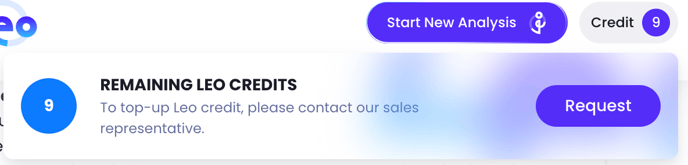
Leo assigns 10 credits to each account initially (may be changed later). Each analysis consumes 1 credit. When credits run out, the users of the account can contact the sales team to request additional credits with just a click.