
As an example below, a workflow has been created to a second campaign based on the response to the campaign initially sent. By following the steps here, you can set up a reminder or a follow up campaign to be sent to your end-users.
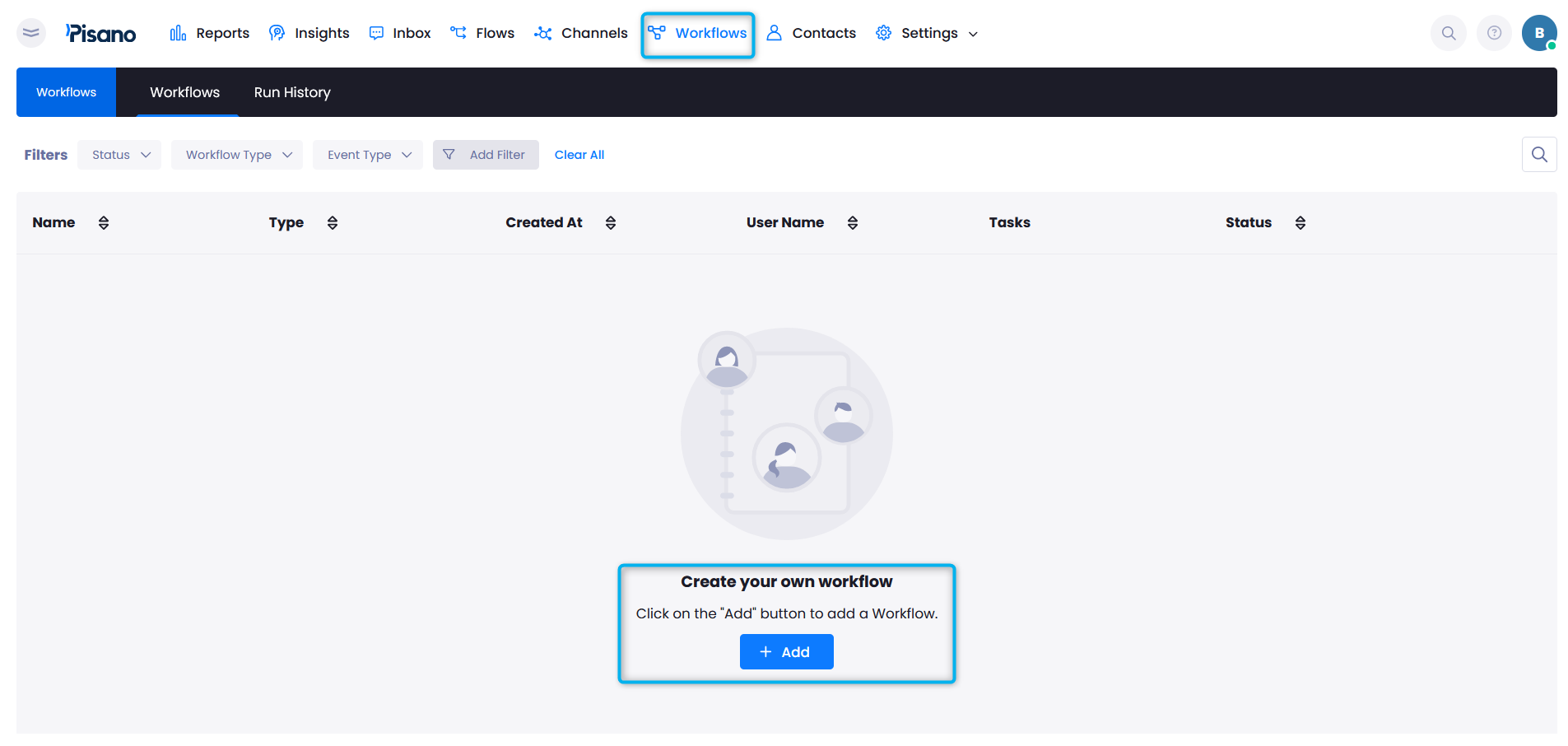
- Go to Workflows and click "Add" to create your own flow.
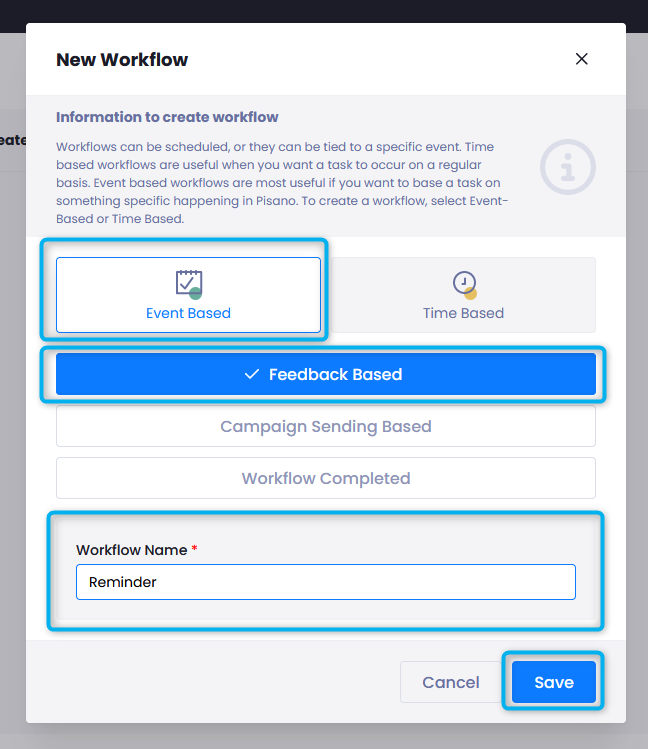
- Select "Event Based" > "Feedback Based".
- Name your worklow.
- Create your conditions > Click "ADD" to select the relevant flow, question, the operator containing/not containing the value in the response. In the below example, the condition is that customers must have replied to the selected the question as "Very Dissatisfied."
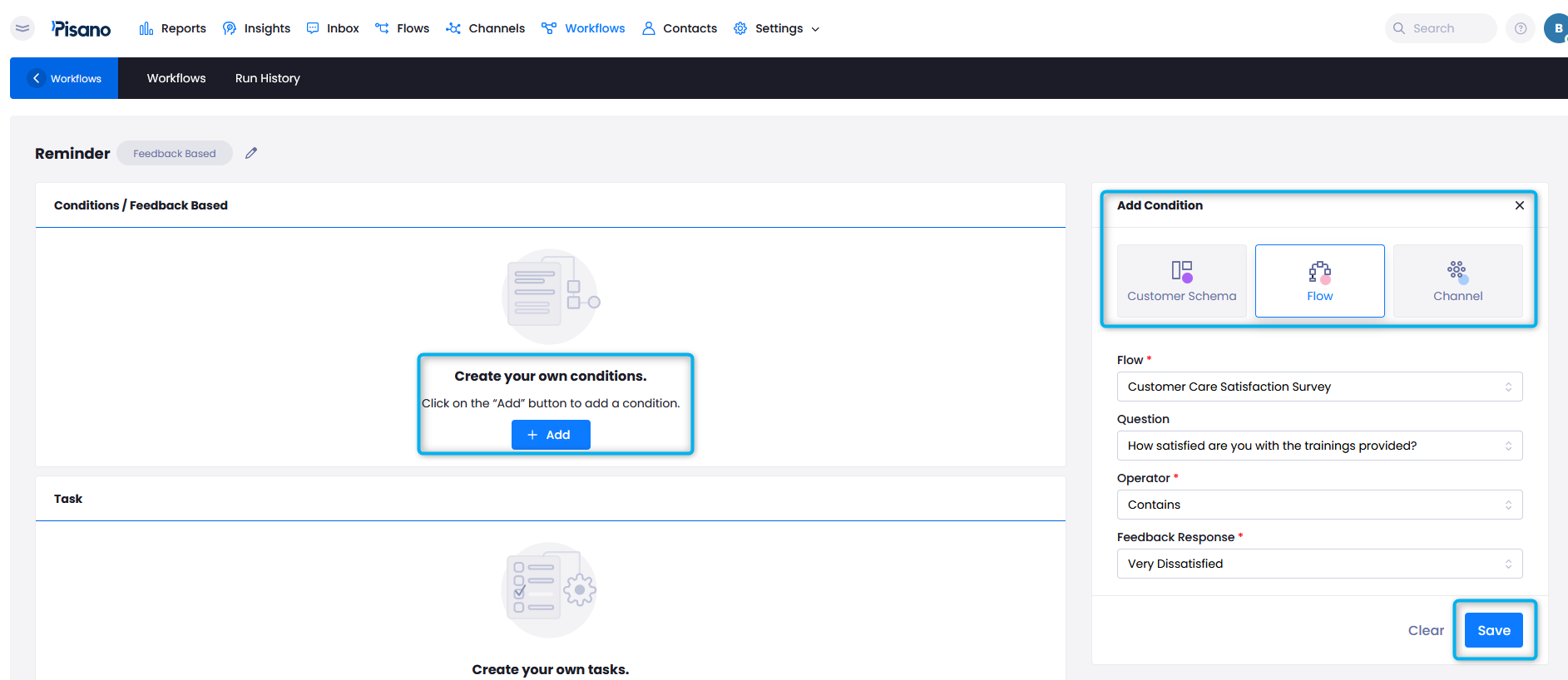
Contains: Selected information is present in the feedback.
Does Not Contain: Selected information is not present in the feedback.
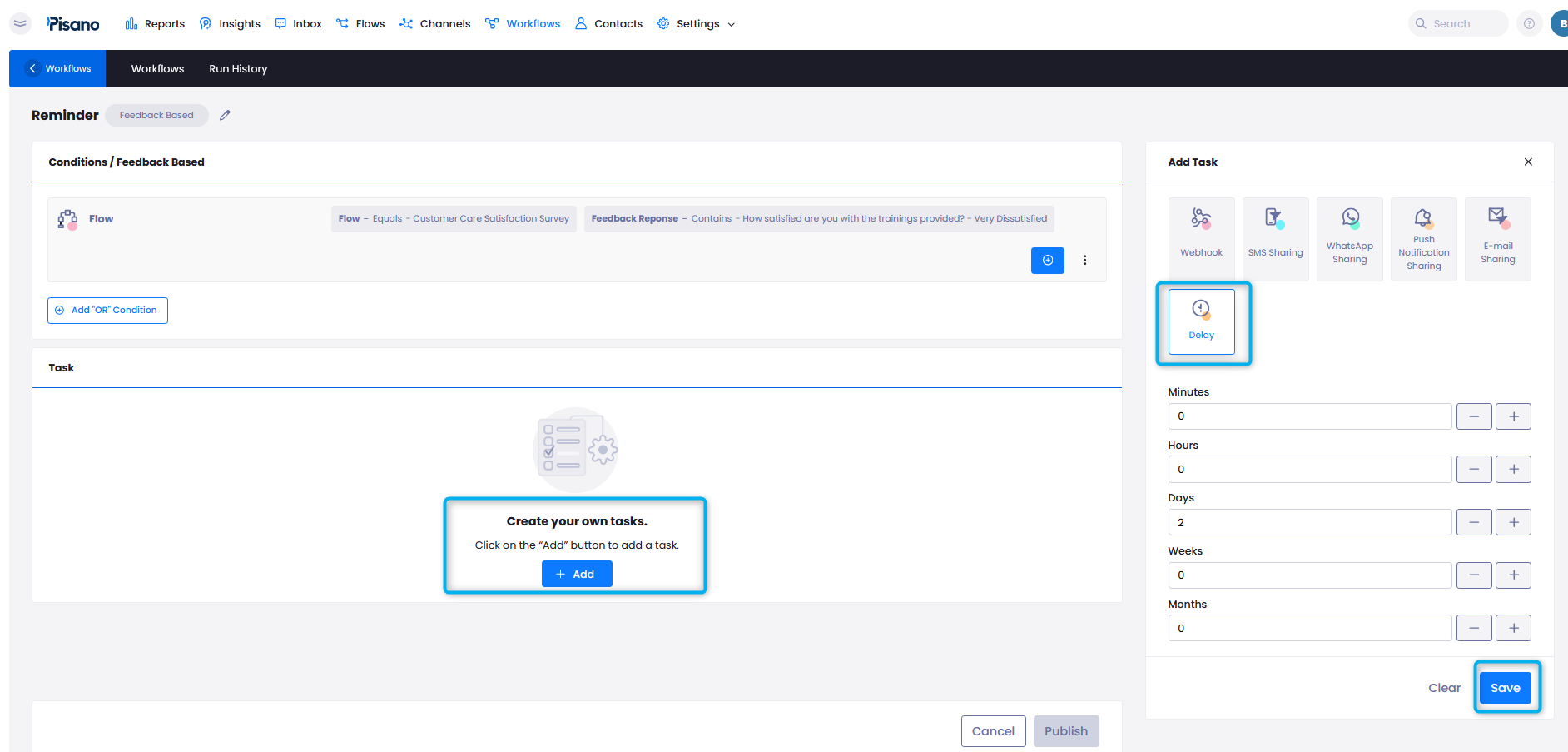
- After setting up your conditions, Create Task > Add Task > Select "Delay". This will allow us to determine how much time should pass before the second campaing is sent to the user. You can customize this value according to your needs.
- After saving, Add a second task to your workflow. This time, you can select the type of action you wish to execute. Here, we will be choosing SMS to send an SMS campaign to our end-users.
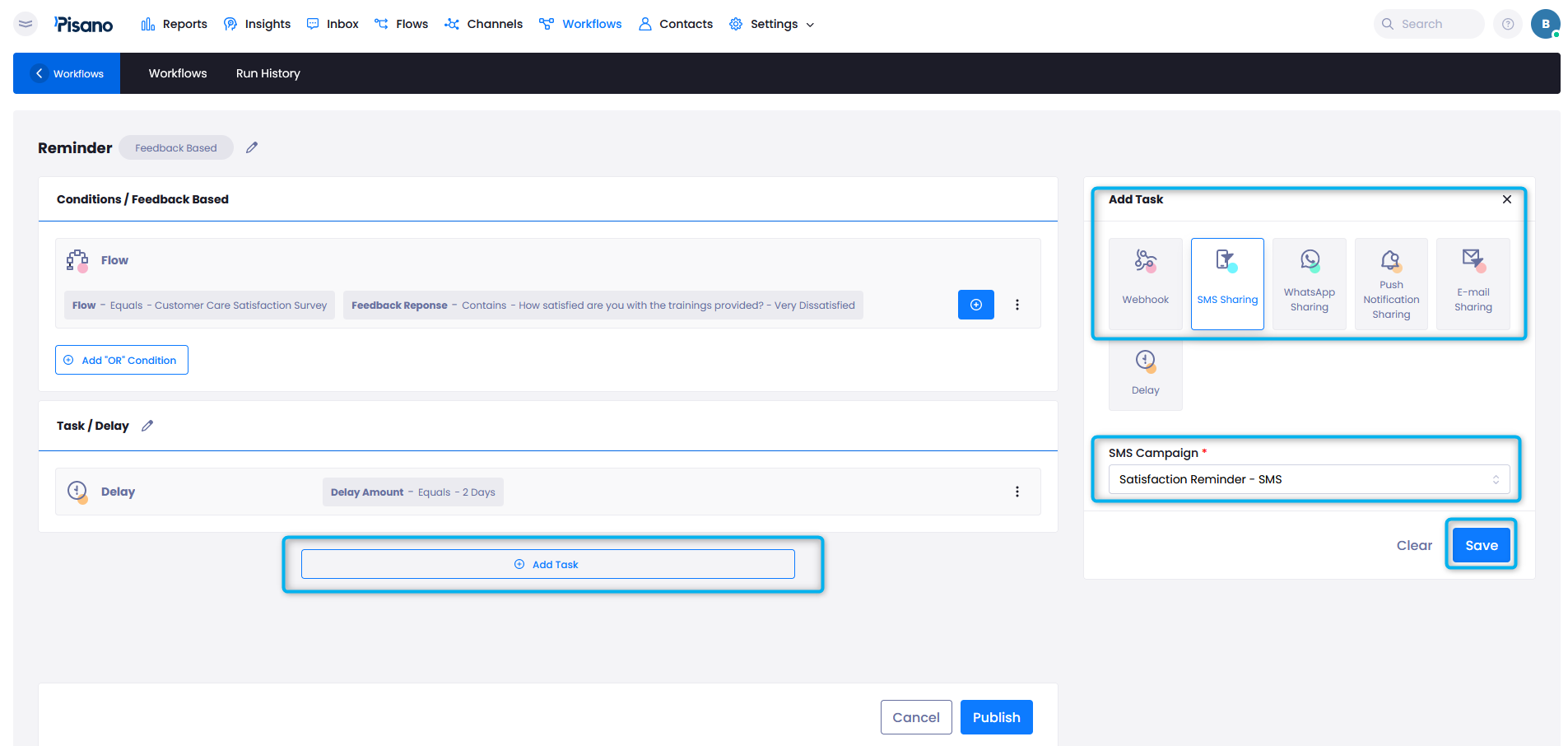
- You can save your second task and click the publish button to finish up.
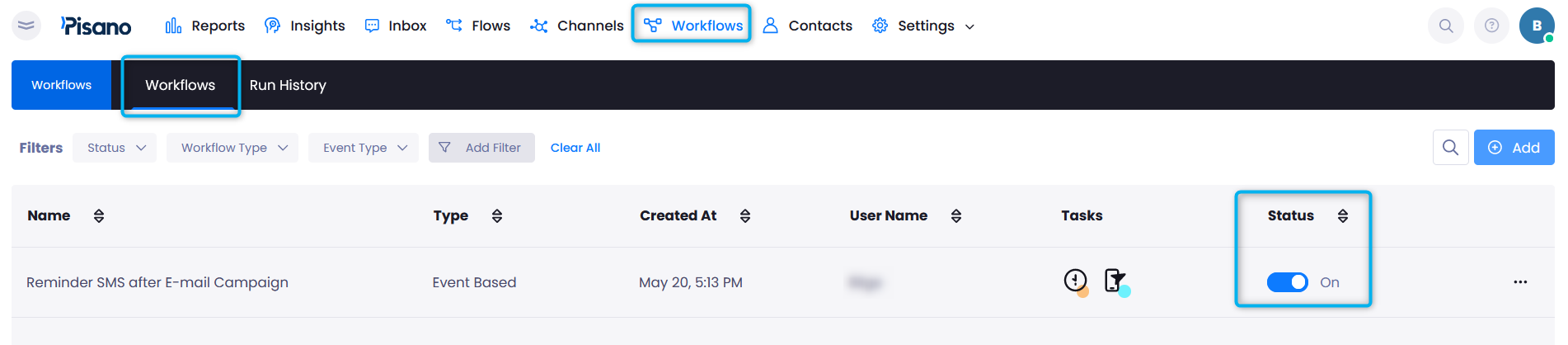
After creating your Workflow, make sure its Status is active on the Workflows page.
You can refer to our interactive video below for a detailed demonstration.