
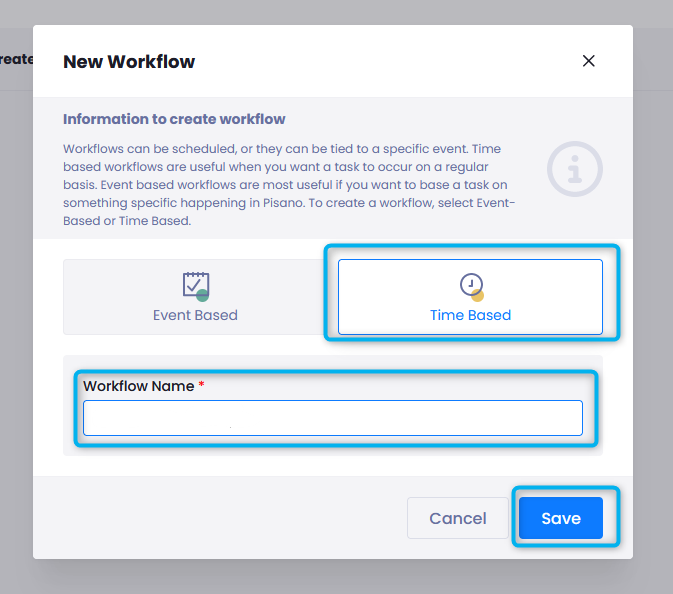
- Go to Workflows and Create Your Own Workflow > Click "ADD,"

- Select "Time-Based."
- Name your workflow.
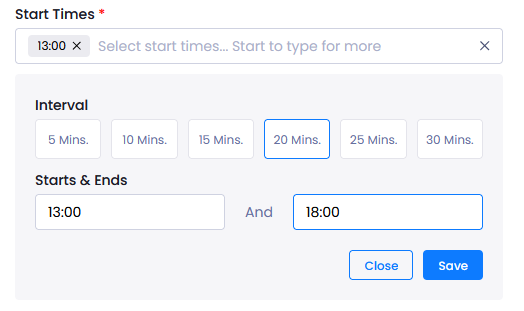
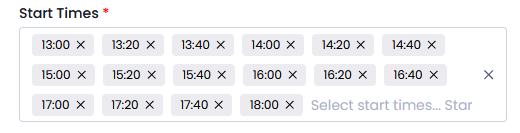
- From Settings determine your Frequency (yearly, daily, monthly, weekly), Start times, Start/End dates and Time Zone.

For start times that occur at intervals, you cna use the "Generate Start Times" button and select your interval. Pisano will create the times for threshold you have selected.
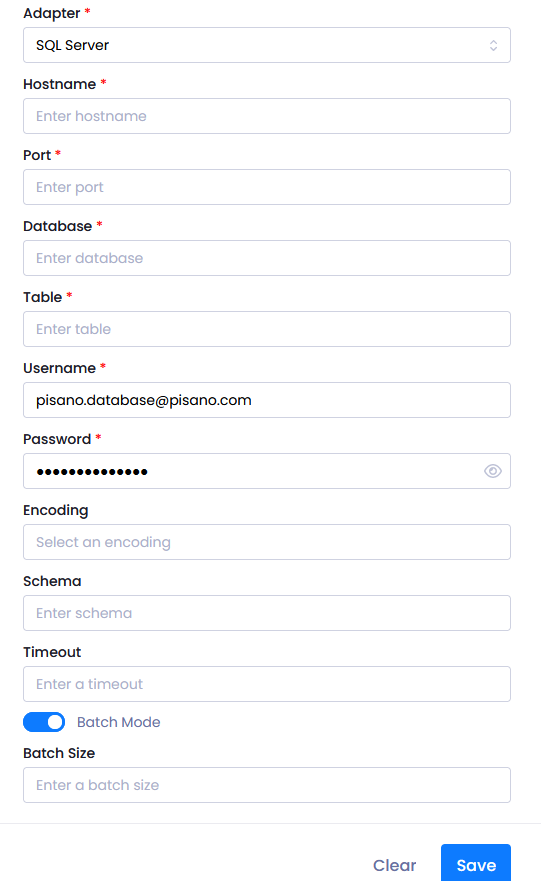
- Choose Adapter, server, port, database, table.
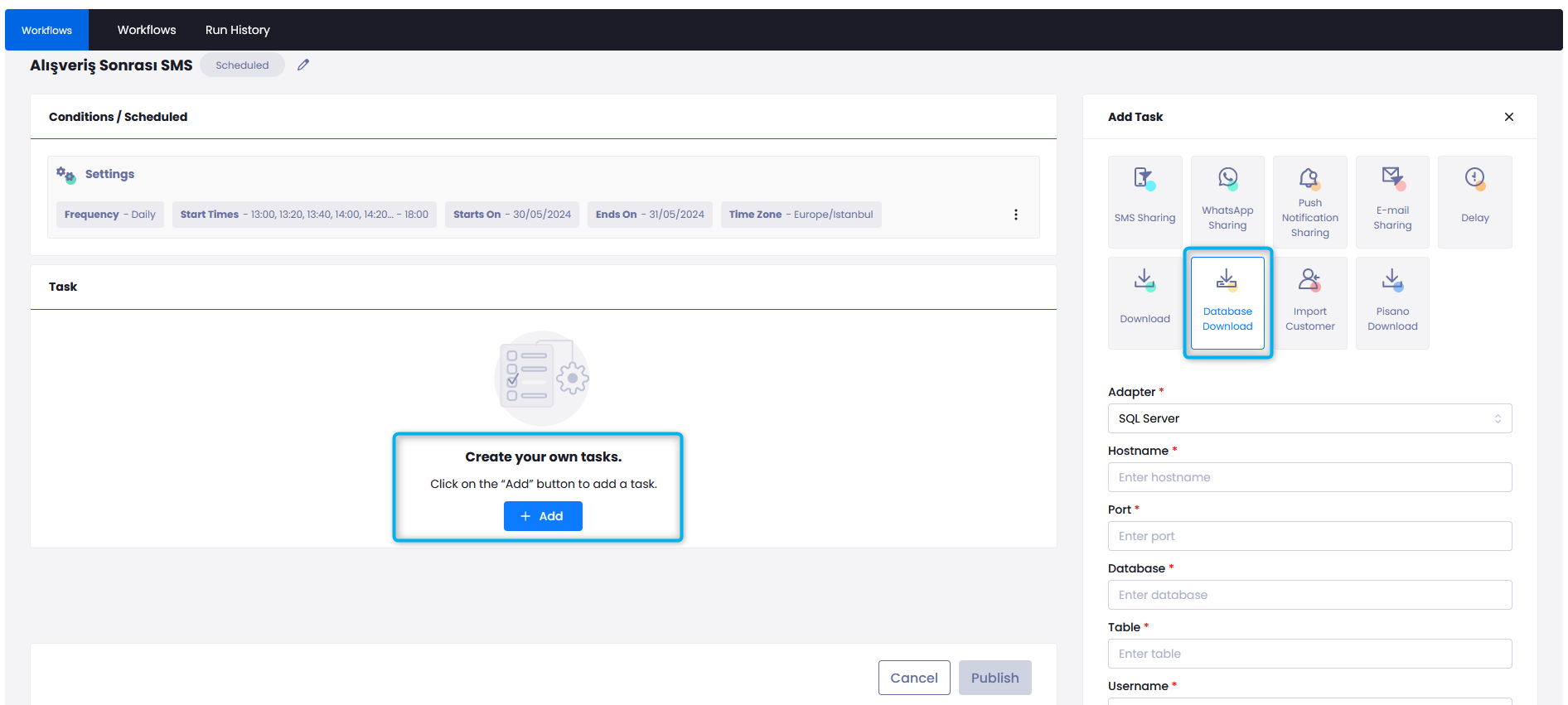
- After entering the username, password, preferably enter encryption and schema information.
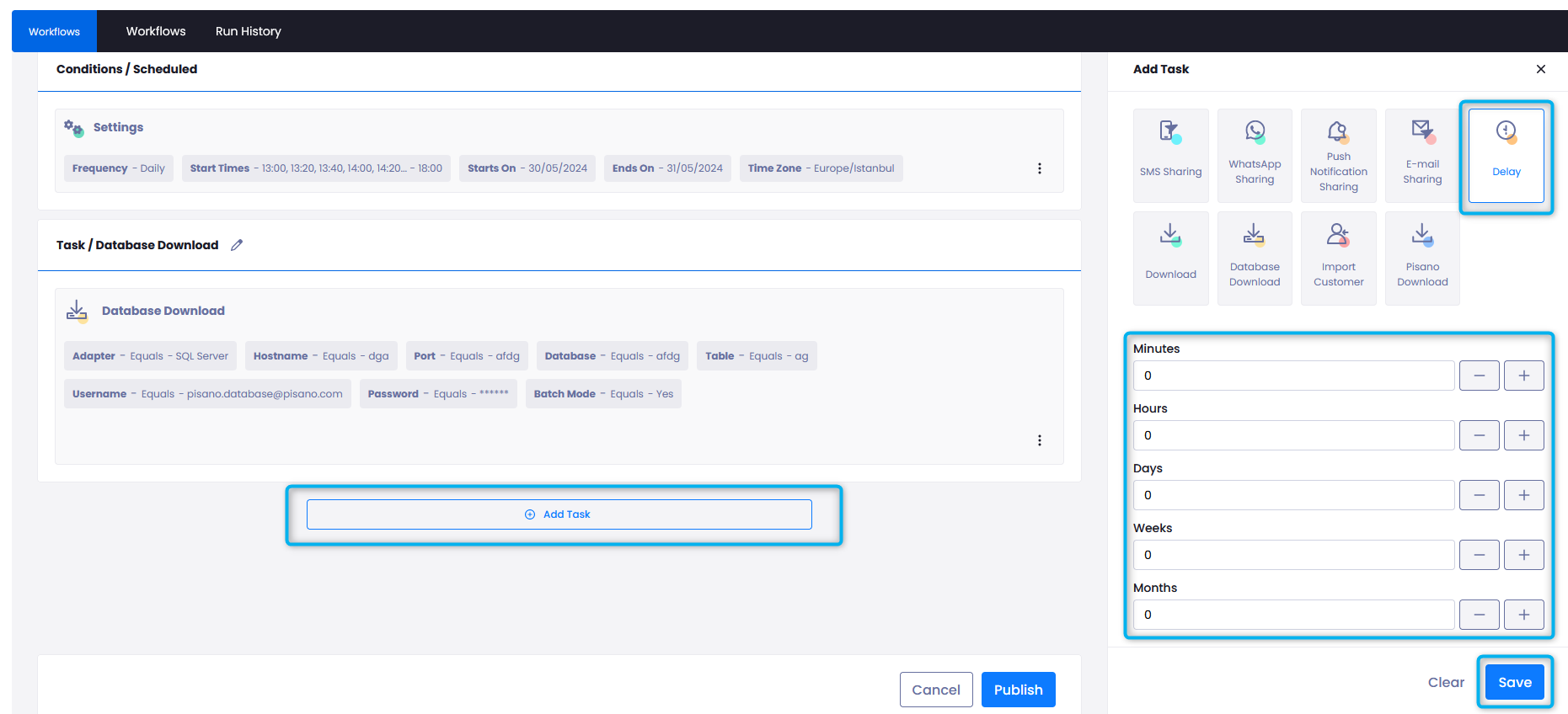
- If you would like this workflow to work at spesific times, click "Add Task" again and select Delay. Set your prefered delay time.
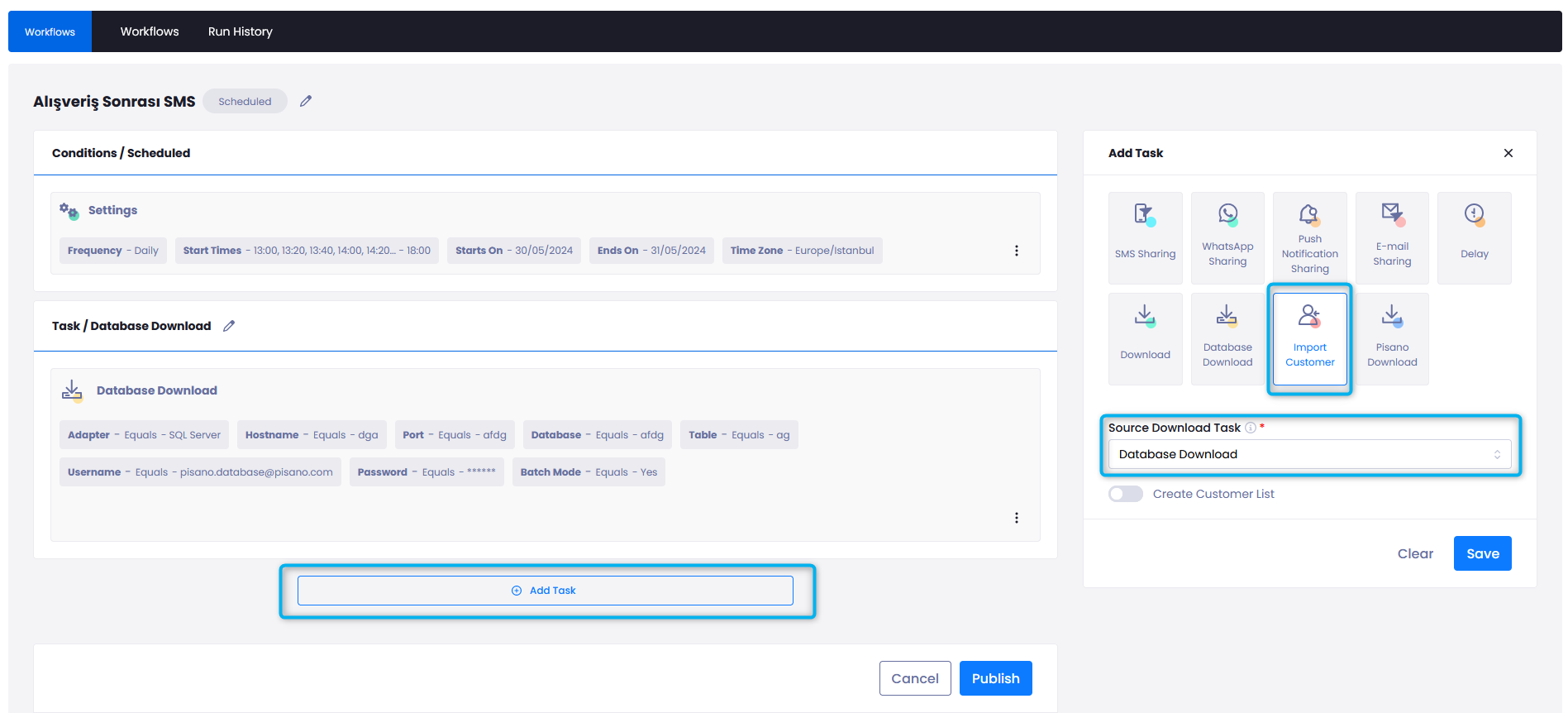
- After saving, click Add Task again, select Import Customer by choosing your file.
- Select Source Download Task > Database Task (workflow name)
- Click the publish button to finish up.
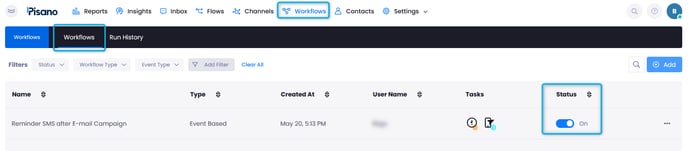
After creating your Workflow, make sure its Status is active on the Workflows page.
For a detailed demonstration, you can watch our interactive video below.