The Automated Job feature enables all of your team members to be informed about negative customer feedback. The system sends a notification to members based on the rules set on the automated jobs. The notification for the feedback assignment is shared via email.
If your customer is engaging with you through a real-time channel such as live chat or leaves feedback right before leaving your store, it is better to keep your team informed and ready to respond to your customer immediately.
After receiving feedback, another process begins regarding the review of the feedback. Contacting customers who have had negative experiences is a step towards improving the service you provide.
Pisano facilitates responding to negative feedback through automated tasks.
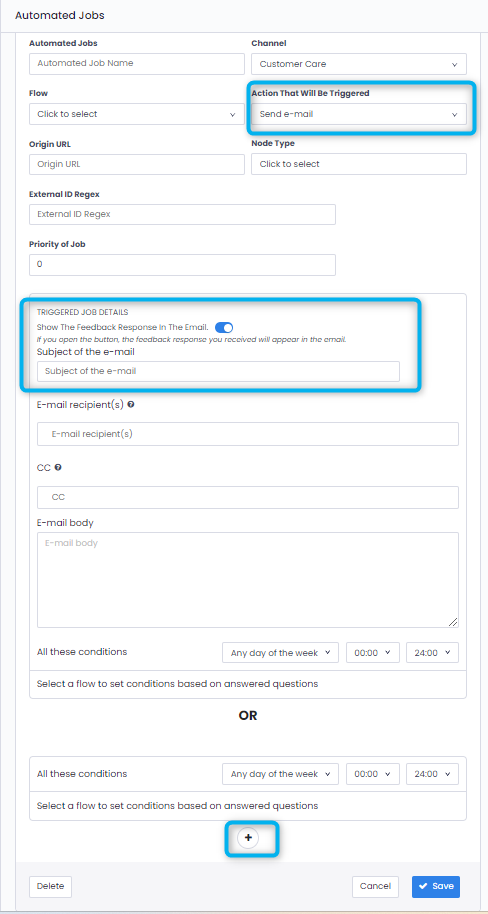
You can send the feedback as an email to team members responsible for the issue with the "Send Email" task.
- To send feedback as emails, go to Settings > Automation > Automated Tasks.
- Select "Send Email" as the Triggered Action. Activate the option "Show Feedback Responses in Email."
- Then, enter the email subject, recipients, and email content.
- Specify your rules using plus signs for "And" - "Or" conditions.
- For example: those who rate satisfaction as 1. Then save.