
What You Will Find Here
Who Can Access?
This feature is available to users who have access to the Flows module.
How to Access
Before opening the Logic Builder, the survey flow must be saved. The Logic Builder button is unavailable until the flow has been saved.
To open the feature:
- Open Flows from the main menu.
- Open an existing flow or create a new one.
- Save the flow.
- Click Logic Builder.

The Advanced Survey Logic Builder opens and displays all available survey questions that can be used to build logic rules.
What You Can Do Here
Configure Conditions
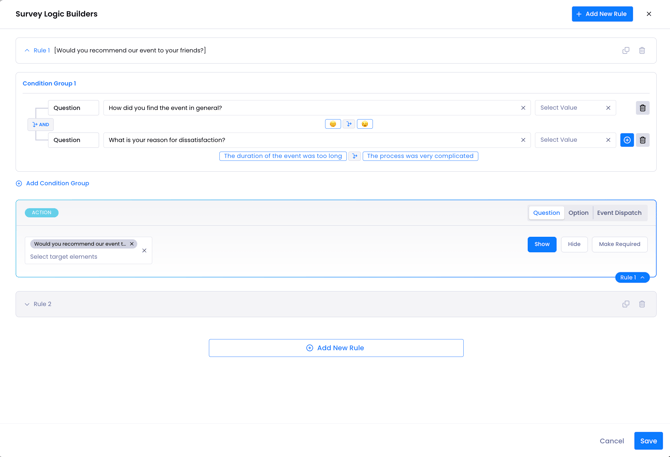
Use conditions to define when a survey rule should run. Every rule starts with a Condition Group, where you specify the survey responses that trigger an action. You can combine multiple conditions and condition groups to build simple or advanced survey logic.
- Click Add New Rule.
- In the Condition Group section, select the question that will trigger the rule.
- Select the answer choice or answer choices that should activate the rule.
- Add additional conditions if the rule requires more than one question.
- Add additional condition groups if needed.
- Select AND or OR to define how the conditions should be evaluated together.
After you save the rule, the system evaluates the configured conditions before performing the selected action.
Notes / Tips / Warnings
- Every rule begins with a Condition Group.
- A single rule can include multiple questions.
- Multiple condition groups can be created within the same rule.
- AND and OR operators let you build more advanced logic.
- Example:
- If NPS = 0, 1, or 2, show "How can we help you?"
- If Channel = Online and Delivery Status = Delayed, show "Would you like compensation?"
Configure Actions
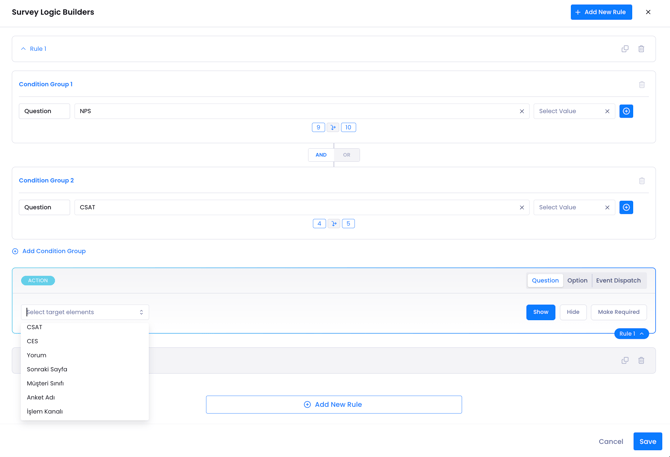
After defining the conditions, configure the action that should run when those conditions are met. Actions determine how questions, answer options, or Matrix question elements behave during the survey.
- In the Action section, select the question or option that the rule should affect.
- Select one of the available actions:
- Show
- Hide
- Make Required
- Save the rule.
Once the rule is saved, the selected action is applied automatically whenever the configured conditions are satisfied.
Notes / Tips / Warnings
- Actions can target entire questions or individual answer options.
- Matrix question rows and columns can be configured independently.
- Existing rules can be copied and reused instead of creating new ones from scratch.
- Rules can also be deleted if they are no longer needed.
- Rule titles are generated automatically based on the question selected in the Action section.
- Example:
- Make "Please explain the issue" required when CSAT = Not Satisfied.
- Hide the "Individual Satisfaction" statement in a Matrix question when Schema Type = B2B.
Real World Use Cases
The following examples demonstrate how survey logic can be used to create dynamic survey experiences based on respondent answers.
Low Score Follow Up
Collect additional feedback from respondents who report a poor experience.
- Condition: If the NPS score is 0, 1, or 2.
- Action: Show the question "How can we improve our service?"
Conditional Required Question
Request additional information only when a respondent indicates dissatisfaction.
- Condition: If CSAT is Dissatisfied.
- Action: Make the question "Please explain the issue." required.
Targeted Matrix Filtering
Hide Matrix statements that are not relevant for a specific audience.
- Condition: If Schema Type is B2B.
- Action: Hide the "Individual Satisfaction" statement within the Matrix question.
Multiple Condition Rule
Run a rule only after multiple conditions have been satisfied.
- Condition: If Channel is Online AND Delivery Status is Delayed.
- Action: Show the question "Would you like a compensation voucher?"
Limits / Notes
The Advanced Survey Logic Builder replaces the previous Element Trigger based rule management system with a centralized interface.
Keep the following points in mind:
- Rules are managed from a single location instead of individual survey questions.
- All survey questions become available in the Logic Builder after the flow is saved.
- Existing Element Trigger rules are automatically migrated to the new interface.
- No existing rules are removed during migration.
- Migrated rules remain fully editable.
- You can create new rules alongside migrated rules.
- Every rule follows the same structure: If the defined conditions are met, apply the selected action.
- A single rule can contain multiple questions and multiple condition groups.
- Advanced logic using AND and OR operators is supported.
- Logic is configured at the survey flow level instead of within individual question settings.
FAQs
What happens to my existing Element Trigger rules?
All existing Element Trigger rules are automatically migrated to the Advanced Survey Logic Builder. They remain available after migration, can still be edited, and can be expanded with additional conditions or actions.
Can I create rules with multiple conditions?
Yes. A single rule can include multiple conditions and multiple condition groups. You can connect them using AND or OR operators to build more advanced survey logic.
What actions can I apply in a rule?
You can configure a rule to Show, Hide, or Make Required. These actions can be applied to survey questions, individual answer options, and individual Matrix question rows or columns.