
The following steps should be followed for sending surveys via SMS:
- Configuring SMS Servis Provider: You can make the configuration using interactive video.
- Defining the SMS channel, connecting it to the relevant flow, and selecting the service provider to be used.
- In order to send SMS via the SMS channel, the link shortening service must be active. The Pisano service is active in the cloud. For on-premises usage, it is expected that the customer's link shortening service is configured or the Pisano service is used
- Triggering the SMS flow/survey
- Manual triggering by uploading a CSV file: This method is preferred for bulk survey sending. It is used when survey sending is not frequent on a daily basis. Since surveys will be triggered manually, preparation by the business unit is required.
- Triggering SMs surveys via Workflow: This method is preferred if bulk survey sending is desired to be done automatically at scheduled times.
- Triggering the survey using an API (SMS Sharing) (on this page): This method is preferred for automatically triggering transaction-based surveys. Surveys can be sent immediately after the customer completes a transaction. The system sending the request decides when the API will be triggered. Once the API is triggered, SMS sending is facilitated.
Triggering the Survey via API (SMS Sharing)
Endpoint Details
POST https://<pisanoURL>/v1/sms_campaigns/:campaign_id/sms_sharings/
*** pisanoURL information will be shared with you by Pisano.
*** For on-premises customers, the PisanoURL information should be replaced by the system administrator, in the API configmap (ENV) within the api_host variable
Parameters
|
Parameter |
Value |
|
campaign_id |
Campaign ID to be sent via SMS (explained below) |
|
phone_numbers |
Array of phone numbers |
|
custom_attributes |
Customer-specific information fields and values. JSON Object |
|
built_in_responses |
Feedback-based information to be embedded in the link. JSON Object |
Headers (HTTP Header)
|
Header |
Value |
|
Content-Type |
application/json |
|
Authorization |
Token token= <API TOKEN> |
Sample cURL Request
curl --location --request POST 'https://<pisanoEnvironment>/v1/sms_campaigns/<campaignID>/sms_sharings' \
--header 'Authorization: <token>' \
--header 'Content-Type: application/json' \
--data-raw '{
    "phone_numbers": [
        "<phone>"
    ],
    "custom_attributes": {
        "<phone>": {
            "name": "<name>",
            "external_id": "<external_id>",
            "email": "<email>"
        }
    },
    "built_in_responses": {
        "<phone>": {
            "customerDetailedInformation1": "<customerDetailedInformation1>",
            "customerDetailedInformation2": "<customerDetailedInformation2>",
            "customerDetailedInformation3": "<customerDetailedInformation3>"
        }
    }
}'
# 20 requests in 5 seconds
# 40 requests in 25 seconds
# 80 requests in 125 seconds (~2 min)
# 160 requests in 625 seconds (~10 min)
It is recommended as a best practice to trigger up to a maximum of 5000 customers in a single request.
In on-premise installations, Email & SMS & Push notification & Link throttle limits can be increased or completely removed. Throttle rules can be configured based on IP in on-premise installations.
Obtaining API ID (campaign_id)
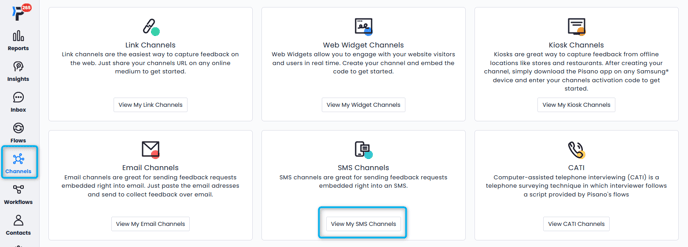
- Go to Channels > SMS Channels > Add to create a new SMS channel. Click here for more information about SMS channel creation.

- Click on "Edit Campaign".

- The API ID that determines which campaign to send is obtained from this screen ( in API usage ). Sample campaign ID:
ae51458c-9e82-417f-8f1d-e074891ea5c1 The link generated for the survey is automatically added to the end of the text by the system during the sending process

- Obtaining Token
API Response Codes
|
Response Status Code
|
Status
|
Status Code
|
Message
|
|
200 |
OK (Successful) |
|
|
|
400 |
bad_request |
13000 |
An error occured |
|
401 |
unauthorized |
13001 |
Wrong authentication token |
|
404 |
NOT_FOUND |
13002 |
Requested resource not found! |
|
404 |
not_found |
13003 |
Reset Token not found |
|
404 |
not_found |
13005 |
This node, nor any of their parent has any flow |
|
403 |
forbidden |
13007 |
It's not allowed to update Pisano node |
|
400 |
bad_request |
13008 |
Record could not be deleted |
|
400 |
bad_request |
13009 |
Updated question already has responses |
|
404 |
not_found |
13010 |
User not found |
|
401 |
unauthorized |
13011 |
User is inactive |
|
409 |
conflict |
13012 |
Password does not match the old password |
|
403 |
forbidden |
13013 |
Permission denied |
|
400 |
bad_request |
13014 |
Wrong activation code |
|
400 |
bad_request |
13015 |
Required field not present in params! |
|
404 |
not_found |
13016 |
Token not found |
|
400 |
bad_request |
13017 |
Duplicate value |
|
404 |
not_found |
13018 |
Response not found |
|
404 |
not_found |
13019 |
Activation token not found |
|
400 |
bad_request |
13020 |
You selected a reserved node type. Please choose another one. |
|
400 |
bad_request |
13024 |
Multiple responses given for a non-multiple choice question |
|
400 |
bad_request |
13026 |
Captcha is invalid |
|
400 |
bad_request |
13028 |
Invalid parameters |
|
400 |
bad_request |
13029 |
Invalid security hash |
|
400 |
bad_request |
13030 |
Invalid authentication token |
|
400 |
bad_request |
13031 |
Invalid proxy server parameters |
|
409 |
conflict |
13032 |
Wrong credentials |
|
400 |
bad_request |
13033 |
Invalid SDK credentials |
|
400 |
bad_request |
13034 |
Invalid Flow |
|
404 |
not_found |
13035 |
Node not found |
|
403 |
forbidden |
13036 |
Account locked |
|
400 |
bad_request |
13037 |
Malformatted CSV |
|
400 |
bad_request |
13038 |
Required customer identitiy keys not present in params! |