
Flow Regulations
In order to create the template to be used in the import process, the question keys of all general and personal information questions in the relevant flow must be defined.

This can be done for each question type from the Settings > Define Key pane.
Creating a Transfer Template
In Pisano, feedback must be positioned in a unit or channel.
Therefore, you must create the channel or unit where you want your feedback to stop. You can get support from the articles below.
How to Create a Channel in Pisano?
How to Create a Custom Unit Type for Your Organizational Structure?
You can access the template creation interface by following Feedback > Transfer Feedback, then select the unit/channel you specified and the stream you will transfer to and press the download button.

Transfer Template Edits
There are certain rules to follow when preparing the template we downloaded to our computer.
- Filling in the node_id, flow_id, language, created_at columns is mandatory.
- Each feedback you want to transfer corresponds to one row, and the node_id, flow_id, language, created_at columns must be filled for the total number of rows. (The node_id and flow_id provided in the file should be added to all rows in a one-to-one correspondence.)
- If at least one of the customer_id, customer_name, customer_email, customer_phone_number columns is not filled, the feedback will be created anonymously.
- The answers to multiple-choice questions must be filled in exactly equal to the option keys of the relevant question in Pisano. For question types that do not have this field such as Satisfaction, NPS, the answers are provided as examples in the downloaded template.

To adhere to these rules, responses to the relevant questions are added to the columns for each row, ensuring that each row represents one feedback. Then, the file is saved as XLSX or CSV.
To import the template:
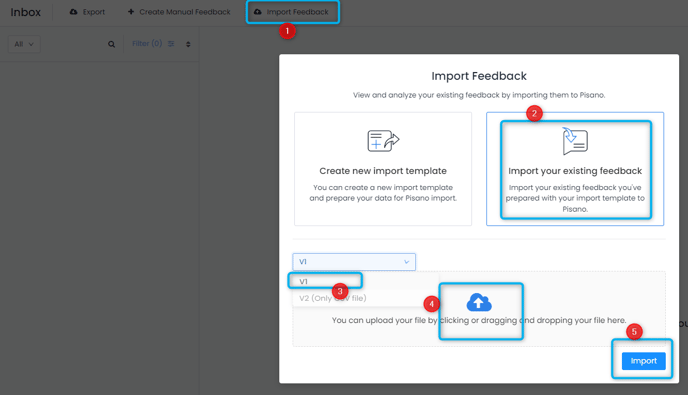
- Navigate to Feedbacks > Feedback Transfer to access the template creation interface.
- Choose between V1 or V2 based on the type of file you've prepared.
- Click on the "Import" button to initiate the process.
The processing time will depend on the number of rows in the file, and it might take longer for larger files. After the process is completed or in case of any errors, the user will be notified via email.