SAML Configuration screen can be accessed through the Pisano interface by navigating to Admin> Account Settings > SAML Configuration menu.
There are two methods for SAML configuration in Pisano:
- Using IDP Metadata
- Using Entity ID
In both methods, user management can be done in two different ways:
- Only user password authentication can be performed with SAML.
- In addition to password authentication, synchronization of user roles and permissions, employment status (working/resigned), and organizational unit information can be achieved.
If you want to manage the roles and permissions of users entering the system through SAML integration in addition to password authentication, you can activate the "Create or Update User" option. This will allow you to access the Defaults and Attributes pages required for these synchronization settings.

When this option is not enabled:
- User synchronization will not be performed, so users entering the system will need to be defined in the system with Pisano invitations.
- Only password authentication will be performed via SAML. Role and permission management will be handled through Pisano authorization screens and definitions.
- Users not defined in Pisano will not be able to access the system.
Setting Up SAML Integration Using IDP Metadata
This is the most commonly used method. If you want to proceed with this method, the following option needs to be activated in the Pisano interface:

SP Certificate and SP Private Key values are Pisano certificate details. First, it's necessary to create a valid certificate. Online tools can be used for this purpose. For example: Generate SAML Self-Signed X.509 Certificates - Create Self Signed Certs | SAMLTool.com
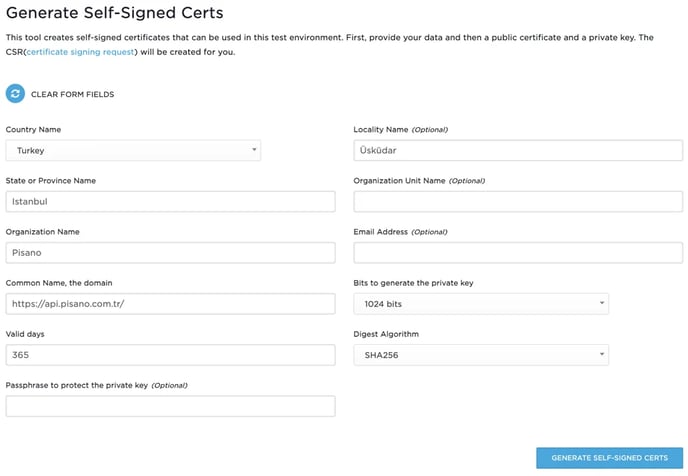
When you click on the above page, you can create a certificate by entering the following information in the opened area:
Country name: Turkey
State or Province: Istanbul
Organization Name: Customer Organization Name
Common Name, the domain: Pisano API URL
The API URL information will be shared with you by Pisano.
For on-premises customers, the API URL information should be replaced with the information in the api_host variable within the API configmap (ENV) by the system administrator.
Valid Days: 365
Bits to generate the private key: 1024 bits
Digest Algorithm: SHA256
After filling out the fields as shown above, you can generate the certificate and key by clicking the "GENERATE SELF-SIGNED CERTS" button.
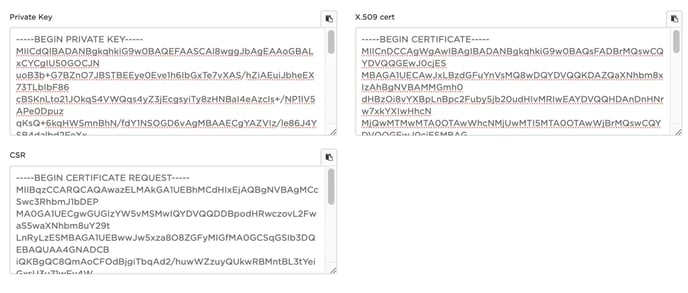
When you click the button, you will obtain the Private Key and X.509 Certificate information as shown below:
- Paste your system's metadata into the "IDP Metadata Settings" field,
- Paste the Private Key value obtained from the site into the "SP Private Key" field,
- Paste the X.509 Cert value obtained from the site into the "SP Certificate" field.
Once you save the configuration, the necessary settings for integration will be completed.
Afterward, you can start your testing by configuring the metadata you receive from Pisano within your SAML services.
You can access the Pisano Metadata as follows (you can obtain {pisano_api_URL} and {Account_ID} information from Pisano teams):
{pisano_api_URL}/v1/saml/{Account_ID}/metadata
For example: https://api.pisano.com.tr/v1/saml/Pisano-cx-tool/metadata
Setting Up SAML Integration Using Entity ID
If you are not using IDP Metadata, you can also integrate using the IDP Entity ID and Fingerprint information.

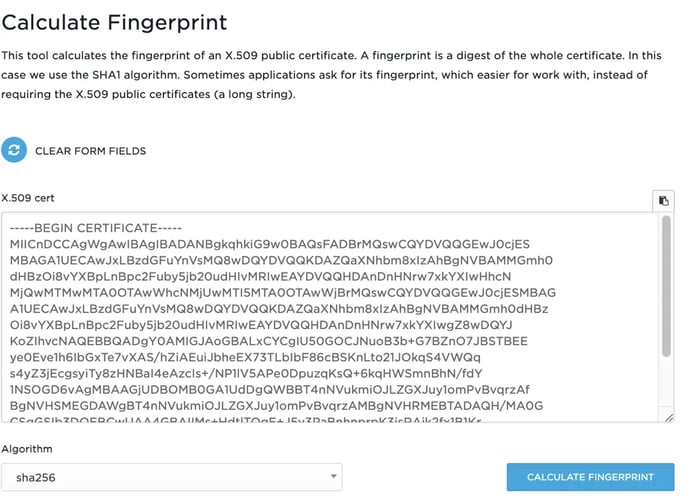
You can directly use the IDP Entity ID value found in your metadata. You can generate the Fingerprint value using online tools. For example: SAML X.509 Certificate Fingerprint - Online SHA1 Decoder | SAMLTool.com
Paste the X.509 certificate value into the form, select "sha256" as the Algorithm, and then calculate the Fingerprint by clicking the "CALCULATE FINGERPRINT" button.
In the Pisano SAML Configuration screen:
- Paste your own system's 'IDP Entity ID' information into the 'IDP Entity ID' field,
- Paste the FingerPrint value obtained from the site into the 'IDP Certificate Fingerprint' field,
- Paste the 'IDP Single Sign-on URL' and 'IDP Single Logout URL' values found in your metadata into the respective fields.
Once you save the configuration, the necessary definitions for integration will be made.
Afterward, you can start your testing by configuring the metadata you receive from Pisano within your SAML services.
You can access the Pisano Metadata as follows (you can obtain {pisano_api_URL} and {Account_ID} information from Pisano teams):
{pisano_api_URL}/v1/saml/{Account_ID}/metadata
For example: https://api.pisano.com.tr/v1/saml/Pisano-cx-tool/metadata
Defaults:
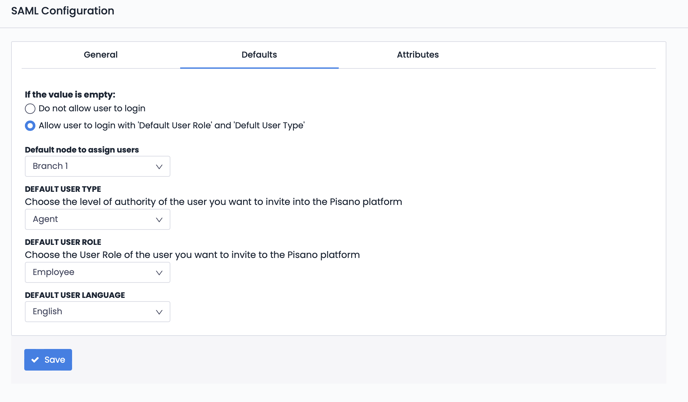
Here, you can define the necessary configuration values for default user login. If the Role and Branch values are empty in the values coming through SAML, the user will be logged into the system with the default values defined in this area:
Attributes:
In the Attributes tab, a person's title, department, and role fields can be defined.
The organizational hierarchy is not automatically updated in Pisano. Only the incoming user information is automatically assigned in Pisano.
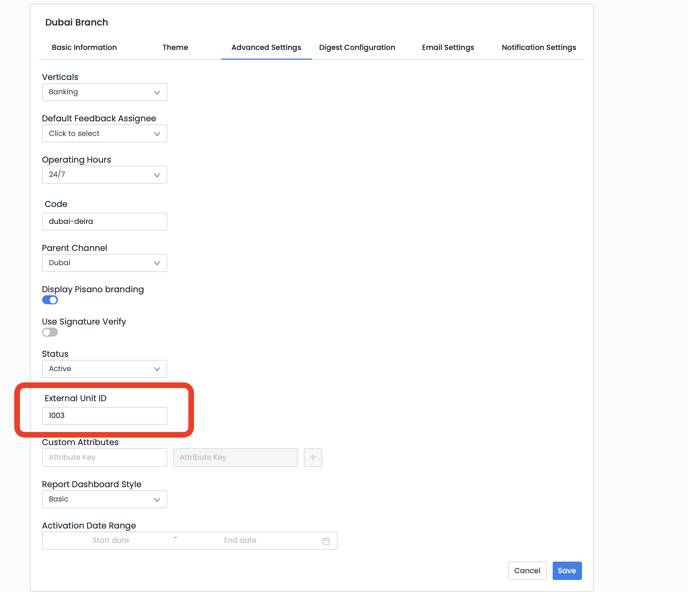
VALUE TO BE ASSOCIATED WITH THE ORGANIZATIONAL UNIT: This refers to the attribute value of the "Organizational Unit" code to be read from LDAP. When a user logs into Pisano, the value of this attribute will be searched within the Pisano Customer Organizational Hierarchy (External Unit ID), and the logging-in user will be assigned to the corresponding organizational unit if a match is found. If no match is found, the login process is managed according to the selections made on the "Defaults" page.
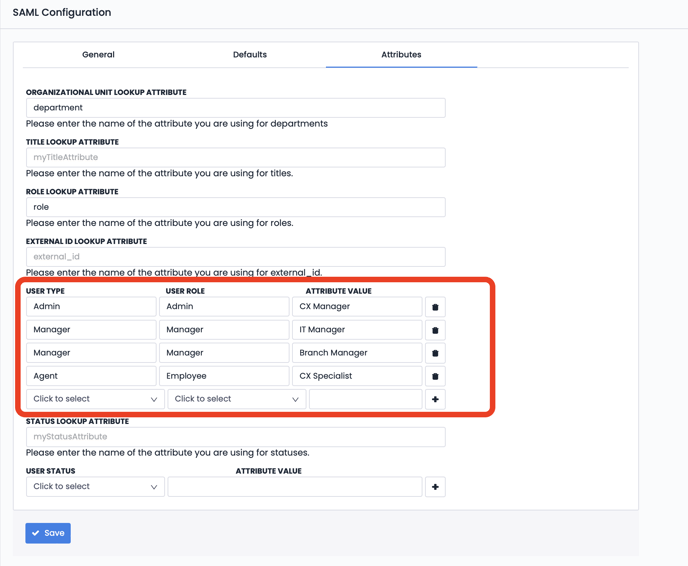
TITLE LOOKUP ATTRIBUTE: Indicates the attribute from which the title values of users coming from LDAP will be read.
ROLE LOOKUP ATTRIBUTE: Indicates the attribute from which the role values of users coming from LDAP will be read.
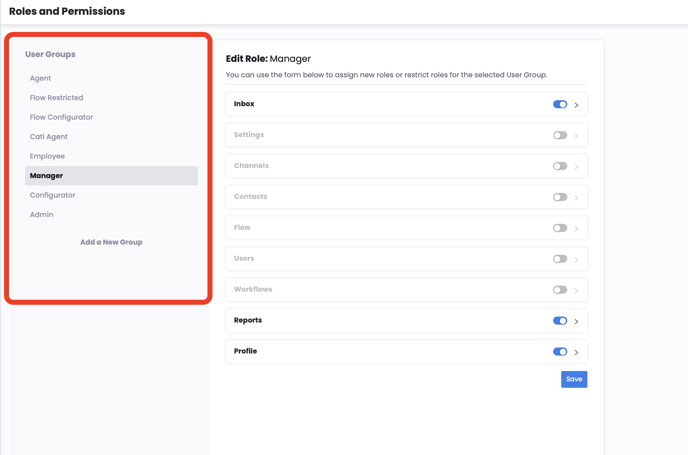
For each User Type and User Role defined in Pisano, a mapping table should be created based on the role values coming from LDAP, as shown in the image below with blue framing. For example, if the value coming from the "Role" attribute in LDAP is "IT ADMIN", the user will log in to Pisano with the "Manager" role according to the mapping table below.
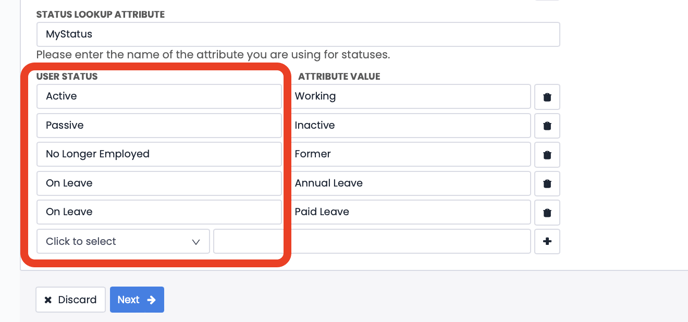
STATUS LOOKUP ATTRIBUTE: Indicates the attribute from which the employment status values of users coming from LDAP will be read. It is not mandatory.
The User Status information in the section framed in red below allows the information to be updated with the matching information from LDAP, and users are listed in Pisano with this status.