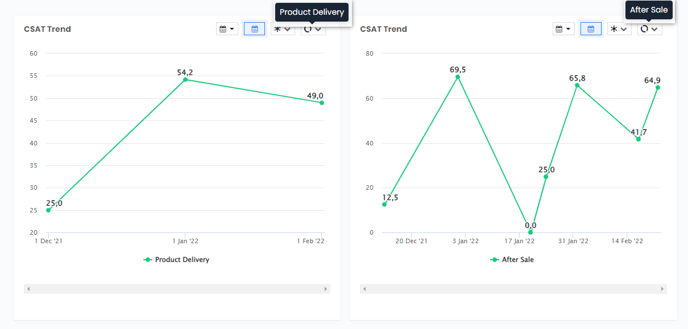
In Advanced View; you can create completely separate widgets of different Flows. The Advanced View will give you the chance to compare data from different flows and channels within the same report.
Basic View reports are generic reports. If you're focusing on data within a single Flow or Channel, you can use Basic View.
In reports, you can switch between Advanced View and Basic View, however, it is important to be careful while switching between them to avoid data confusion.
Below are some examples using the Basic View.
With Basic View, you can make a generic dashboard and change the flow from the flow filter. You can use the same report for different flows by changing the selected flow or channel.
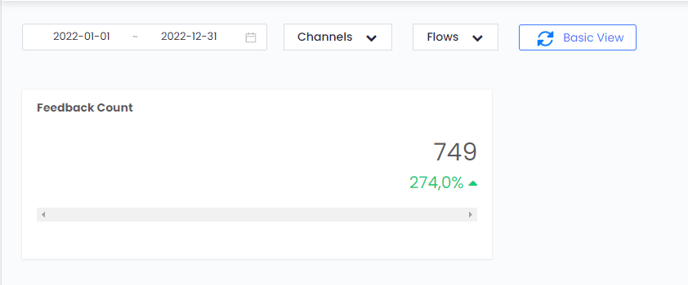
If you want to show the sum of the feedback counts of different Flows in the same widget, you should use the Basic View as shown below.
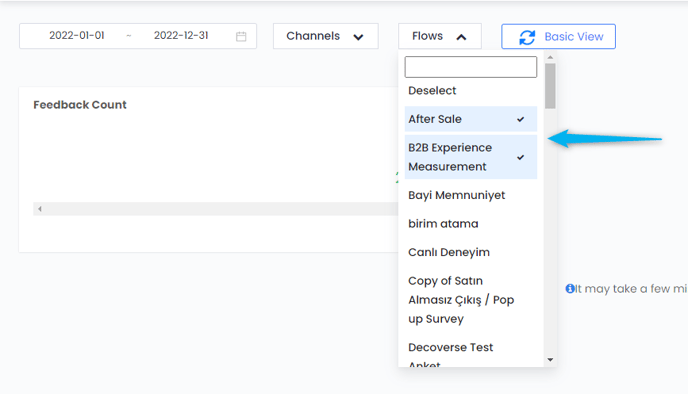
However, if you want to show the CSAT score for different Flows in the same report separately, you should use an Advanced View widget as shown below.
If you want to compare data from different Flows with each other in the same report, you can use the Advanced View.
Below are some examples using the Advanced View.
As shown in the example below, in the Advanced View, Flow and Channel filters are embedded in the widget. With these buttons, the content of each widget can be changed independently of the others.
In the example below, the left widget shows the feedback count for the After Sales flow, and the right shows the feedback count for the Product Delivery flow.
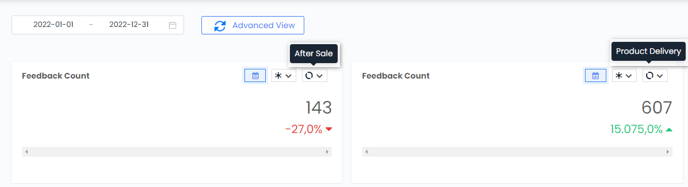
The view written on the button shows the view you are currently in.

To switch from Basic View to Advanced View, simply press the button shown above.
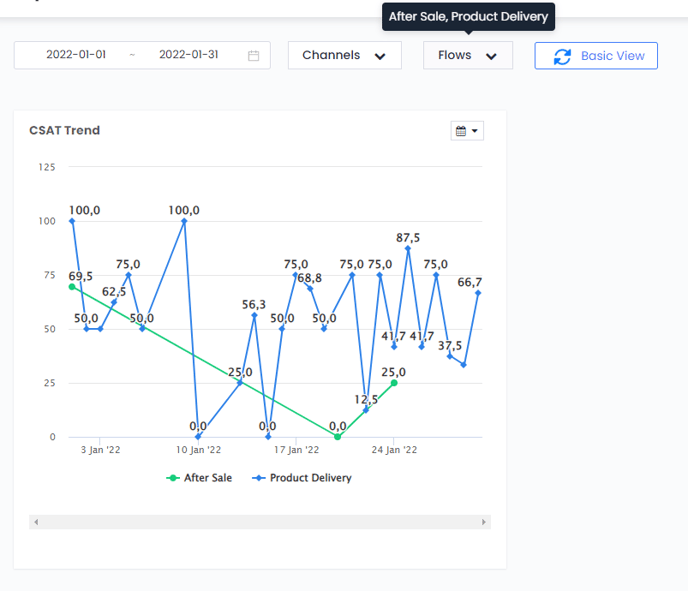
Below you can see the comparison between the Simple View and the Advanced View for a report showing the CSAT Trend.
The following example is in Basic View. Two different Flows are selected with the Flows button. In this way, curves of both flows can be observed in a single widget. Changes made from these buttons will affect not only this widget but all widgets within the report.
The example below shows the Advanced View, you can see the trend of two different Flows in different widgets. The Advanced View allows you to make independent changes for each widget based on date, channel, and flow without disturbing the other widgets in the report.