
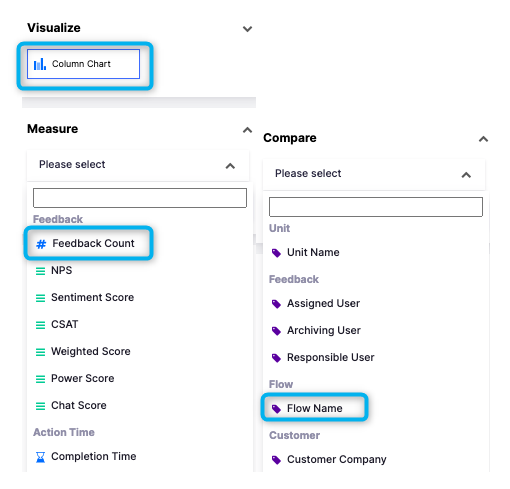
- Select Column Chart from Visualize
- Select the data you wish to measure from Measure, such as Feedback Count.
- Select what you want to compare, for example, if you want to compare the Feedback Count of different Flows you should select ''Flow''.
Below is an example of a Column Chart that shows the Feedback Count of Dissatisfaction Reasons.

In order to create this widget you should select the Flow and Question filters from the Filters menu as seen below.

Afterwards, select the flow you wish to draw the data from, and the question to measure the feedback count of each option.
Upon clicking "Create Widget," your Column Chart will appear on your report.