
The Text Analysis Process in Pisano consists of four main menus:
- AI Model Studio: Allows users to create and manage their own analysis models.
- Workflows: Automates analysis processes within the framework of specified rules.
- Feedback Analysis: Displays feedback processed by models and presents analysis results.
- Intelligent Tags: There is a list of labels created via NLP that will automatically classify feedback, and these labels can also be trained.
- Content Categories: The list and management of content categories created by artificial intelligence models are provided.
AI Model Studio
It allows the creation of different analysis models for text analysis in Pisano. From there, new models can be defined, trained and managed.
Model Types
Pisano offers three powerful model types tailored to different needs. Each is designed to perform best in different scenarios for analyzing your feedback data:
- PisanoCore (Base Model) : This model, which is the starting point for everything, is pre-trained for general purpose use and can be used immediately without any preparation. It offers effective, fast and powerful analysis results, especially for first installations that do not have a category list. It is ideal for beginners.
- PisanoEdge (Customizable Model): This model offers a flexible structure that the user can train with their own data. If you know which categories and emotional states are more prominent from your past feedback data, you can teach this information to the model and create an analysis intelligence specific to your organization. In other words, the best way to reflect your experience to the model is the Edge model.
- PisanoEmbed (Embedded Model): It is specifically optimized for specific industries or usage scenarios. If you already have a list of categories and want the feedback to match this list exactly, the Embed model is the right choice. Thanks to this model, your texts are matched to the closest concepts while preserving the integrity of the meaning.
Steps to Create a Model
- Enter the AI Model Studio menu.
- Click the "Add Model" button.
- Select the model type (Core, Edge or Embed).
- You can create a new model or train a new model using an existing model. In this process, different configurations are possible depending on the model type you choose:
- When the Core Model type is selected, you can define your model as Natural Language Processing (NLP) or default AI model. The Core model creates content categories with data from the NLP or default AI model. In this way, you have a strong foundation for your text analysis or general AI needs. In order for smart tags to work, you must define a model with the Core model type and NLP as the AI model.
- When the Edge Model type is selected, a new model can be built from scratch with the default AI infrastructure. If you wish, you can retrain an Edge model you have previously created by selecting it from the “Pre-Trained Models” list and obtain a more advanced Edge model.
- When the Embed Model type is selected, you can follow two different paths:
Create an Embed model from scratch with the default AI model.
Or, select a pre-trained Edge model and derive a smarter Embed model from it. This way, you can integrate the knowledge of your Edge model into the Embed model.
- Enter the name and description of the model.
- If you choose the edge model, upload your dataset via the sample template. (Data titles that should be in the dataset: Comment, Category, Sentiment)
Example:
- If you choose the embed model, upload your dataset via the sample template. (Data titles that should be in the dataset: Category)
Example:
- In model configuration, Creativity Level and Vocabulary Diversity are two important parameters that determine how we control the language model output. You can play with these values if you want to give more consistent or creative output. By default, it will come defined.
- Creativity Level: This is the parameter that determines how "creative" the model will be in its responses.
- Value Range: 0.0 – 2.0 (usually 0.1 to 1.0 is used)
- Low Creativity Level (e.g. 0.2): More consistent, more predictable responses (gives the same answer to the same question whenever possible)
- High Creativity Level (e.g. 0.9): Produces more diverse and creative responses, but accuracy or consistency may decrease.
- Value Range: 0.0 – 1.0
- Low Word Diversity (e.g. 0.1): Only the most probable words are selected. Used when more precise and reliable answers are desired.
- High Word Diversity (e.g. 0.9): Select from a larger pool of words, increasing the diversity of the model.
- Value Range: 0.0 – 2.0 (usually 0.1 to 1.0 is used)
Creativity Level increases or decreases the randomness of words (changes the probability distribution).
They are often used together:
- Low Creativity + Low Word Variety: More consistent and predictable responses.
- Yüksek Yaratıcılık Seviyesi + Yüksek Kelime Çeşitliliği: Daha yaratıcı ve çeşitli yanıtlar.
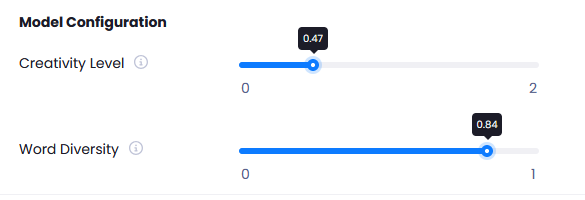
To use the model you defined, you need to associate it with a workflow.
- If the model type you choose is Core, this model does not require any training process as it is a pre-trained structure and can be connected to a workflow immediately after it is defined.
- When you choose Edge or Embed model types, the model needs to be trained before it can be used. Therefore, you need to wait until the model status changes from “In Progress” to “Inactive”.
- Your passive models are now ready to be connected to the workflow after the training process is complete. At this stage, you can use the model actively by defining a workflow to run it.
- Creativity Level: This is the parameter that determines how "creative" the model will be in its responses.
Model Statuses
| Status | Explanation |
| Active | The model is associated with a workflow and is running. |
| Passive | The model is not linked to any workflow. |
| In Progress | Model is being trained. (Applicable to Edge and Embed models) |
| Failed | The model received an error during the training process. You can run your model by clicking the Add Workflow button on the model you defined to add a workflow. |
When you click the Add Workflow button, a workflow name will be defined for you.

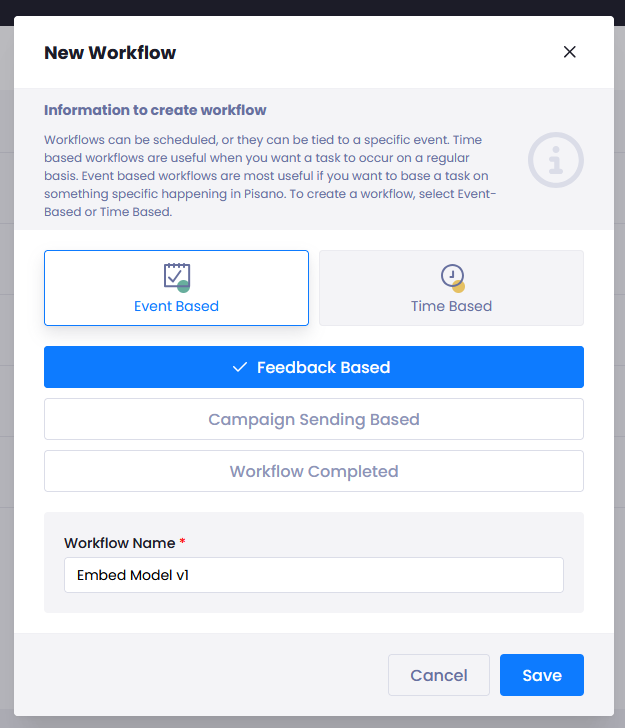
After clicking the Save button, the Run Text Analysis task will open and the AI model will be automatically selected.
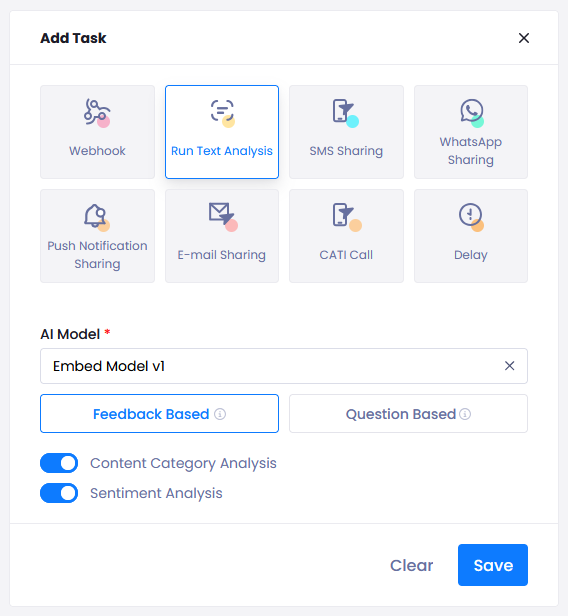
Analiz Türünü Belirleyin:
Feedback Based Analysis: Analysis is performed on all feedback.
Question Based Analysis: Analysis is performed on the response given to a specific question. When more than one question is selected, it combines the text of the selected questions to create an analysis.
Content Category Analysis and Sentiment Analysis are both turned on by default. You can specify which analysis to perform or not, depending on your preference.
After saving the task;
- Set Operating Conditions:
- Channel-Based execution → feedback from a flexible channel is analyzed.
- Flow Based Execution → The model is run from a specific flow or when a specific flow answers a related question.
- Customer Schema Based Execution → A model specific to a specific customer segment is analyzed.
- Save the workflow and activate it.
Feedback Analysis
Models created in Pisano analyze customer feedback. The Feedback Analysis Menu helps users view the processed data. Sentiment analysis results and category assignments can be viewed here.
- Enter the Feedback Analysis menu.
- The screen that opens contains columns such as Model Name, Channel, Stream, Feedback Text, AI Category, AI Emotion and Creation Date

- Analiz edilmek istenen tarih aralığını belirleyin.
- Model, kanal veya kategoriye göre filtreleme yapın.
- Bir geri bildirim satırında Göster butonuna tıklayarak detaylarını inceleyin.

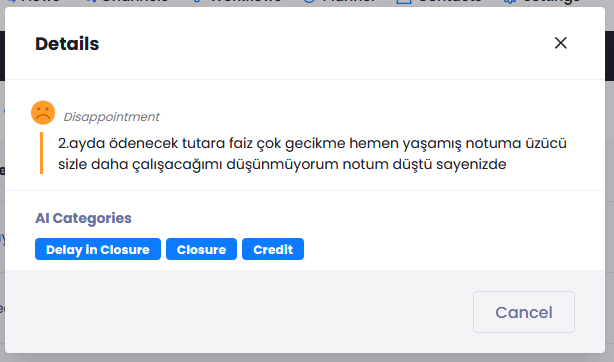
- If you want to go to the details of the feedback, click on the "Go to Inbox" button.
Feedback logs created in the list are automatically deleted when they are older than 3 months.
Intelligent Tags
Intelligent Tags are included in the dictionary list created by the NLP model. You can train the relevant Intelligent Tags from this menu.
If you want to do training for more than one intelligent tag, you can also do these operations in bulk.
- Enter the Intelligent Tags menu.
- View and manage existing tags in the "Dictionary" tab.
- You can train existing tags in the "Training" tab.
- To block a tag, you can use the "Block" button.
Intelligent Tags contain rules that require manual training. Constantly updating the tags will make the analysis results more accurate.
Content Categories
Content categories provide meaningful insights by categorizing analyzed feedback into predefined categories. This menu contains a list of categories created by artificial intelligence. All content categories can be edited, and their active or passive status can be determined.
- Enter the Intelligent Tags menu.
- View existing categories.
- To edit existing categories, hover over them and click the edit icon.
- You can make existing categories inactive.
- Passive categories affect parent categories. If a category is passive, its subcategories will also be passive.
Authorization
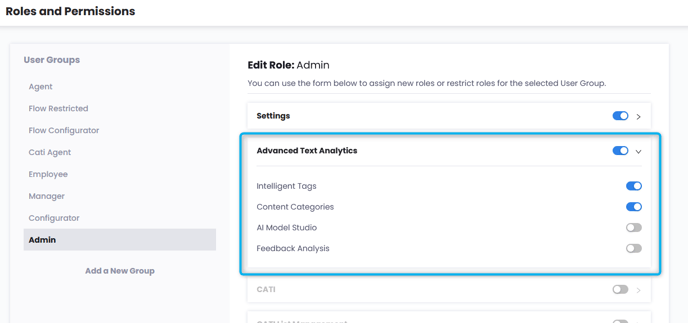
Menu authorization must be given to the relevant role groups in the Roles and Permissions menu.
Text Character Count Settings
A new setting has been added to the interface, setting this limit to 30 characters by default, but it can be customized to a minimum of 5 characters.
This field is only visible in accounts with the Advanced Text Analysis feature enabled.
The setting is located in the Account → Advanced Settings tab.
Default value: 30 characters
Minimum value: 5 characters
