
The number of surveys sent, created, answered, and clicked on in these channels are displayed in the funnel.
- From the visualization section, select "Funnel," then choose the relevant channel type.

-
Afterward, the communication channel to be reported should be selected.
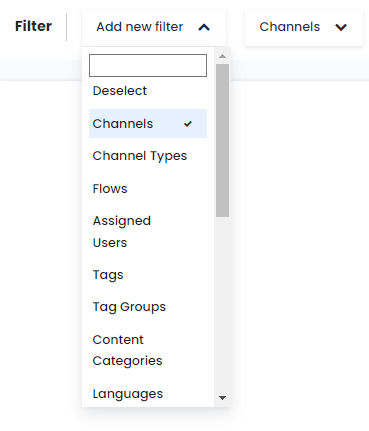
In the "Filter" section, add the "Channels" filter and select the name of the channel you want to report.
Sent: The number of requests Pisano made to the provider.
Opened (for email): Information on how many times the communication was opened.
Clicked: The number of times the survey was viewed.
Feedback Count: The number of feedbacks provided.
Failed to Send (Communication Policy): The number of requests blocked by the communication policy covering the relevant channel.
Failed to Send (Unsubscribed): The number of recipients who indicated to Pisano that they do not want to receive communication.
Email Channel Funnel Example
As seen in the example below, 1506 surveys were sent through the selected email channel, 167 emails were clicked, 1053 emails were opened, and 140 surveys were answered.

SMS Channel Funnel Example
As seen in the example below, 1358 surveys were sent through the selected channel, 94 links were clicked, and 51 surveys were answered.

Output of the Sent List
After creating a funnel chart, by clicking the "Download as Excel" button, a list of recipient information that was contacted on the specified date can be obtained. Once the command is given, the file will be sent to the user's email address.
It tracks the generated links sent within the selected date range for the funnel graphic and reflects the data accordingly.
The feedback count column in the file output is presented as present (1) / absent (0).
If a distributed request does not appear as sent, there may have been an issue with communication with the provider.